Search for previous documents
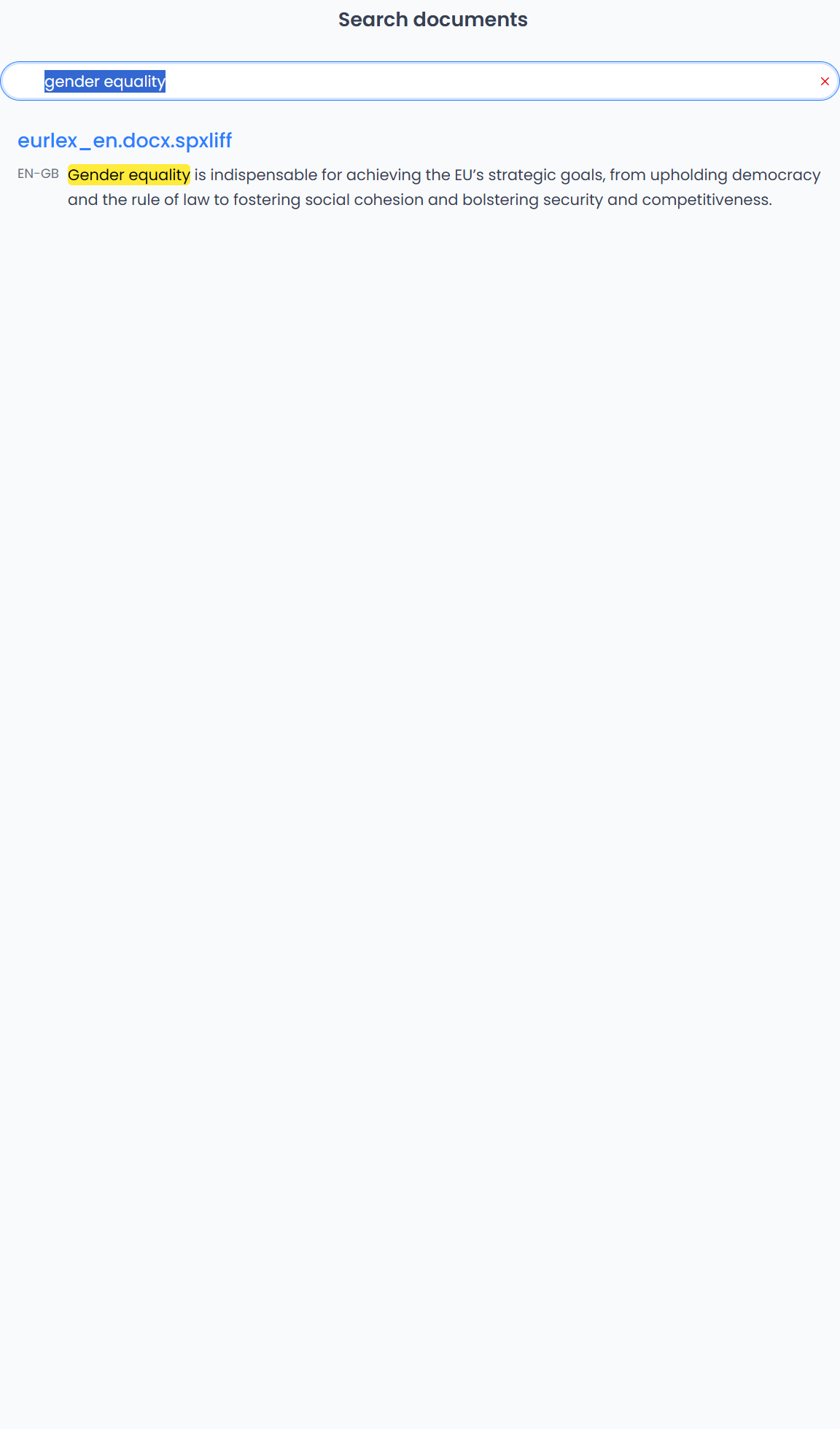
Open Documents → Search when you remember wording from previous work but not the document name. Enter a distinctive phrase and submit it. Typing alone does not run a new search; submit the phrase again to refresh the same search.
Key points
Document search starts from source and target wording saved in translation memories, then finds associated project files. Wording that exists only in an unconfirmed draft may not be found.
Which saved text is searched
Document search starts from the source and target text saved in your translation memories. It then identifies project files associated with those matching pairs. A saved pair can identify its original file, or be matched to an equivalent confirmed pair in another file.
This is therefore not a search of every draft in every imported document. A file can be absent if its relevant wording has not been saved to memory, has no usable file association, or is unavailable in the current workspace. It does not search arbitrary folders on your computer or documents on reference websites.
For example, searching a phrase confirmed into a project memory can return the associated manual. A phrase typed only into an unconfirmed target may not be found through this tool.
Search a source or target phrase
Use a word or phrase from the source or translation. The search checks both sides; there is no source/target side selector on this page.
The query is treated as literal wording rather than a regular expression. Search uses normalized text and can match wording inside a longer passage. Use a shorter distinctive phrase if a long query does not find the file. Punctuation and wording differences can still affect results.
Choose Concordance when you want to research saved translation examples rather than open their documents. Choose Filtering to inspect matching segments in an already open file.
Read the results
Each result provides a file name and up to three distinct excerpts from saved source–target pairs. Language labels identify the displayed side; matching wording is highlighted. A result can show a matching source, target, or both.
The excerpts are samples, not a complete list of every occurrence. They describe saved memory wording and may differ from later unsaved or unconfirmed changes in the document.
Select the file name to open its editing workspace. Search results do not apply a translation, replace text, or confirm segments. After opening the file, use its filters to locate and review the occurrence you need.
Check incomplete or missing results
- Check the spelling and try a shorter phrase.
- Confirm that the wording exists in saved memory pairs, rather than only a draft.
- Check the account and storage workspace containing the memory and project file.
- Distinguish no results from a data-loading error. Use Retry for a loading error.
- If a partial-results warning appears, the displayed results came from the available data; do not treat them as a complete search of the unavailable workspace.
Clear the search field to remove the current query. This page's search does not change translation-table filters or delete saved files.