Desktop dictation
Dictation converts a short microphone recording into text for an editable field. It does not translate what you say. This guide covers the desktop app's Settings → Dictation page and its hold-to-dictate command. That setup page is not available as a working dictation setup in the browser app.
Quick steps
In the desktop app, open Settings → Dictation, install and enable a speech model, and test a recording. Assign the hold-to-dictate shortcut, focus an editable field, hold the shortcut while speaking, then release it.
Install and enable a speech model
A speech model is the downloaded resource used to recognize the recording. It is separate from the AI translation settings and from spelling dictionaries.
- Open Settings → Dictation in the desktop app.
- Choose a Speech model. The list shows each model's download size.
- Choose Download model and wait for download and verification to finish.
- Turn on Enable local dictation once the selected model is installed.
- Check Dictation language. Choose the language you will speak, or clear the choice to use the destination editor's language. The settings-page test uses English when no language is selected.
Changing the model disables dictation until you enable the selected installed model again. A download needs a connection and must finish before that model can be enabled. Use Cancel if you need to stop the current operation.
Test recording before editing
Under Try dictation, choose Start recording, wait for the ready tone, then speak a short sentence. Choose Stop and transcribe and wait for the transcription phase to finish.
Read Last transcript and compare it with what you said. The test displays recognized text; it does not insert the test sentence into your project. The page also displays the current operation status and, after a result, transcription time.
Check names, numbers, negation, and specialist terms. Recognition can produce a correctly spelled word that has a different meaning from the word you intended.
Set the hold-to-dictate shortcut
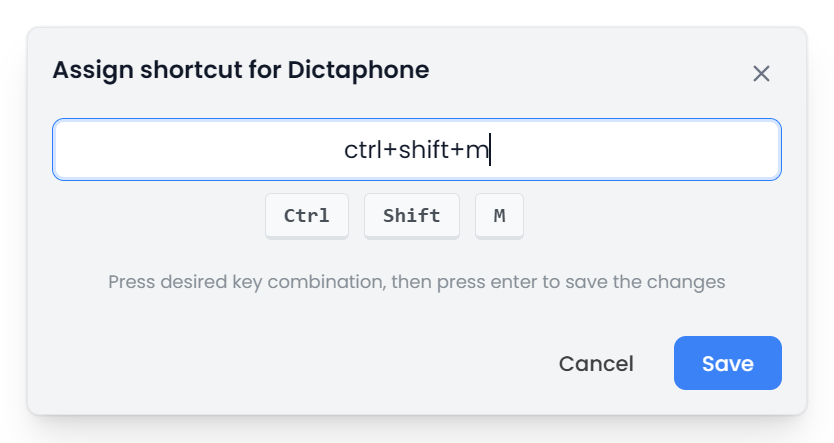
Read the current Hold to dictate assignment on the settings page. Choose Edit to assign a key or combination through the normal shortcut dialog.
The command uses a hold-and-release sequence:
- Place the cursor in the editable field that should receive the text.
- Hold the assigned shortcut.
- Wait for the ready tone, then speak.
- Release the shortcut to stop recording and start transcription.
- Wait for the result and inspect the inserted text.
Ctrl alone can be assigned. With that assignment, pressing another key cancels dictation and allows the normal key combination to run. Escape also cancels. See Keyboard shortcuts when choosing an assignment or resolving a conflict.
The memory editor uses its own applicable shortcut context. If the expected key does not start dictation there, inspect the binding for that workspace as well as the translation-editor assignment shown by the settings page.
Choose where the dictated text is inserted
Dictation needs an editable destination. Click inside the intended field before starting. A locked segment or read-only area is not an editable destination.
Keep the app focused while recording. Switching away from the app or hiding it cancels the recording. Recordings also stop automatically before two minutes, so dictate in short passages rather than treating this as a long-audio import tool.
If the destination changes before insertion, Searchspeare can report that it could not insert the text. Open Settings → Dictation and inspect Last transcript. Copy any text you need into the correct field, then check it in context. An intentionally cancelled recording does not produce a new completed transcript.
Check a failed or empty result
Check that the selected model is installed and enabled, the microphone is available, the app remains focused, and an editable destination is active. Read the displayed error before starting another recording. If the app is still preparing or transcribing, wait or use Cancel.
Very quiet or silent input can produce no insertion. If a recording works in the settings test but not in a document, check the cursor position, lock state, language, and workspace shortcut.
Dictation insertion does not confirm a translation segment. Read and correct the resulting text before using the normal confirmation step.