
Dictionaries and installation
A Hunspell dictionary supplies recognized spellings and word forms for a language. Searchspeare installs it through the Spellcheck panel; the normal installation workflow does not require you to download and place dictionary files manually.
The document's target language determines which dictionary choices the panel offers. Check that language before installing, especially when a regional spelling variety matters to the job.
Install a dictionary
- Open the translation or review file.
- Open the Spellcheck side-panel tab, or use its default F6 shortcut.
- Wait for the dictionary information to load.
- If the panel says Install a dictionary to run spellcheck for this language, inspect the Dictionary selector.
- Choose the available dictionary appropriate to the target language and variety.
- Choose Install dictionary and wait for the download to finish.
- Check the success message and the Spellcheck engine choice.
Installation needs a working connection for the dictionary download. A failed download is different from a successful installation followed by a spelling pass with no findings. Resolve the download error before assuming dictionary checking is ready.
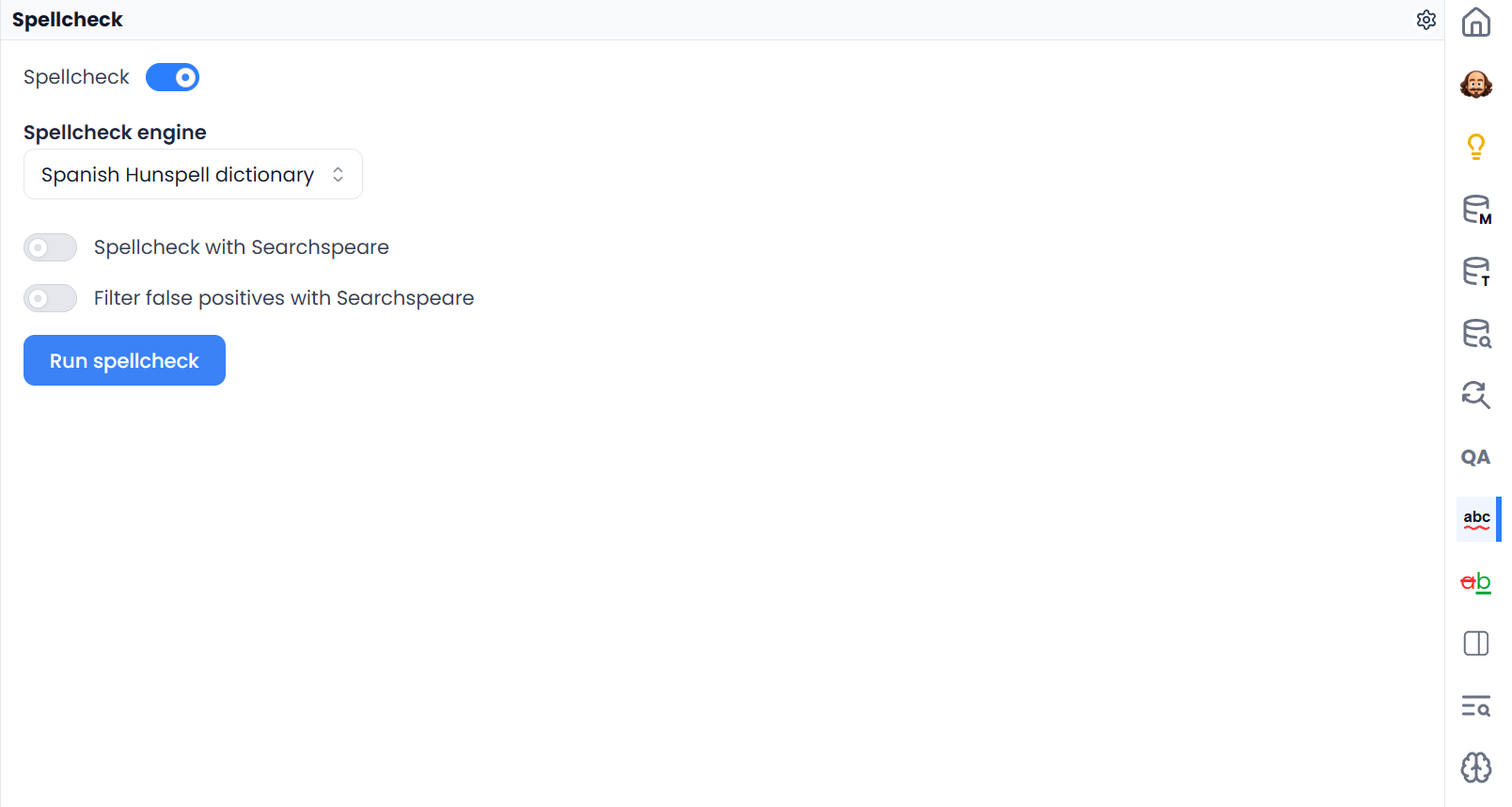
Select the installed dictionary
Under Spellcheck engine, choose the option labeled with the dictionary's language and Hunspell dictionary when you want Searchspeare's dictionary checking.
If the engine still says Browser native, editor spelling remains with the browser. Installing a dictionary and selecting how spelling is checked are separate choices, so inspect the label rather than relying on your previous preference.
For a dictionary pass, leave Spellcheck with Searchspeare off and choose Run spellcheck. If that AI switch is on, the run button starts the Searchspeare correction workflow instead. Searchspeare spelling assistance explains the distinction.
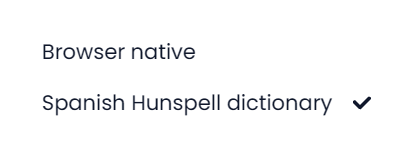
Use Browser native spelling
Browser native provides spelling support in the target editor through the browser's own facilities. Its languages, suggestions, and personal dictionary behavior depend on that browser.
It does not supply the Hunspell result-list pass. If only Browser native is active and Searchspeare correction is off, the panel may have no Run spellcheck button. Install an available dictionary and choose Hunspell to enable that dictionary workflow.
The Spellcheck switch controls spelling support in the editor. It is separate from the engine choice and from starting a review pass. Enable it when you want spelling feedback while typing.
When no dictionary is offered
The panel can report No Hunspell dictionary is available for this target language. Check the project's target language first. The offered dictionaries come from the available language collection; not every language or regional variety has a choice.
Use browser spelling or available Searchspeare assistance when suitable. Do not interpret the absence of a supported dictionary as evidence that the file has no spelling mistakes.
Accept a valid word or install another dictionary
Install a language; accept a word
Install dictionary installs the language resource. Add to the dictionary accepts a particular valid word that the resource does not recognize. The latter does not install a language or add a source–target glossary entry.
Downloaded dictionaries and accepted-word entries are kept in the current account's local workspace on that browser profile or desktop installation. Do not assume that a dictionary installed on one device is already installed on another. Check installation again when moving to a different browser profile or device.
Once installed, dictionary checking uses the downloaded resource. Optional Searchspeare assistance remains a separate choice with its own availability requirements. For valid specialist words, see Reviewing spelling results.