
Storage, synchronization, and backups
Use this guide to choose where work is saved, synchronize project copies, and export or import a local backup. These operations serve different purposes.
Key points
Local work belongs to the current device and installation. Signing in on another device does not copy it. Use project synchronization to transfer project work, or export and import a local backup.
Choose a workspace
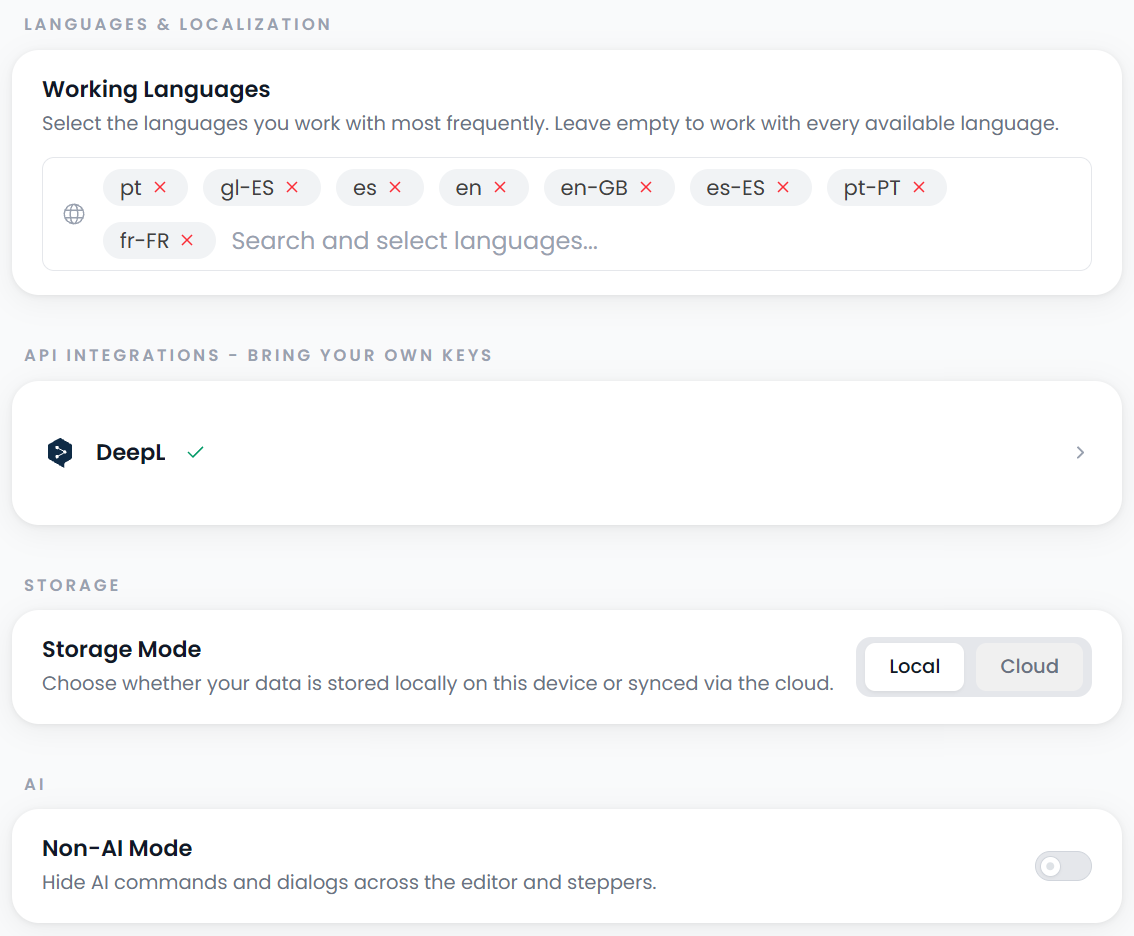
Open Settings → Preferences to inspect the storage choice. Local is the default. Cloud is offered when your plan supports cloud projects.
| Choice | What it means for your work |
|---|---|
| Local | Work is kept in the current browser installation or desktop app on that device. |
| Cloud | Work uses your account's cloud workspace and needs connectivity for cloud-only content. |
Signing in with the same account on another device does not make that device contain your local projects. A different browser profile or desktop installation is also a different local workspace.
Changing the preference changes the workspace you are viewing and using. It is not, by itself, a promise that all existing local work has been uploaded.
Copy or synchronize a project between workspaces
The project synchronization action reconciles the local and cloud copies of selected projects, including the associated resources and files handled by that workflow. It needs an eligible account and a working connection.
- Keep a useful export or backup of important work.
- Select the project or projects you want to synchronize.
- Run the project synchronization action.
- Wait for completion and read any warnings.
- Check the project and files in the destination workspace.
The editor's project storage-switch action saves pending editor work and synchronizes that project before changing the storage choice. This is different from simply changing the general preference.
Do not assume that unrelated offline edits on two devices have already converged. Synchronize explicitly and inspect the result before continuing from another copy.
Understand offline work
Local content can remain available without a cloud connection once the app and required resources are ready on the device. Cloud-only project content cannot be treated as an offline copy merely because you opened it once.
Online actions, including hosted AI, external research sites, cloud account operations, and cloud synchronization, still need their respective connections. Local storage is a choice about saving work; it does not make every optional service operate offline.
Export a local backup
Open Settings → DB and choose Export DB. Searchspeare creates a download containing local work and local project files. Wait for completion and check the reported file, row, and table counts.
Store the downloaded backup somewhere separate from the workspace it protects. Repeat this regularly and before moving devices, clearing browser data, or reinstalling an app.
This is a local-workspace backup. It is not the same as exporting a translated document, exporting a memory as TMX, or synchronizing a project with the cloud.
Import a local backup
On the destination installation, open Settings → DB, choose Import DB, and select the backup. Read and accept the import prompt when you intend to add that saved work to the device.
Import merges the exported work into the current local workspace. Existing data and files are not deleted by this operation. The completion report distinguishes imported, already up-to-date, and skipped items. Older app versions can skip content they do not understand, so read any compatibility warning and keep the original backup.
After import, open a few projects and files to check the transfer. If import stopped partway, check which projects arrived before repeating it.
Protect local work from accidental loss
Back up local work before clearing stored data
Keep using the same browser profile or desktop installation for a local job. Clearing the site's stored data, removing a profile, or uninstalling can affect that local workspace. Make a backup first.
Searchspeare also limits simultaneous access to the local workspace. If it reports that another instance is already open, return to that instance or close the duplicate rather than trying to force several independent windows to edit the same local store. Detached companion panels are provided for multi-window resource work.
If a project appears missing, start with the account, storage mode, device, and browser profile checks in Troubleshooting.