
Concordance tab
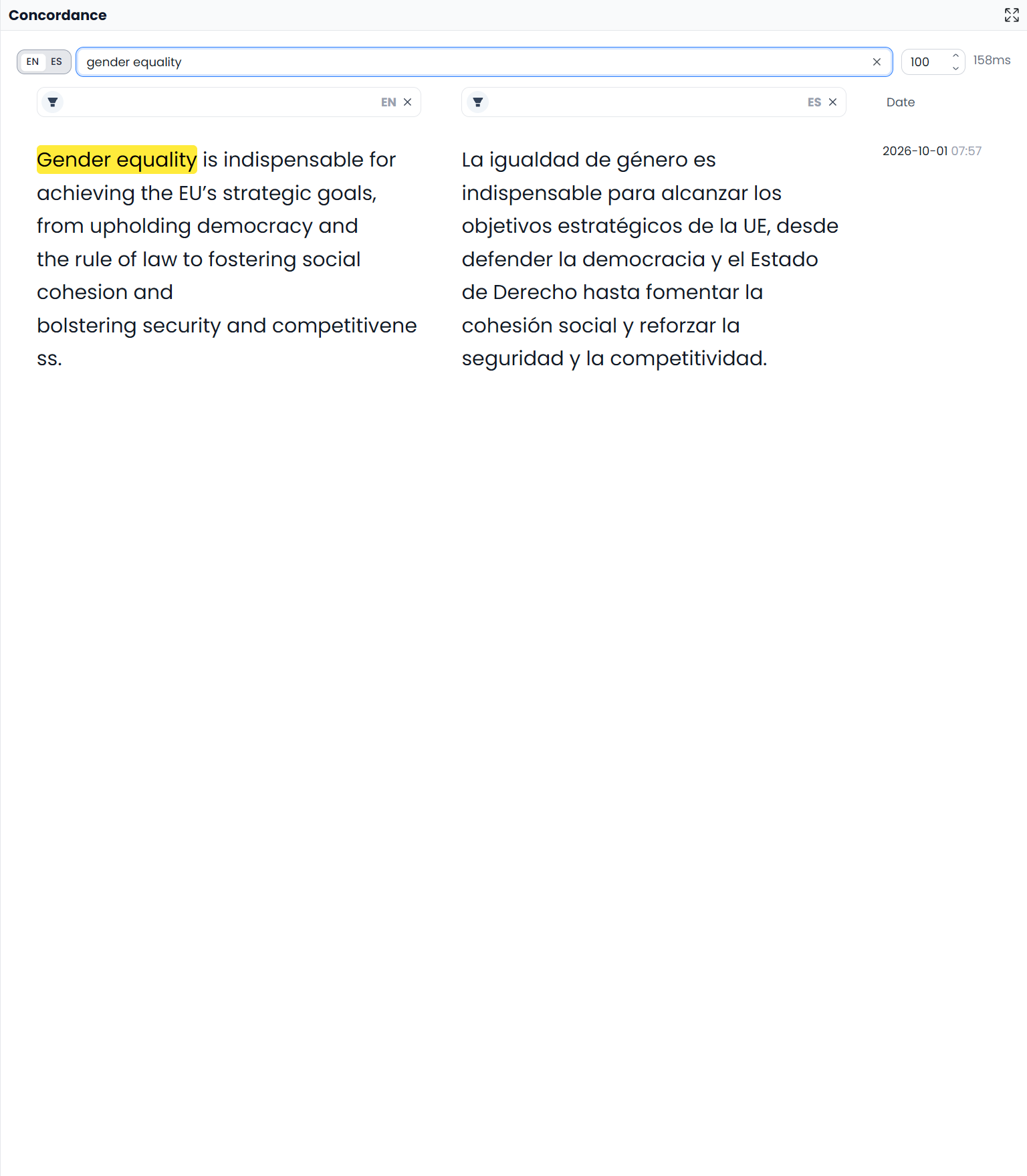
Concordance searches translation memories. It returns saved source passages together with their translations so you can research a word or phrase even when the current complete sentence has no useful memory match.
With memories attached to a translation project, the search uses those memories and the project's language pair. Without an attached-memory restriction, the current search can use available memories for that pair in the active workspace. See the full Concordance guide for resource scope.
For example, a sentence about a pressure relief valve may be new, but earlier translations containing “pressure relief” can still help you choose a consistent expression.
Run a search

- Select the source or target phrase you want to investigate.
- Run Concordance through its command, open the tab, or use the default F3 shortcut.
- In the search header, check which language side you are searching.
- Edit the phrase if necessary and press Enter to search.
- Adjust the result limit if you need a larger sample.
A distinctive expression usually produces more useful examples than a common word. If the list is empty, try a shorter phrase and check that the intended memories are attached to the project.
Choose the source side for original wording and the target side for translated wording. Both languages remain visible in the results. The document's selected rows and table filters do not restrict this memory search to those document segments.
Read both sides of each result
Read the source and target together, and use the available dates to understand the examples. Check the concept, grammatical relationship, client requirements, and language variety. Repeated wording from an unrelated context can be misleading.
Concordance supports a wording decision; opening or filtering its list does not replace the current target. Adapt the expression to the current sentence yourself, then add a glossary entry if the decision should be reused consistently.
Filter results already returned
The source and target filter fields narrow the returned result list. Enter the wording and submit the field to apply it. Negate a field when you want to exclude results containing an expression.
These fields are separate from the main search query. If no useful examples were returned, change the original query or its resource context; filtering an empty result list cannot retrieve new examples.
Concordance filters and document filters are separate
Use each result field's clear control to remove its restriction. These filters affect Concordance examples, not the main document table. The document filter bar's Clear all is a separate control for restoring that table's rows.
Detach the panel
Use the independent-window action when you want to keep research on another screen. Keep the main workspace open, and return the tool through its available window controls when finished.
Concordance is a bilingual resource tool and is omitted in single-language review. For the full research workflow, see Concordance. For whole-sentence reuse, see Matches.