
Selecting segments and batch actions
You can work on several segments together: approve a reviewed group, lock finished text, translate a selection, or run a targeted replacement. The important first step is to know which segments the command will use.
Check the command's scope
Selected rows, filtered rows, and the whole open file are different groups. Some commands also affect rows hidden by filters. Use the tables below to check which segments an action will use before running a batch.
Selecting segment rows, filtering the table, and highlighting words do different jobs. Scope means which segments or words an action uses. Check the action's scope before running it; visible rows alone do not determine what will change.
Selected segments, filtered segments, files, and text
| Scope | What it means | Example |
|---|---|---|
| Open file or View | All segments loaded for the file or saved View, including rows hidden by filters | Run a QA profile across the open file |
| Filtered segments | The segments that satisfy the current table filters, including matching rows you must scroll to see | Replace a term across a filtered review set |
| Selected segments | The rows you selected | Lock five reviewed segments |
| Selected text or caret | Words highlighted inside one editor, or the current insertion position | Make a phrase bold or insert a symbol |
A file with 200 segments might have 30 rows matching a filter and five of those selected. A selected-segment command starts with the five; a filtered-segment command starts with the 30; a whole-file command can start with all 200. Each command can then exclude unsuitable content, such as locked or empty segments.
The operation tables below describe project-file work. Resource editors have additional rules: memory editing and termbase editing require deliberate confirmation of pending corrections, and their mixed-lock selection behavior differs. Use their dedicated maintenance guides for deletion, cleanup, and export scopes.
“Filtered segments” does not mean only the few rows that fit on the screen. Scrolling reveals more of the same filtered set.
Select several rows
| Action | How to do it |
|---|---|
| Work on one segment | Click its row without a selection modifier |
| Select a consecutive range | Click the first row, then Shift-click the last row |
| Add a separate row | Ctrl-click the row; Command-click is also supported for this mouse action |
| Remove a row from a group | Ctrl-click or Command-click that selected row |
| Select the filtered set | Run the segment Select all command |
| Return to ordinary editing | Click one row without Ctrl, Command, or Shift |
Shift-click follows the current table order. If you have sorted or filtered the table, the range is the displayed range between the anchor and the clicked row, rather than every original document segment between their numbers.
With the table focused, Ctrl+Shift+Up and Ctrl+Shift+Down also adjust the row selection one row at a time. Check the highlighted rows after changing a selection.
Use the segment Select all command when you mean rows. Selecting all text inside a search field or editor is a different action. Also remember that Select all respects filters: clear the filters first if you mean every segment in the open file or View.
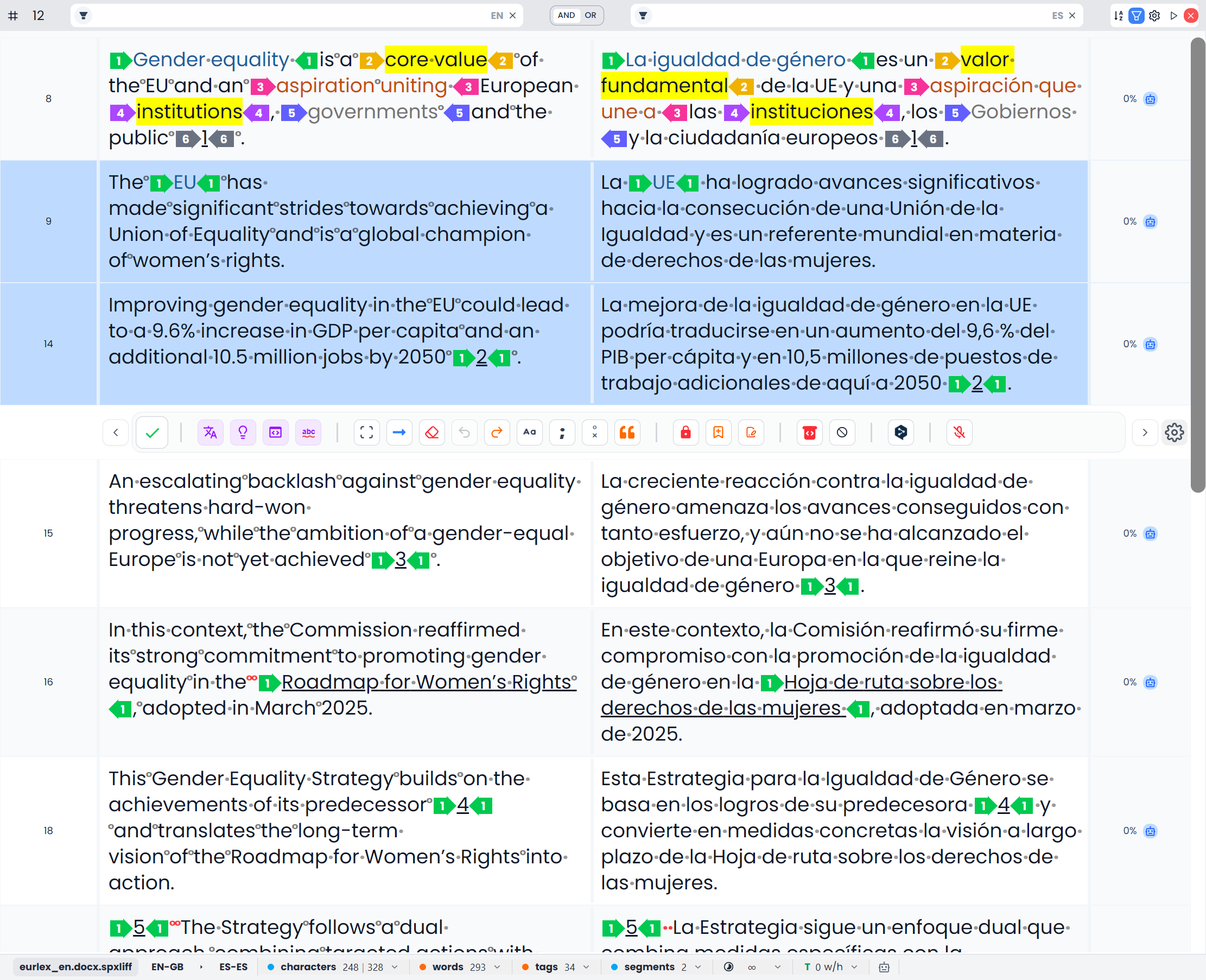
Check the rows before a batch action
- Open the intended file or View.
- Check the source and target searches and the Filters menu.
- Clear filters or create the focused set you need.
- Make a fresh row selection after setting the filters.
- Check whether your command uses selected rows, filtered rows, or the whole loaded file or View.
- Choose the appropriate command or scope option.
- Inspect the outcome before moving on to another group.
After changing filters, check which rows remain selected. Each command determines whether it uses selected rows, filtered rows, or the whole open file.
With several rows selected, use the supported batch commands. To type in a particular target or apply character formatting, return to a single row and select the relevant wording there.
Operations that use selected segments
| Operation | Starting scope and important behavior |
|---|---|
| Confirm | The selected segments, with validation of targets and tags. In bilingual work it also saves approved pairs to attached memories. See the repetition behavior below. |
| Change status | The selected segments. Setting a status is separate from running the confirmation workflow. |
| Lock/Unlock | The selected segments. A mixed locked/unlocked group is locked together; a uniformly locked group is unlocked. |
| Bookmark | The selected segments. A mixed group becomes bookmarked; a uniformly bookmarked group is cleared. |
| Copy Source | The selected segments receive their source as target text. In single-language review this action restores the original text. |
| Clear Segments | The selected targets are cleared where editable. A multiple-segment operation asks for confirmation. |
| Translate from the segment toolbar | The selected rows that are also in the filtered set, excluding locked rows. This differs from the ribbon's document translation choices. |
| Review from the segment toolbar | Selected, filtered, unlocked rows with target text to review and no unresolved target tracked changes. Targets containing only numbers, email addresses, or URLs are skipped. |
| Fix errors | Eligible unlocked selected segments. Inspect the resulting proposals before applying them. |
| Fix tags | Eligible unlocked selected segments with source tags. An export-repair workflow can instead supply its own affected set. |
| Insert unused tags | Selected unlocked segments with required tags still unused. Check the inserted positions afterward. |
| Clear tags or repair segment tag structure | The selected segments, subject to the tool's editing rules. Removing tags and repairing them have different results. |
| Segment case and ending-punctuation tools | The selected segments. These differ from formatting or changing highlighted words in one editor. |
| Fix quotations | The selected segments supply the proposed corrections. Review the proposal before applying it. |
| Review → Accept segments / Reject segments | All recorded tracked changes in the selected segments, rather than just the current tracked change. |
| Pretranslate → Selected units | The selected segments, with the chosen memory threshold and optional AI fallback. |
Selection identifies candidates; it does not make a locked or otherwise unsupported segment editable. Read any skipped-content or validation message rather than assuming every selected row changed.
For example, to bookmark six unrelated questions, Ctrl-click their rows, run Bookmark, and check the resulting marks. To return to them later, use the Bookmarked filter. You do not need to select every other row or move the questions into another file.
Confirmation can affect later repetitions
Confirmation can also update later repetitions
Confirmation has an additional effect: the current confirmed target can propagate to later segments with identical source content in the open file or View. Those repetitions can be outside the current filters.
Do not treat Confirm as a guarantee that only the highlighted rows can receive the approved wording. Check repetitions and context, especially where identical source sentences legitimately need different translations. See Translation memories.
For a batch, an empty selected target can stop confirmation. Required or malformed tags can also prevent affected content from being approved. Bilingual confirmation requires an attached memory; changing a status label is not an alternative way to save approved pairs into that memory.
Operations that use filtered segments
| Operation | Starting scope and important behavior |
|---|---|
| Select all | Selects the entire filtered set, including matching rows outside the screen |
| Pretranslate → All units | Uses the filtered set; it does not include rows excluded by filters |
| Find and Replace → Replace All | Uses the filtered set on the chosen language side, excluding locked segments; From here can narrow the position range further |
| Dictionary Spellcheck | Checks eligible target text among filtered unlocked segments, using supported languages and the chosen spelling options |
| Spellcheck panel → Spellcheck with Searchspeare | Proposes language corrections for eligible target text in the filtered unlocked segments; this differs from the segment toolbar's selected-segment Fix errors command |
| Ribbon Review → All non-empty segments | Reviews eligible non-empty targets in the filtered set; this can include confirmed text |
| Word Count in the editor | Counts the filtered unlocked segments used by that command |
Selecting two rows does not limit these commands to those two rows. Choose a selected-segment option where the tool offers one, or set the filters for a command that uses filtered rows.
For example, to replace a product name only in warning passages, first filter to those passages. Inspect the returned rows, test one replacement, then use Replace All. See Find and replace for the search side, formatting, and From here behavior.
Operations that use the whole open file or View
These commands also use rows hidden by filters:
| Operation | Scope |
|---|---|
| Ribbon Translate → All empty segments | Unlocked empty targets across the whole loaded file or View, including hidden rows |
| Ribbon Translate → All unconfirmed segments | Unlocked unconfirmed segments across the whole loaded file or View, including hidden rows; existing draft targets can be included |
| Ribbon Review → All unconfirmed segments, and the main document Review action | Unlocked targets with new, edited, AI translated, or AI edited status across the whole open file or View, including hidden rows; further exclusions are listed below |
| Run a QA profile, including Check Terms | Unlocked segments across the whole loaded file or View, regardless of row selection or table filters |
The main Translate action uses the same scope as All unconfirmed segments.
The main Review action and All unconfirmed segments check unlocked segments with status new, edited, AI translated, or AI edited. They skip confirmed, pretranslated, pasted, and replaced text. They also skip empty targets, targets with unresolved tracked changes, and targets containing only numbers or addresses such as emails and URLs.
All non-empty segments and the segment-toolbar Review action can include those other statuses. They still require unlocked rows, target text to review, and no unresolved target tracked changes.
Filters do not restrict these whole-file operations. To translate or review a small visible group, select those rows and use the segment-toolbar action. To run QA against a smaller saved worklist, open an appropriate View; merely filtering the full file does not narrow QA to those rows.
QA and dictionary Spellcheck therefore have different scopes. Clearing filters is essential for a full spelling pass, but a QA profile already uses the whole open file or View. Neither automatically checks other project files that are not part of that loaded scope.
Operations that use text or an individual result
In project-file work, bold, italic, underline, superscript, subscript, and symbol insertion use the target editor's text selection or caret. The memory segment toolbar also supports formatting selected source text; its Edit ribbon formatting buttons use the target. Selecting several rows does not mean those character-formatting commands will format every selected segment.
Similarly, inserting a memory match or a target term works with the current segment or editor. It is not a batch pretranslation of every selected row. Use Pretranslation when that is your intention.
Chat uses the selected material and the context enabled in its attachment controls. Inspect those attachments before sending a request; a conversation is not an instruction to process the whole filtered table automatically. Proposal lists and QA or spelling result lists also have their own selections and apply/ignore actions, separate from the editor's row selection.
Why the table sometimes filters itself
Searchspeare can apply filters as part of another task so you can inspect the relevant passages immediately. Examples include:
| Action | What happens to the table |
|---|---|
| Filter a selected source or target phrase | The phrase becomes a search on that language side |
| Ask the Searchspeare filter assistant for a set of passages | It applies search/filter settings or a meaning-based result set; the latter can appear as Filtered by Searchspeare |
| Click a File Index source entry | The source filter changes to find that indexed expression or its grouped forms |
| Click an Adaptive Learning pair | Both source and target filters are set to the pair using literal whole-word matching and AND |
| Click a QA result's Row, Code, or Description | The table is filtered to the selected segment or related rule/message group; QA results explains the distinctions |
| Click a misspelling in the ordinary Spellcheck list | The source search and other conditions are cleared and a literal whole-word target search shows that word's occurrences; see Spelling results |
| Click a word in the discarded-spelling review | The target filter shows occurrences of that word for inspection |
| Encounter certain export tag problems | The affected segment set can be shown for repair |
These actions have not deleted the other segments. The table is showing the current investigation set. Closing a side-panel tab is not a general command to clear its filters.
There may be an active result-set filter even when the source and target fields are empty. Look in the Filters menu as well. Conversely, clearing a status condition does not necessarily remove the text in the search fields.
In Adaptive Learning, clicking a pair finds where both sides occur together. To find the source with a different translation, change or clear the target condition. See Adaptive Learning.
Show all segments again
- Use the X control labeled Clear all in the table's filter bar.
- Check that the source and target fields are empty.
- Check the returned rows and their order.
- If segments are still missing, check whether you opened a saved View. Open the original file to see segments outside that View.
- Make a fresh selection before the next batch operation.
Clear all resets source and target searches, active filter conditions, the restriction to an automatic result set, filter options, associated term highlighting, and sorting. It returns to the normal segment order. It does not erase your translations.
The clear action inside the Filters menu clears that menu's conditions. Clearing an individual search field only clears that field. Use the filter bar's Clear all control for a complete reset when you want the full open file or View again.
For example, after checking an indexed term, use Clear all before selecting the next unrelated batch. Before a final dictionary spelling pass, clear filters so hidden segments are included. Before a selected-segment action, check the row selection as well as the filters.
Continue with Filtering, The translation table, and The segment toolbar for the controls used in these workflows.