
AI assistance
Searchspeare offers AI actions for defined tasks: preparing a translation, reviewing existing text, suggesting alternatives, repairing tags, or helping you find relevant segments. Choose the task first, then inspect the result.
Quick steps
Choose the action for the task, check which segments it will use, and supply the needed instructions or terminology. Inspect inserted drafts and proposed changes before confirming. Use the segment-toolbar action for selected rows.
AI output is a suggestion or draft. A named action gives the request a purpose; it does not guarantee the same wording every time or prove the result is correct.
Choose an action for the job
| Your goal | Use | What to inspect |
|---|---|---|
| Draft a translation | Translate with Searchspeare | Meaning, omissions, terminology, numbers, and tags |
| Challenge an existing translation | Adversarial review | Whether each proposed correction fixes a real problem |
| Correct language errors | Fix errors | Whether grammar, spelling, or punctuation changes preserve the intended meaning |
| Find another expression | Synonyms | Register, sense, and grammatical fit |
| Convert a written number or digits | Number conversion | Value, language, and style requirement |
| Repair formatting markers | Fix tags | Required tags and their placement around the right wording |
| Ask a question or describe a custom edit | Chat | Whether you received an explanation, a proposal, or both |
| Find segments by a described condition | Searchspeare filter | Whether the returned set answers the question |
| Build terminology from bilingual work | Glossary extraction | Whether the candidate pairs represent useful concepts |
The controls vary by page, settings, and selected service. Single-language review focuses on revision rather than translation between two languages.
Select the segments to translate or review
Select one segment or a small group, run the action, and inspect the outcome before processing a long file. Some text actions also use the highlighted phrase.
The segment toolbar's Translate and Review actions use eligible selected rows within the filtered set. The ribbon's document Translate choices for All empty segments and All unconfirmed segments use the whole open file or View, including hidden rows. Selecting a few rows or leaving a filter active does not restrict those document translation actions.
For ribbon Review, All non-empty segments uses the filtered set; All unconfirmed segments and the main document Review action use the whole loaded set with the status and text checks described in the scope guide. Selecting segments and batch actions compares these scopes and gives step-by-step batch instructions.
Locked segments and unsupported contexts can limit an action. If it does nothing, check selection, locks, workflow, and AI availability before retrying repeatedly.
Add instructions, terminology, and AI rules
Attach the relevant glossaries and memories, check project languages and style, and keep the brief accurate. Use AI rules for reusable translation instructions and Chat for a specific request.
These forms of context serve different purposes. A glossary entry gives terminology; a project brief gives the job's requirements; a current selection identifies the content you want help with. Including irrelevant material can make the task less clear.
Apply a proposal or check an inserted translation
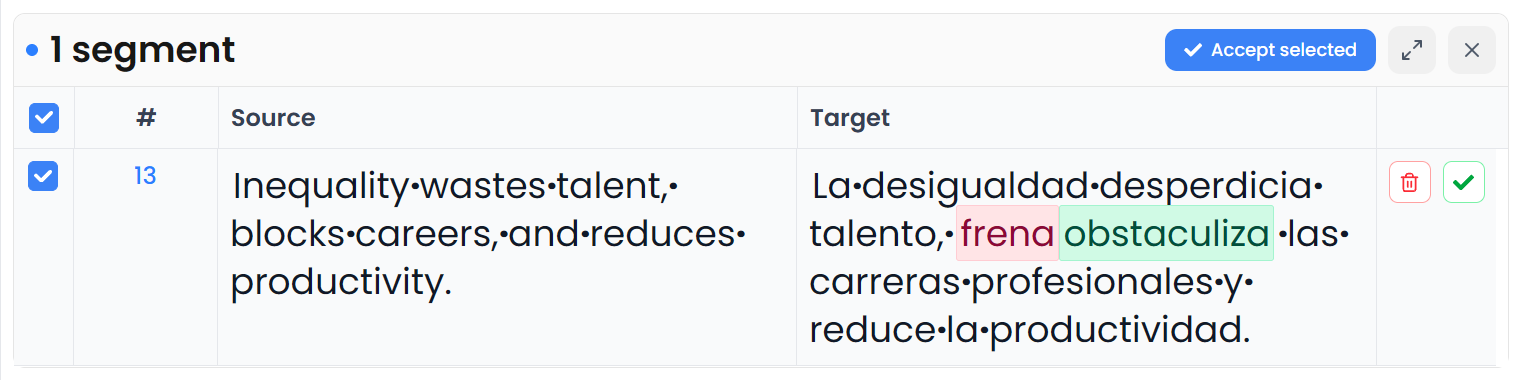
Some translation actions write drafts into the working targets. Many editing and chat actions show proposed changes for you to inspect and apply. Read the result and check the target instead of assuming every AI action follows the same approval path.
Applying a proposed edit is separate from confirming a segment. A preference can confirm after applying an individual preview row, so check that setting if you want to keep draft acceptance and final approval separate.

Choose the AI service
Searchspeare-hosted AI uses your account's available allowance. You do not need to configure the names of the underlying hosted services to use it.
In the desktop app, you can configure your own AI-service connection. Requests use that service's account and billing. These connection-key controls are unavailable in the browser app. You can also use a configured local model.
Selecting local project storage does not make an online AI action local: the text needed for the action is still sent to the selected service. Storage and backups explains the distinction between where work is saved and how an optional action is carried out.
When an action cannot finish
If hosted credit or allowance is exhausted, hosted AI work stops and the app reports the problem. You can still work manually and use the non-AI tools available to your project.
For a failed response, read the message and use Retry where offered. Check existing drafts and pending proposals before repeating an entire batch; do not assume that every earlier part failed too.
Turn on Non-AI mode in preferences when you want a workspace without AI assistance. It hides AI controls and disables the automatic AI behaviors controlled by that mode.