
Spelling options
Open Spellcheck options using the settings icon in the Spellcheck panel. These settings decide which types of words should be examined and how optional false-positive assessment should behave.
Reducing the number of reports can make a pass easier to review, but excluding a word type also means mistakes in that category may be missed.
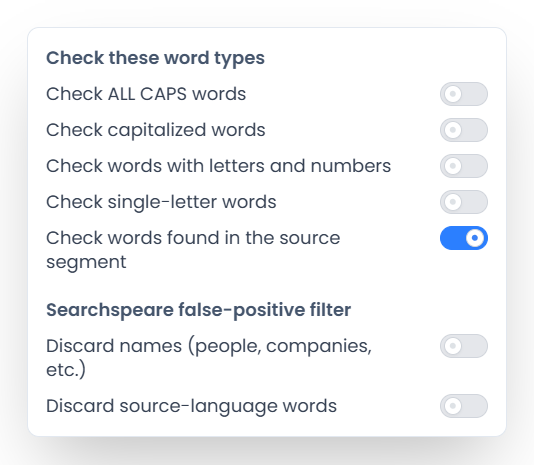
Choose the word types
| Option | When enabled | What to consider |
|---|---|---|
| Check ALL CAPS words | Checks words written entirely in uppercase | Acronyms can produce noise, but uppercase headings can contain real mistakes |
| Check capitalized words | Checks words beginning with an uppercase letter | Turning it off can skip names and sentence-initial misspellings |
| Check words with letters and numbers | Includes mixed forms such as product identifiers | A code may be valid without being ordinary vocabulary |
| Check single-letter words | Includes one-letter tokens | Some languages use valid one-letter words; isolated labels may need separate judgment |
| Check words found in the source segment | Checks a target word even when the same whole word appears in that segment's source | A source typo copied into the target should not automatically become acceptable |
New preferences normally start with the first four special word types excluded and source-segment words included. Your saved choices may differ; inspect the actual switches before a final pass.
The source-word option is about corresponding source content, not every word from the source language. Turning it off can spare unchanged names in that pair, but it can also hide a misspelling copied from the source.
What the dictionary checks
The pass works on the current accepted target wording. It skips empty targets and locked segments. Web addresses and email addresses are excluded from ordinary word spelling; use the relevant QA checks to investigate whether they were preserved correctly.
An unknown technical term may be valid, and a known dictionary word may be incorrect in context. Word-type settings decide which words are checked. Compare the translation with the source separately.
Changing a dictionary word-type option refreshes the active editor's dictionary feedback where available. Run a new pass when you need a result list based on the new choices across the segments you want to check.
Configure the Searchspeare false-positive filter
When AI controls are available, the options menu also includes:
- Discard names (people, companies, etc.): helps identify likely valid names among dictionary reports.
- Discard source-language words: helps identify words belonging to the source language that may be intentional in the target.
These settings belong to the optional Filter false positives with Searchspeare workflow. They do not, by themselves, start that workflow or install a dictionary. They are different from Check words found in the source segment, which is a direct dictionary-pass option.
Read the discarded-word candidates before ignoring them or adding them to the dictionary. A word resembling a name can still be misspelled. Searchspeare spelling assistance explains the review actions.
Choose settings for a final pass
For a technical document, first decide which identifiers are real codes and which uppercase or capitalized words are prose. Inspect a sample before excluding a whole category.
Clear filters before the final pass
Then use the document filter bar's Clear all, check the language and dictionary, and run the full open file or View. Changing word-type options does not clear document filters or make selected-row scope apply to the pass.