
Create rules with Searchspeare
Use Create rule with Searchspeare when you can explain the required behavior but need help writing the patterns. The assistant can propose a complete pattern-based QA rule or segmentation rule, depending on the form you opened.
Accept fills the form; saving keeps the rule
Read the proposal before clicking Accept. Accept copies it into the rule form, where you can inspect and edit it. You must then use that form's save or create action. Creating a rule does not run QA or resegment a file.
Choose the right rule
| What you need | Where to start | Result |
|---|---|---|
| Report a detectable source/target text condition, such as a missing equivalent or changed code | Review → QA Rule → Regex QA → Create rule with Searchspeare | A pattern-based QA check |
| Split sentences at a particular boundary, or prevent an unwanted split | Segmentation → Rules → New rule → Create rule with Searchspeare | A boundary rule with Before break, After break, and a split decision |
| Evaluate a requirement that needs interpretation during QA | Choose Searchspeare QA in the new QA rule form | A separate plain-language QA check |
| Give future translations reusable instructions | Searchspeare → Rules | An AI translation rule |
These tools have different effects. A QA warning does not change a sentence boundary, and a segmentation rule does not tell the assistant which translation to prefer.
Describe what the rule must do
Write the condition in ordinary language. Include:
- The exact text, characters, or boundary involved.
- What should trigger the warning or split.
- An example that should trigger it and an example that should pass or stay together.
- Relevant exceptions, capitalization, spacing, punctuation, or repeated occurrences.
- For QA, whether you need presence, equal counts, preserved values, or a particular source/target relationship.
For example, “check numbers” is too broad. “Every product code beginning with AB and four digits in the source must appear unchanged in the target, including repeated occurrences” gives the assistant a specific condition to express.
You can also open the helper from a partially completed rule. It receives that draft and the relevant existing rules. Describe what you want changed; accepting a proposal can replace several form fields, so check the complete result afterward.
Create a pattern-based QA rule
- In a translation file, open Review → QA Rule. You can also use Custom Rules → New Custom Rule from the QA controls.
- Leave Rule type set to Regex QA.
- Click Create rule with Searchspeare.

- Describe the warning in What should this QA rule detect? Check the file's language direction: the helper uses its source and target languages.
- Click the Send arrow, or submit from the message field, and read the answer.
- If a proposal appears, inspect its name, warning message, comparison type, source pattern, and target pattern or replacement text. Check any proposed automatic fix separately.
- Ask a follow-up question or describe a correction if the proposal is too broad. For example: “Treat VAT as a whole word and ignore it inside a longer identifier.”
- Choose Accept for the proposal you want to put into the form.
- Expand Test with sample text in the rule form and test failing and passing source–target pairs.
- Save the rule, enable it in the intended QA profile, and run that profile on suitable sample content.
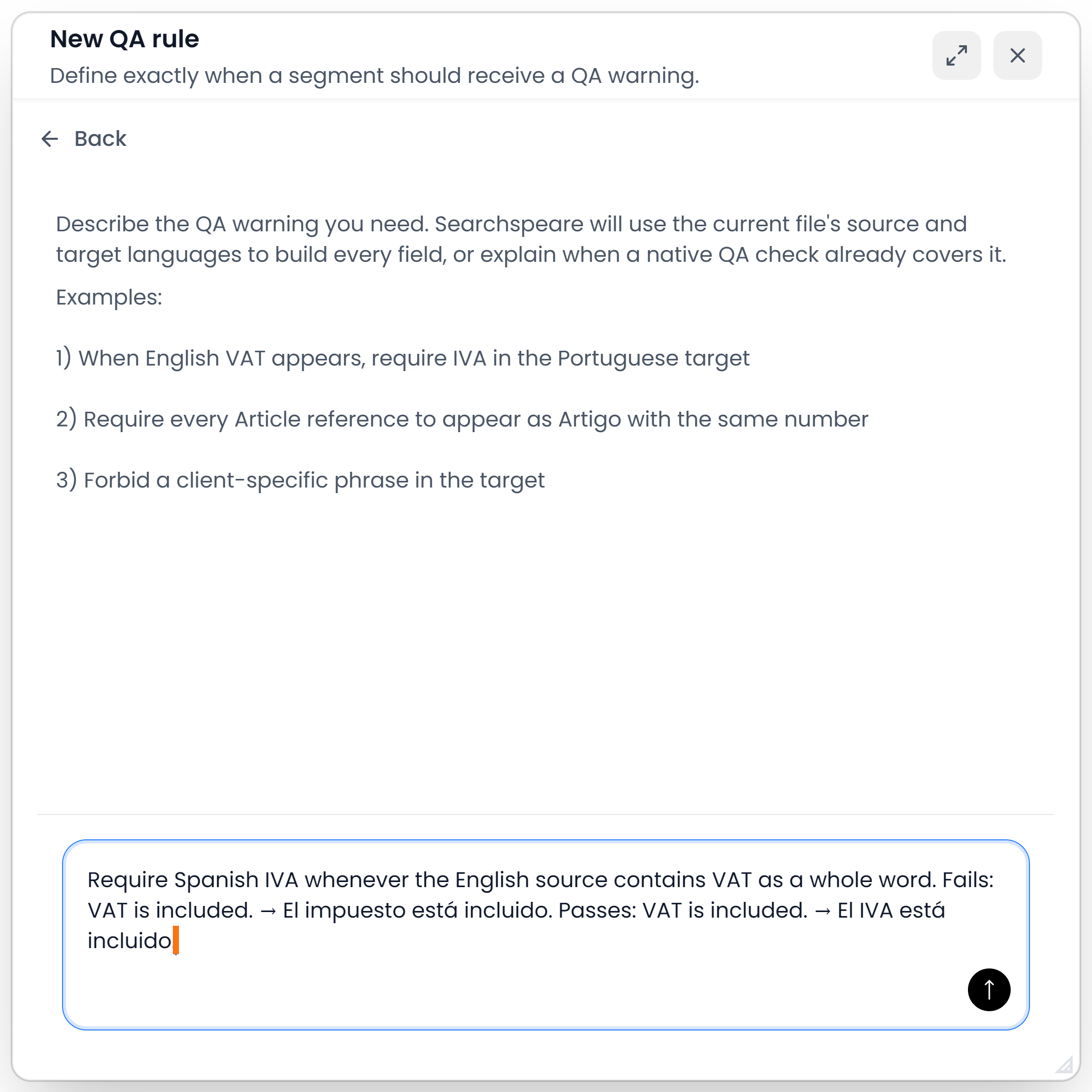
The example asks for presence of an equivalent, rather than an equal number of occurrences. If counts matter, say so explicitly. If the assistant explains that a built-in check already covers the requirement, inspect that check before creating a duplicate.
Read Custom pattern-based QA rules for comparison types, matching options, automatic fixes, and the sample tester.
Create a segmentation rule
- Open the file and check its source language.
- Choose Segmentation → Rules → New rule.
- Click Create rule with Searchspeare in the boundary-rule form.

- In What segmentation behavior do you need?, describe where to split or where to keep text together.
- Include both a boundary that should change and an ordinary sentence boundary that must keep working.
- Send the request and read the explanation. The helper uses the source language, the current rule draft, and existing custom rules to prepare the proposal.
- Inspect Before break, After break, and the proposed Split / Don't split decision. Ask for a revision if they describe the wrong boundary.
- Choose Accept to copy the proposal into the form, inspect it there, then choose Create rule or the edit form's save action.
- Test with a small file. To apply saved rules to an existing eligible file, run Resegment separately and review the resulting segments.
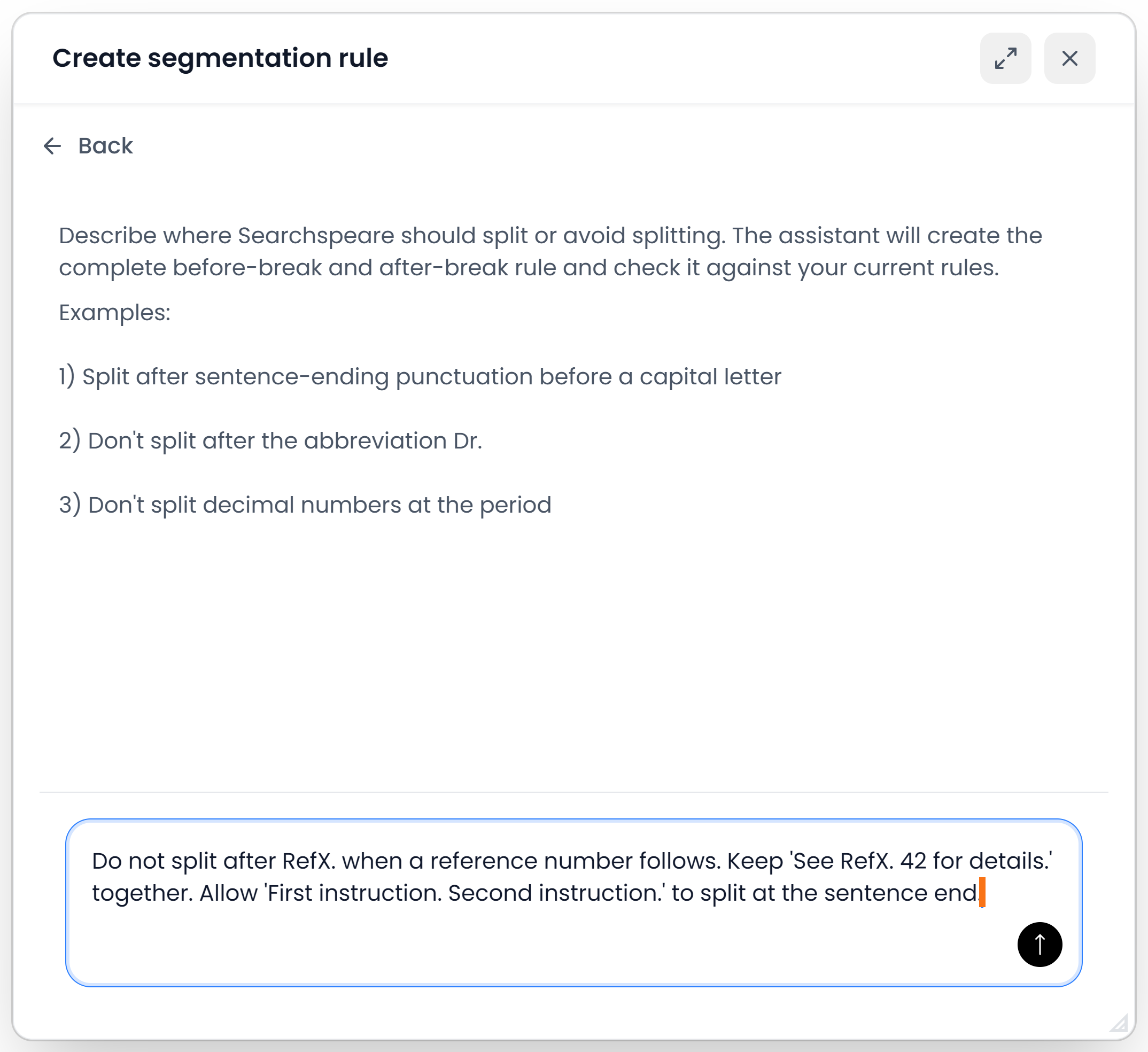
For a simple abbreviation, adding it to the language's abbreviation list may be sufficient. Read Rules and abbreviations before introducing a broader boundary rule. A saved rule does not rebuild existing segments until you run the relevant segmentation operation.
Review, refine, or stop
The assistant can explain a condition or ask for clarification without producing an acceptable rule. Supply a more precise example instead of saving an unrelated proposal.
While a request is running, Stop interrupts it. During a follow-up, an older proposal can be marked as a previous proposal; read the latest explanation before choosing it. Back returns to the form. Keep any instructions you need before leaving the conversation view.
Check the proposed rule against real examples, especially accented letters, different writing systems, repeated values, and exceptions relevant to your documents. A pattern that is accepted by the form can still express the wrong requirement.
Assistance must be available to generate a proposal. You can still fill the normal rule form manually. Saving the rule, applying it to a project, and approving translations remain separate actions.