
Glossaries and termbases
A glossary, also called a termbase, records the words and phrases you want to use consistently. A term entry connects expressions for the same concept in different languages. It can also include example sentences and mark wording that should not be used.
Key points
Attach a glossary to recognize approved terms and check forbidden wording. In its editor, unlock → edit → Confirm to save wording corrections. A glossary stores terminology; a memory stores translated passages.
For example, a glossary can record the approved translation of a component name. A translation memory stores the complete sentence in which that component was mentioned. Use both when you need consistent terms and reusable sentences.
Glossary editing guides
| Task | Guide |
|---|---|
| Edit term rows, language forms, examples, and properties | The glossary and termbase editor |
| Unlock one entry or several and confirm pending changes | Term locks and saving |
| Use replacement, shared properties, cleanup, and filtered export | Glossary bulk editing and maintenance |
Saved term entries normally open confirmed and locked to protect them from accidental changes. Unlock a row before typing, or select several locked entries and use Unlock. Confirm the edited entries to save them and lock them again.
In the editor, you can edit both language sides, update examples and recognition settings in Properties, and apply supported commands to several entries. Properties can unlock entries when applying edits; its Save action leaves those changes pending for confirmation. The guides above explain how this differs from adding a term through a translation-workspace dialog.
Create and attach a glossary
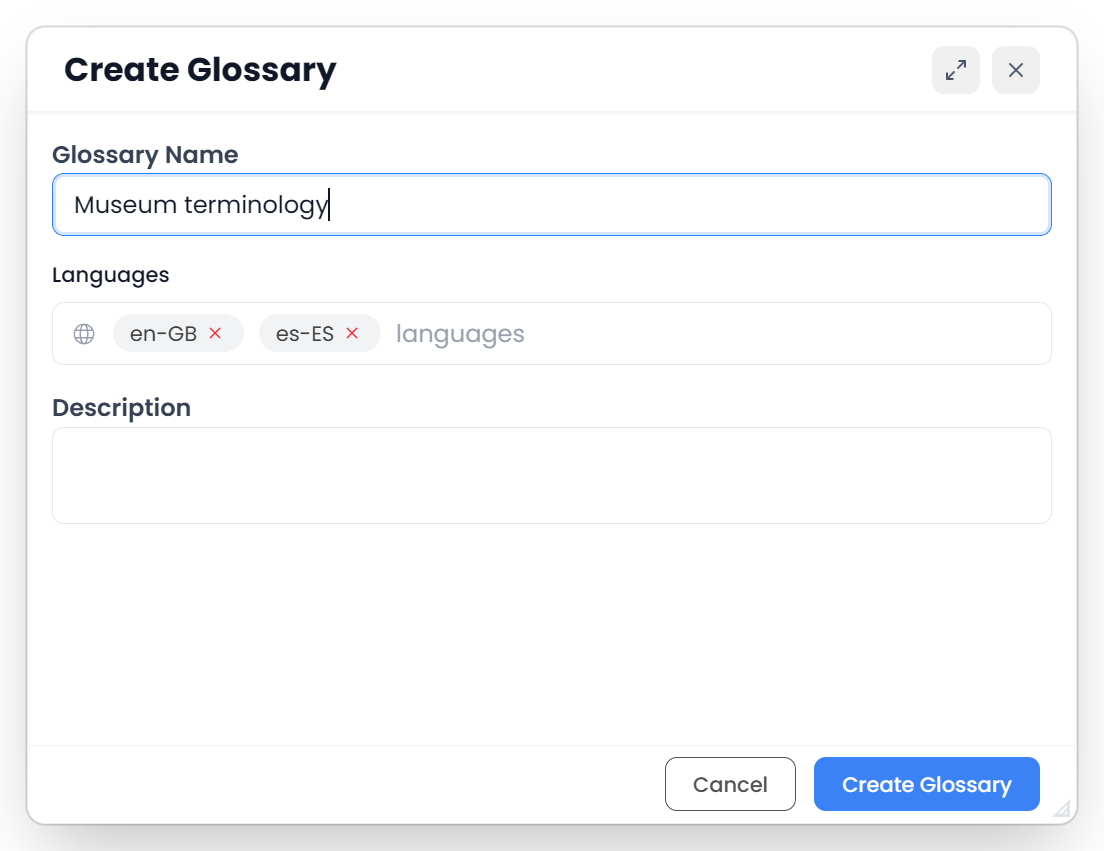
Open Terminology → Glossaries and create a glossary with a useful name and its languages. You can also create one while setting up a project.
Attach it through the project's Glossaries controls. A glossary in your library is not automatically active in every job. Check the language selection when the same glossary contains more than two languages.
Create separate resources when a client's preferred terminology differs from another client's. Mixing those preferences in one undifferentiated resource makes recognition less useful.
Add a term while translating
- Select the source term.
- Select its corresponding wording in the target.
- Use Quick add for a clear pair, or Open term editor to review the entry.
- Check the chosen glossary, language pair, and spelling.
- Add useful examples and matching settings.
- Save the entry.
Select the smallest phrase that expresses the concept. Do not include unrelated punctuation or an entire sentence when the useful term is only two words long.
If an entry is ambiguous, use an example that shows its intended meaning. For “seal”, a sentence about a pump component is more helpful than the isolated word alone.
Choose matching behavior
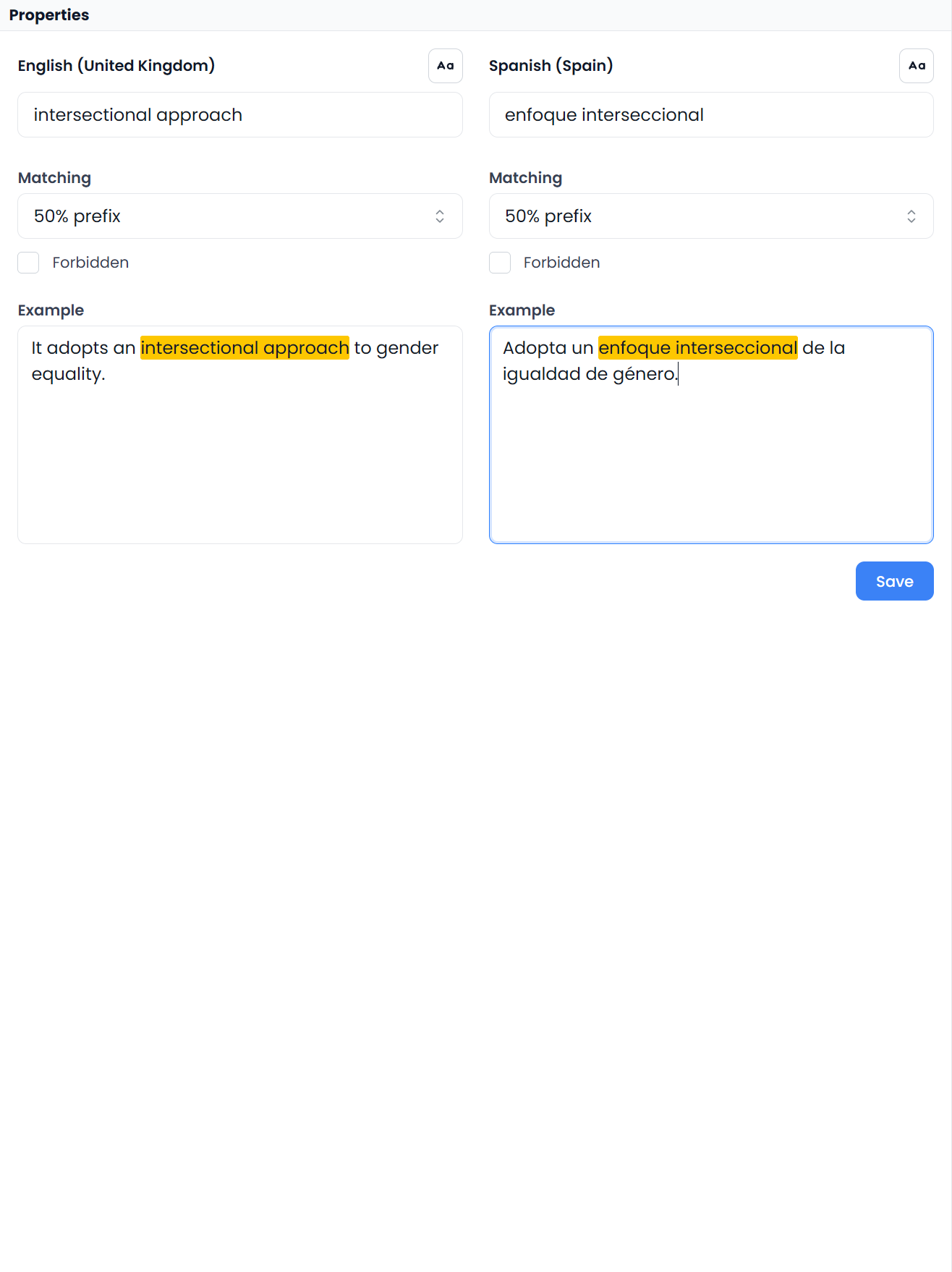
Matching controls help Searchspeare recognize terms in different word forms.
| Mode | When to consider it |
|---|---|
| Exact | A fixed name, code, or phrase whose exact wording matters |
| 50% prefix | Longer word forms that begin with the saved term, where the saved part remains more than half of the word |
| Fuzzy | Finding similar forms while allowing more variation |
| Custom | A term requiring explicitly controlled wildcard or stem behavior |
Custom term syntax uses * and | to mark a stem. For example, pump* allows the saved prefix with or without a following ending; pump| requires a following ending. Choose stems carefully: a shared beginning does not always mean two words express the same concept.
These markers make a term use Custom matching. Changing back to a normal matching mode removes the markers from the displayed form. Make that change individually when selected entries have different forms; the Properties panel can apply edited text across a group. See the group-editing warning.
These term markers are distinct from the regular-expression syntax used in filters. Start with an ordinary entry and inspect recognition before introducing a broader pattern.
Similar terms may appear in the Terms panel under fuzzy matching. That does not mean every approximate source form will receive the same literal highlighting or missing-target terminology warning. If a warning or highlight is absent, compare the actual source wording with the saved source term.
Mark terms that must not be used
The term editor can mark a term as forbidden. This records wording that should be avoided rather than treating it as a preferred translation.
For example, a client may reject a former product name. Keep the appropriate replacement clear in the resource and investigate terminology warnings in context. A forbidden flag is useful only if you understand which language's term you have marked.
Review and clean the glossary
Open the glossary to inspect entries, edit terms and examples, confirm useful pairs, and remove duplicates or unsuitable entries. Candidate terms from extraction should be reviewed before you rely on them for future jobs.
Check which entries each command uses: Properties uses selected entries, Replace All prepares changes for filtered entries, and Dedupe checks all loaded entries, including ones hidden by filters. Delete and accepted deletion proposals remove entries from the glossary. Maintenance explains those distinctions.
The open glossary editor's Export uses the filtered entries in its displayed language pair, in CSV or TBX. The glossary library's Export reads the saved glossary resource instead; the editor's row filters do not limit that library action. Check which Export you are using, and confirm pending corrections before exporting the saved resource. Import and export glossary entries compares the choices.
Import accepts CSV and TBX. CSV language columns must identify the languages in the supported glossary structure; an arbitrary spreadsheet with unrelated headings is not automatically a valid glossary. Check the import's detected languages and sample results before relying on the resource.
Use terminology during translation and review
The Terms panel helps you see relevant entries for the active segment. Insert an appropriate target term, then fit it grammatically into the sentence.
Run the terminology check to investigate missing expected terms or forbidden usage. Some wording may be a valid contextual exception; review the segment and resource rather than automatically replacing every result.
To build a resource from previous bilingual work, follow Extract a glossary. To inspect earlier sentence usage, use Concordance.