Create and use project Views
A View is a saved group of segments from the project. It can combine parts of several files without creating separate copies of the translations. Editing a segment through a View changes the same segment used by its original file.
Key points
A View opens a saved group of project segments without copying them. Editing through the View changes the original segments. Clearing filters shows all members of that View, not every segment in its source files.
Use a View for a review group, a known segment range, or batches of work you want to open separately. Use ordinary table filtering when you need a live search of the currently loaded content.
Choose files and conditions
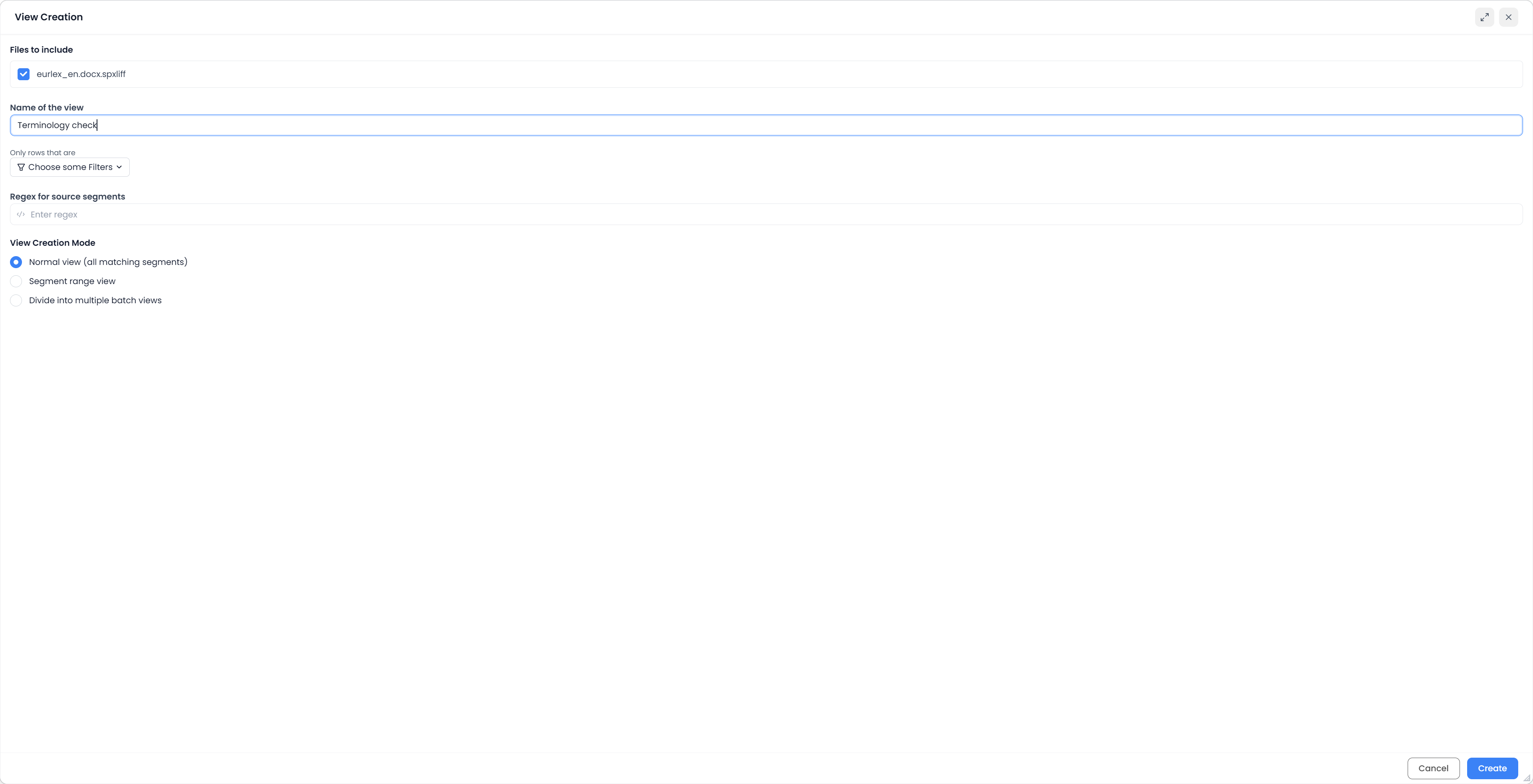
- Open Project Home → Views → Create View, or use a file's View action.
- Check the files selected in the creator. Deselect files that do not belong to this set.
- Enter a name that identifies the purpose.
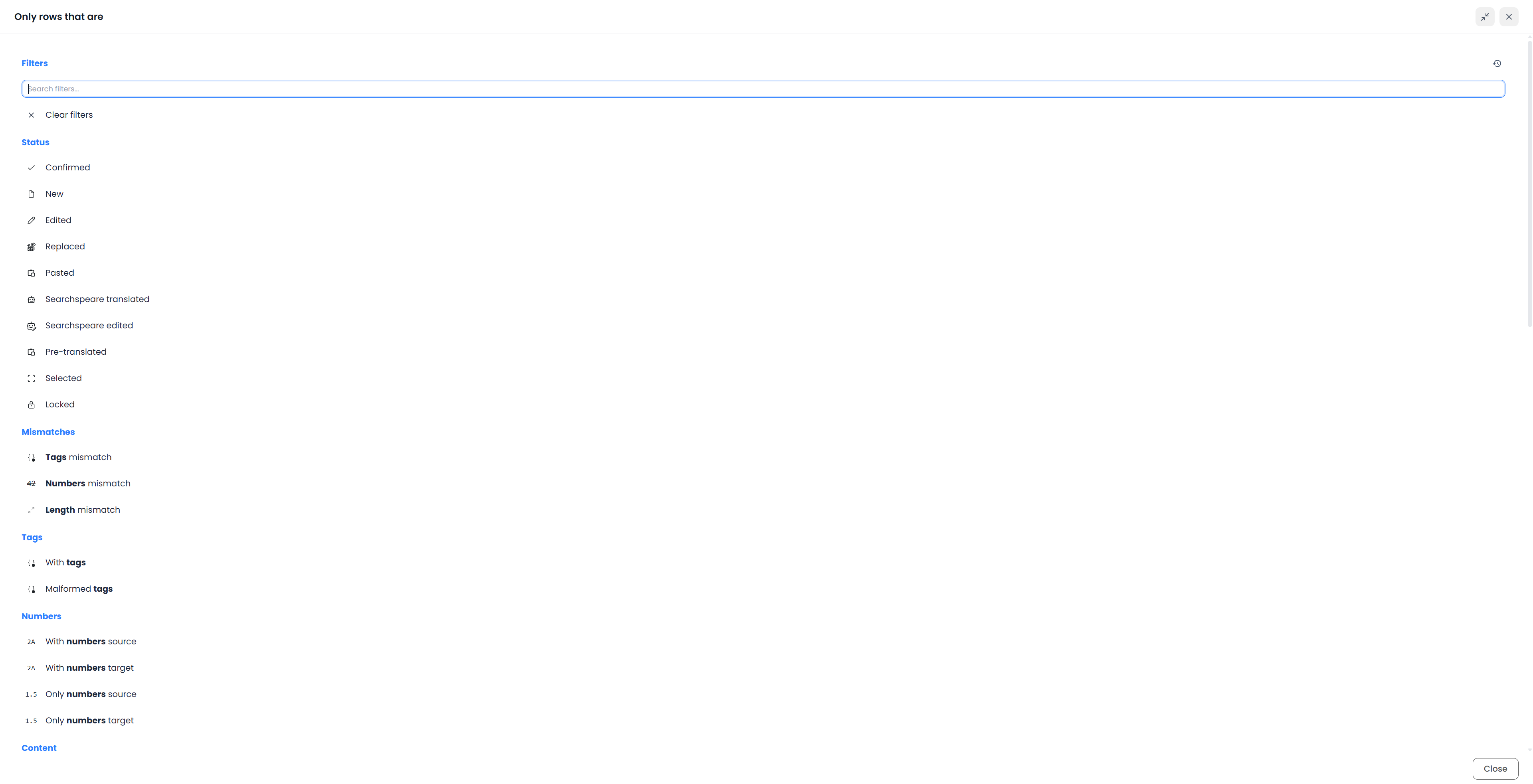
- Use the conditions menu if you want only segments meeting particular criteria.
- Optionally enter a source-text regular expression.
- Choose the creation mode and create the View or batches.
The creator starts from the selected files' working units, applies its filter conditions, and then applies the source pattern. The pattern is case-insensitive and matches source text. It is not a separate target-text search. An invalid pattern or an empty result prevents creation.
For example, a View of segments with comments can provide a fixed review set across several files. A source pattern can further restrict that set to a product name or code structure. See Regular expressions before using a pattern.
Choose the creation mode
| Mode | Result |
|---|---|
| Normal | One View containing the segments that pass the selected files and conditions |
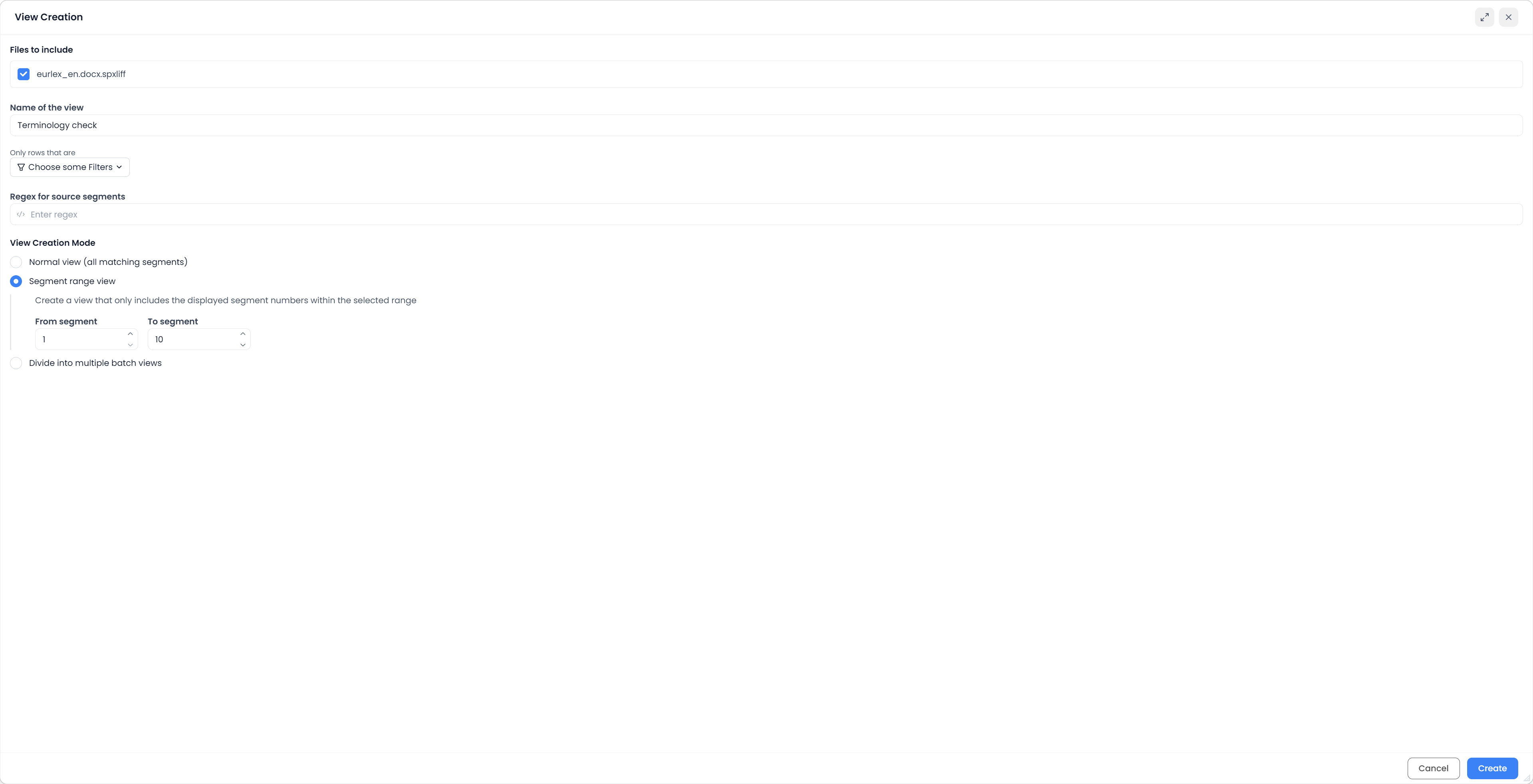
| Segment range | One View restricted to an inclusive segment-number range in exactly one selected file |
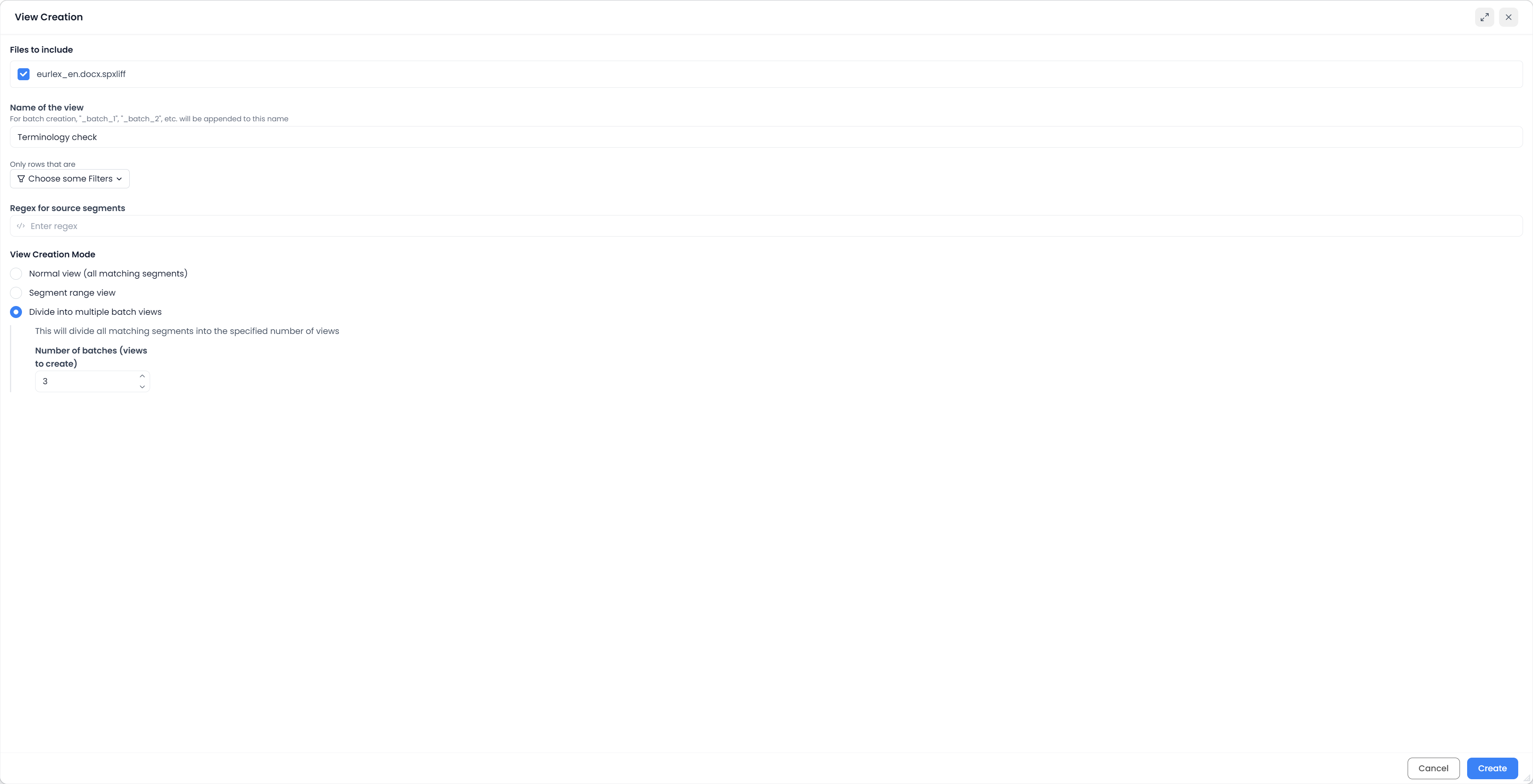
| Batch | Several consecutively named Views dividing the eligible segment set into batches |
Segment range
Select exactly one file. Enter the first and last displayed segment numbers, starting at 1. The last number must not precede the first, and the range must fit the available segment-number bounds after the earlier conditions.
The range does not mean “take the first ten matches.” It tests the displayed segment numbers themselves. If earlier conditions exclude some numbers inside the range, those segments are not reintroduced.
Batch
Enter the number of batches. It must be positive and no greater than the number of eligible units; the input allows up to 100 batches. The creator keeps file/segment order and divides the set by number of segments, not by words, price, or estimated effort.
For example, eleven eligible segments divided into three batches produce groups of four, four, and three. Names use the base name followed by _batch_1, _batch_2, and so on.
If saving stops after some batches were created, inspect the Views list and read the partial-completion message before repeating creation. Previously created batches can already exist.
When a View's segment list changes
The saved View does not continuously rerun its creation conditions. If it was created from unconfirmed segments, a segment remains a member after confirmation. Newly matching segments elsewhere do not join automatically.
Recreate a View when you need a fresh evaluation. Filters inside an open View can narrow its existing membership, but clearing those filters restores only the View's loaded set, not every original project segment.
The creator uses shared filter conditions and clears those conditions when it closes. Check the editor's filter bar afterward if you were also using conditions there. This is separate from the source and target text-search fields.
Work in a View
Open the saved View and use the eligible editing, selection, resource, and QA tools. Check each command's scope: a loaded-set action can affect every loaded member even when some are hidden by filters.
Structural segmentation actions are unavailable in combined Views. Open an individual file for Split, Merge, Resegment, or restoring original segmentation. Project or file export actions also keep their own scope; opening a View does not make every export a partial-document export.
See Selecting segments and batch actions and Segmentation.
Remove a View
Use the Views list's delete action and read its confirmation. It removes the saved worklist, not the underlying original translation units. Deleting a View is therefore different from deleting a file or deleting segments.
After replacing file extraction through Reimport, inspect or recreate Views that depended on the previous working segments.