
Filter Settings
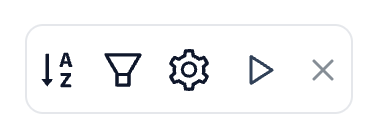
Filter Settings controls how the source and target text fields match wording. Open it with the gear button beside the Filters funnel above the translation table.
These choices do not redefine the ready-made checks in the Filters menu. For example, With dates source uses its date recognition whether or not Regex is enabled here. The filter reference explains those separate conditions.
Type your source or target search and press Enter or click Apply filters. Changes made in this settings menu apply immediately to the current searches. Check both fields: these matching choices are shared, while each field has its own include/negate funnel.
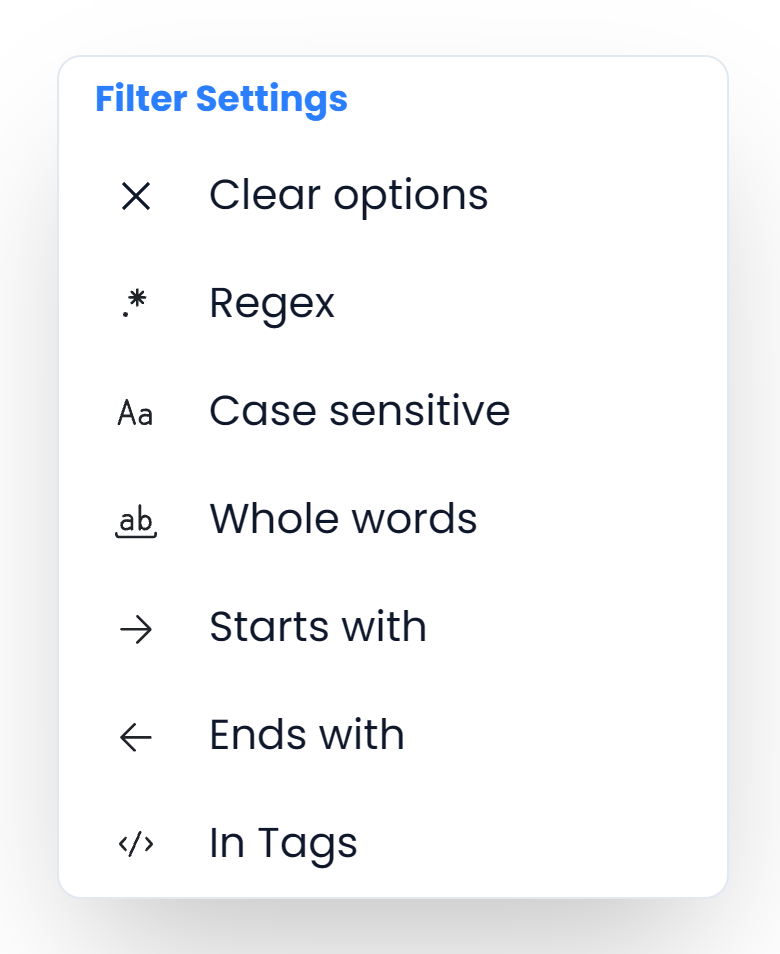
Regex

Treat the entered text as a regular expression: a pattern describing the text you want to find. Use it when one literal word cannot express the required group.
Example: enter \d+ to find a sequence of digits, or AB\d{4} to find product codes beginning with AB and followed by four digits. With Regex off, those characters are ordinary search text.
Do not wrap a pattern in / delimiters. Characters such as ., ?, (, and [ have special meanings in a pattern. Test a few known matches and nonmatches; Regular expressions provides practical examples.
Enabling Regex turns Whole words off. If a pattern needs word boundaries, express those boundaries in the pattern itself. These two settings are not active together.
Case sensitive

Require the same uppercase and lowercase letters as your search. Use this to inspect capitalization or distinguish a case-sensitive name.
Example: search for May with Case sensitive enabled to find that capitalization. It will not match may. With the option off, those forms are treated alike for the text search.
This changes matching only. It does not change the capitalization of your translations. It can be used with either a literal search or Regex.
Whole words

Require the search to match whole-word boundaries rather than part of a longer word. Use it to investigate a specific term without including longer words that contain the same letters.
Example: search for cat. Whole words can include the cat while excluding catalogue. For terminology checks, consider the actual inflected forms you need; a whole-word search for one form does not automatically collect all forms of the concept.
Enabling Whole words turns Regex off. Keep it off when a deliberate partial-word search is the task.
Starts with

Require the entered wording or pattern at the beginning of the segment's text. Use this to collect repeated openings or headings.
Example: search for Warning to find openings such as Warning: disconnect the power. Leading non-letter content, such as spaces, punctuation, or a numbered prefix, can be ignored by this boundary check. For example, (1) Warning: disconnect the power. can also qualify.
Starts with has three states:
| Click state | Meaning |
|---|---|
| Neutral | No start-position requirement |
| Blue: Starts with | The segment must match at the start |
| Red: Does not start with | The segment must not match at the start |

Does not start with is a boundary test. A segment that does not contain the searched word anywhere can also pass. It does not mean “contains this word later in the sentence.” Click the red option once more to turn the boundary requirement off.
Ends with

Require the entered wording or pattern at the end of the segment's text. Use it to collect recurring endings or inspect a standard closing phrase.
Example: search for now to find Save now. The boundary check allows surrounding non-letter content, including punctuation and spaces, so the final period does not prevent this match. Use Regex when you need to express an exact punctuation requirement.
Like Starts with, the cycle is inactive → Ends with → Does not end with → inactive. Blue requires the ending; red excludes it.

Does not end with can also keep segments where the searched wording is absent altogether. When both Starts with and Ends with are active, both position requirements apply. Read their states before assuming that a plain word search is being used.
In Tags

Search the stored content of tags on the chosen source or target side instead of the visible sentence wording. Use it when you need to investigate a known tag value or tag attribute.
Example: if a tag contains id="3", use that known value as the relevant side's search and enable In Tags to look within its tag content. Use the XML inspector when you need to inspect the actual tag information first.
In Tags is different from With tags. With tags finds rows containing visible source tags; it does not require you to know their contents. Turn In Tags off before returning to a normal search for translated wording.
Clear options, Clear filters, or Clear all
| Control | What it clears |
|---|---|
| Clear options in Filter Settings | Matching choices, including case, Regex, word boundaries, tag searches, start/end requirements, and input negation; restores AND |
| Clear filters inside the Filters menu | That menu's active segment conditions |
| The X in one text field | That field's entered search text |
| The table filter bar's Clear all | Both text searches, menu conditions, matching options, automatic result restrictions, and sorting |
Clear options leaves your entered source and target wording in place. A search can therefore still restrict the table after this action. For a complete return to all segments in the open file or View, use Clear all.
See the source-included, target-negated example for a complete missing-word check. Start with Clear all so an old boundary or tag-search setting does not change the question you intend to ask.