
Show and customize toolbars
Searchspeare gives you several places to run commands. The ribbon organizes a workspace's actions by task. The segment toolbar, also called Segment Menu, keeps frequent commands beside the text. A filter bar decides which rows the table displays. The controls inside a right-side tab work with that tab's content.
Key points
Use the ribbon for commands grouped by task and the segment toolbar for commands beside the text. Open the toolbar's gear to choose its commands and research links. Each editor has its own toolbar configuration.
Knowing which control you are using helps you predict what will change. For example, selecting several segments does not make every command operate on that selection: a document-wide ribbon action can have a broader scope.
Choose the guide for your workspace
| Control or workspace | What to learn |
|---|---|
| Ribbon and command navigation | Find commands by task, pin the ribbon, use descriptions, and distinguish document actions from selection actions |
| Translation segment toolbar | Confirm, edit, research, comment on, and translate selected project segments |
| Alignment toolbar | Repair pairs with merges, splits, shifts, locks, and bounded realignment |
| Memory editor toolbar | Unlock saved pairs, edit their wording, and confirm pending corrections |
| Termbase editor toolbar | Unlock terms, edit properties, clean up wording, and confirm changes |
| Filter bar | Narrow the table and use Clear all to restore the loaded rows |
| Right-side panel controls | Use the actions specific to Matches, QA, Spellcheck, File Index, and the other tabs |
Select words or segment rows
Before clicking a command, check these three things:
- Rows: which segments or entries are selected?
- Text: have you highlighted words, or only placed the cursor inside a cell?
- Side: is the active cell source or target?
In translation, formatting normally changes selected target text. In alignment, a split uses a cursor position on the active language side. In a termbase, cleanup uses the active source or target side of the selected entries. These are different instructions even when the icons look familiar.
Read Selecting segments and batch actions for gestures, filtered sets, and document-wide exceptions. The memory and termbase guides explain their separate confirmation workflows.
Show the commands you use
In the translation-file editor, open Settings → Advanced and use the Segment menu display choice to show or hide the segment toolbar. View → Toolbar rows changes how it fits into the workspace: a compact row can scroll horizontally, while the expanded arrangement gives commands more vertical space. Use the scroll arrows when commands extend beyond the available width.
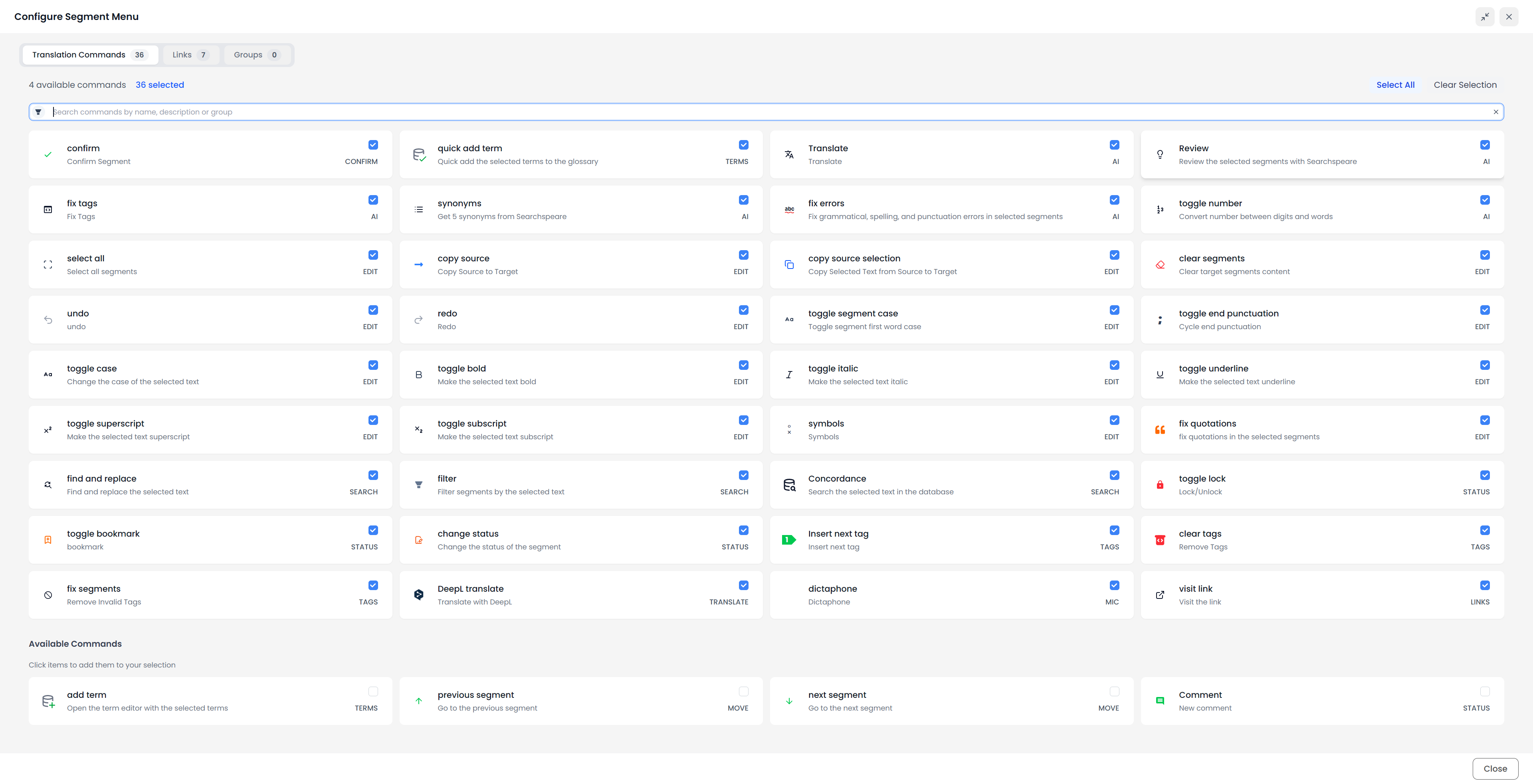
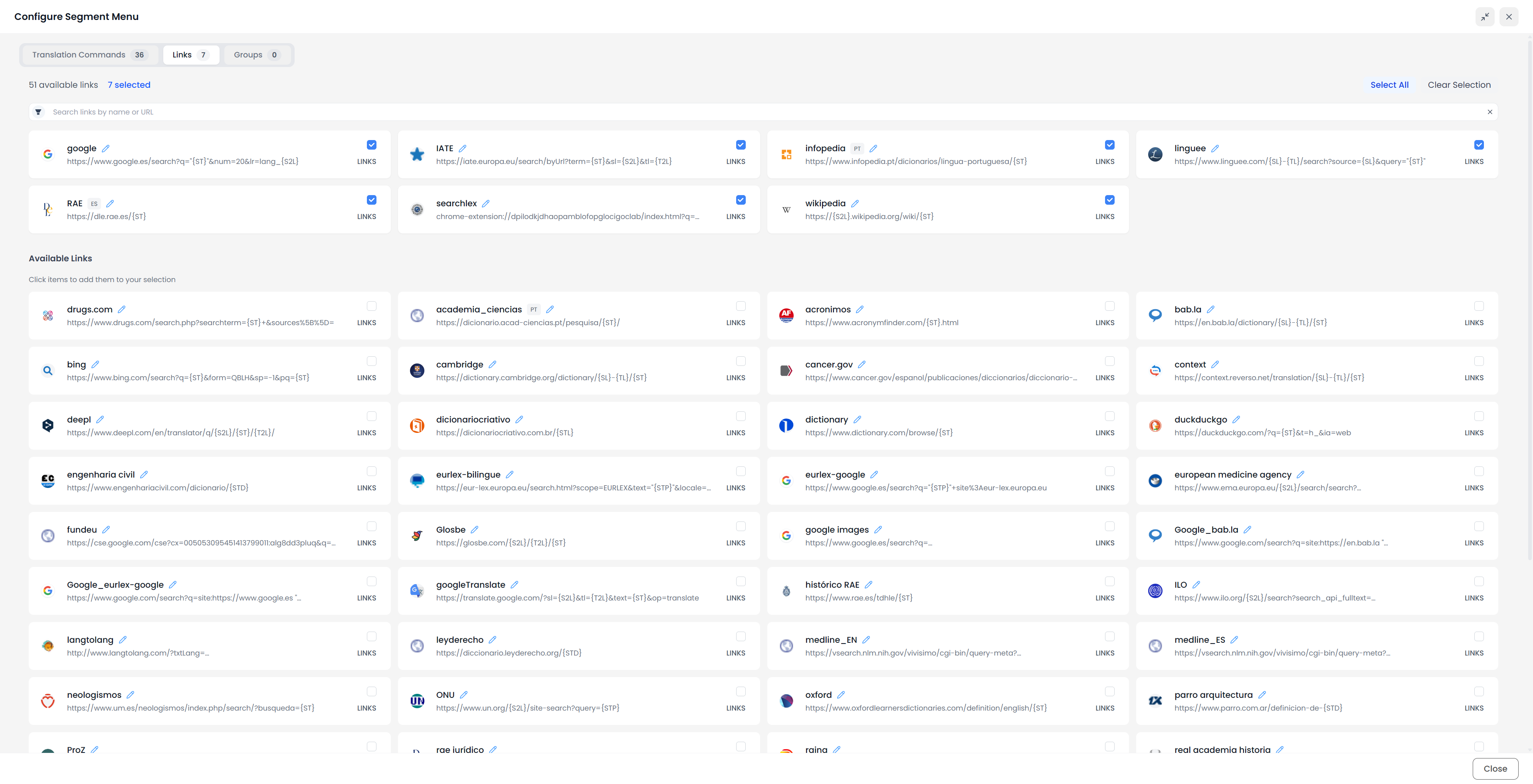
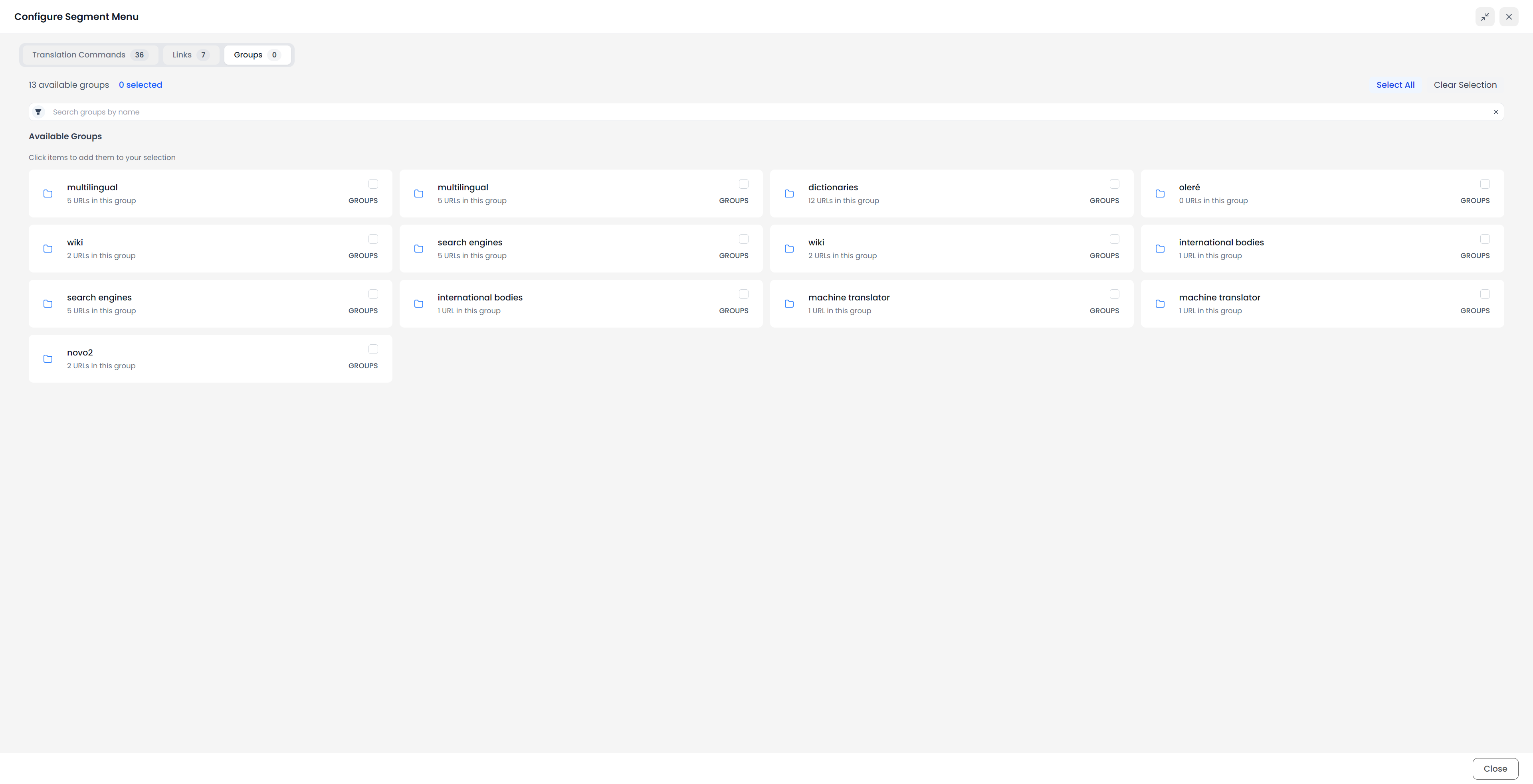
Open the toolbar's gear to configure it for the current workspace. Search the command list, then select or deselect commands. The configuration also has Links and Groups choices for your research resources. Selection changes are saved as you make them; close the configuration to return to your work.
You can select or clear all commands, or click a command's group label to include or remove that group. Separators are added automatically between command groups. See Multi Search to set up the research links themselves.
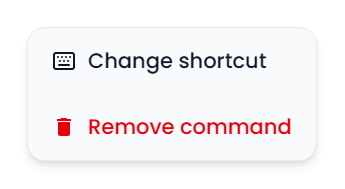
Right-click an existing toolbar command to change its shortcut or remove it from the menu. Removing a toolbar button changes your menu choices; it does not delete document content. You can add the command again through the gear.

Why a command is hidden or disabled
Commands depend on the workspace, selected rows, text selection, locks, editing history, and enabled services. With Filter the commands in Segment Menu enabled, the translation menu adapts to the current context. For example, highlighting a target phrase exposes phrase tools, while clearing the text selection makes row tools easier to find.
Alignment, memory, and term menus also check their own requirements. A split needs an active unlocked cell and a cursor position. Redo needs a change to redo. Memory Lock/Unlock is unavailable for an edited selection that still needs confirmation. Term Unlock is useful when selected entries are locked.
Hover over a command to read its description and assigned shortcut. If a command is missing, check the gear, the selection, and the workspace before assuming it has been removed. AI controls also depend on the current AI settings, and Dictaphone is available in the desktop application.
Commands inside right-side tabs
A panel can contain another toolbar. Ignore all in Spellcheck, Auto fix all in QA, and Recreate file index have different purposes and scopes. Their meaning does not come from the selected document rows alone.
Follow the dedicated QA, Spellcheck, or File Index instructions for those actions. Use the document filter bar's Clear all after an investigation when you want the full loaded table again.