
Find and Replace tab
Find and Replace keeps search and replacement controls beside the text. Use it to locate an expression, correct repeated wording, or run a carefully tested pattern-based cleanup.
Finding an occurrence and replacing it are separate actions. If you only want to narrow the visible rows without changing text, use Filtering.
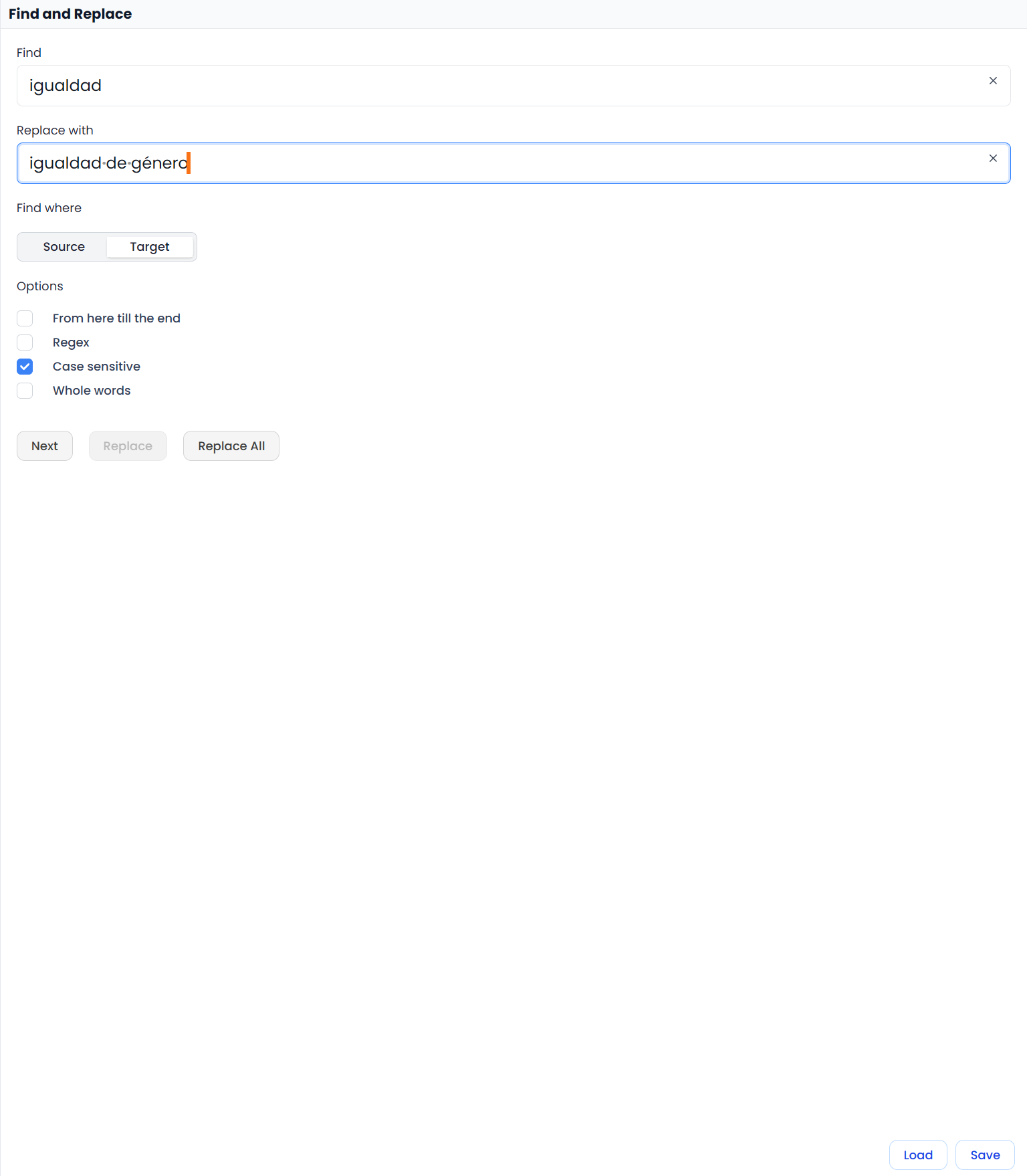
Set up the search
- Open the tab directly or run the Find & Replace command.
- Enter the expression in Find. A phrase selected before opening the tool can provide the starting text.
- Choose Source or Target under Find where.
- Inspect options such as case sensitivity, whole-word matching, Regex, and From here.
- Use Next to inspect a match before making a replacement.
In translation work, the target is usually the intended side. Source editing depends on the workflow. In single-language review, work with the document's text rather than assuming there is a separate translation target.
Replace a single occurrence
Enter the desired wording in Replace with, then use Replace. Read the whole sentence afterward. A correct term replacement can still require changes to an article, agreement, capitalization, or surrounding spacing.
Start with a sample example. For a product name, whole-word matching can prevent an unintended change inside a longer word. When case sensitivity is off, replacement can adapt capitalization to the occurrence; test the forms that matter to your job.
Check scope before Replace All
Replace All is not limited to the active row
Replace All changes matching text in filtered, unlocked segments. With From here enabled, it starts at the current position. It is not restricted to a single active row merely because that row is selected.
Before running it, check the file or View, current filters, search side, pattern, and replacement. Test one occurrence first. Inspect the reported outcome and any skipped-content warning afterward. Locked segments are excluded from bulk replacement.
To replace text in one chapter or group, open its file or View, or apply filters that show those segments, before using Replace All.
Reuse a setup or use a pattern
Save stores a named replacement setup; Load lets you choose a saved one. Loading a preset does not mean it is appropriate for the new job. Recheck the side, options, and scope before running it.
Use Regex when you need a pattern rather than literal wording. Start with Regular expressions and test on a few segments. The non-Regex fields can also contain formatting, so inspect their formatting when a visible word does not match as expected.
For detailed examples, formatting behavior, and tracked changes, see Find and replace.