
Suggestions tab
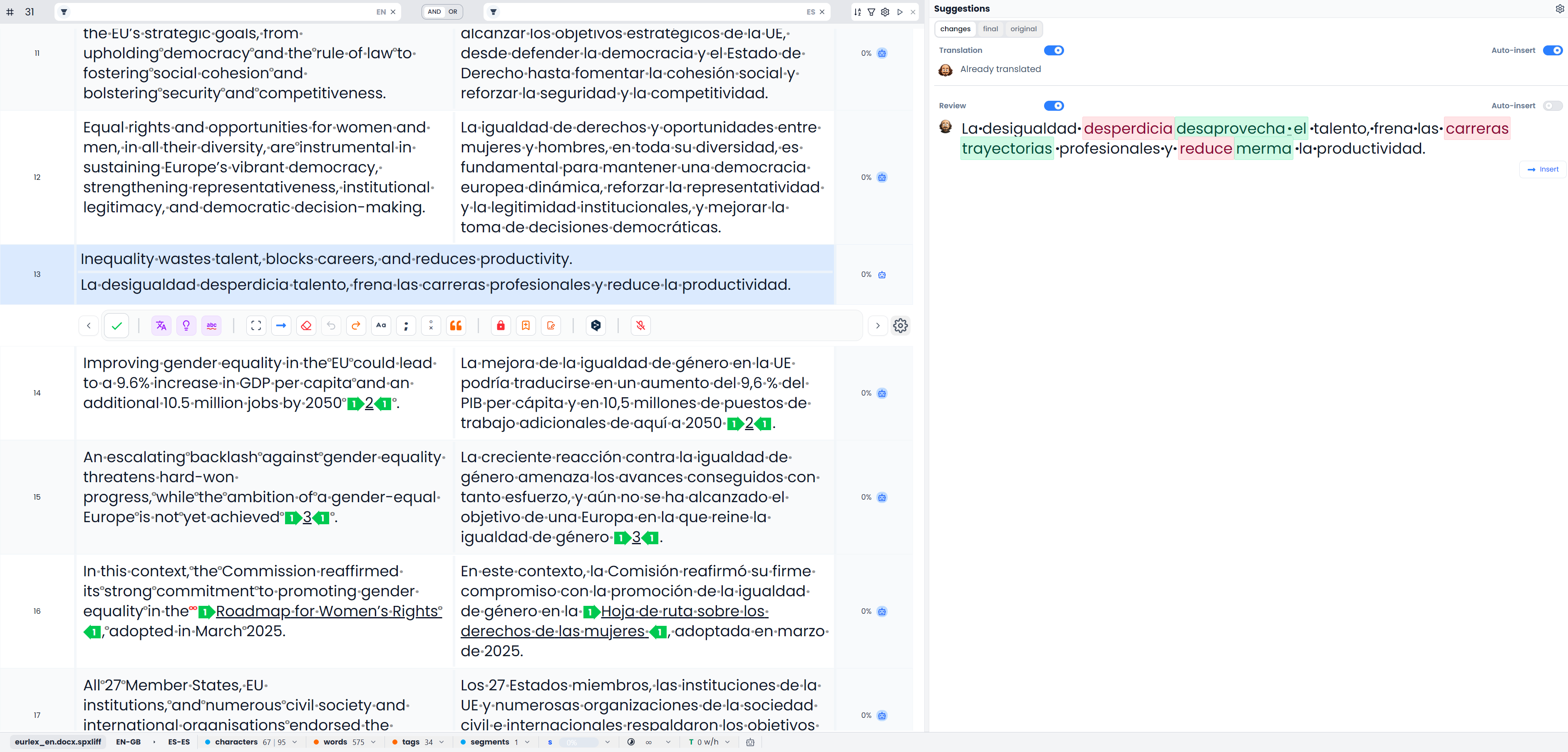
Suggestions gathers the available automatic assistance for the active segment. It can help draft a translation, adapt a similar memory translation, or review existing wording. The sections shown depend on the job, segment, and enabled assistance settings.
These are proposals to assess. A fluent sentence can still mistranslate a detail, omit a condition, or use the wrong term.
Translations, patched matches, and reviews
| Section or result | What it helps with |
|---|---|
| Patch fuzzy matches | Adapting a similar memory translation to the current source |
| Translation | Proposing a target when the translation workflow calls for one |
| Translation accuracy | Checking an existing translation against its source in bilingual review |
| Review or style suggestions | Reviewing the existing target or the text in a review job |
You will not always see all of these at once. A usable patched memory proposal can take the place of a separate translation proposal. A section can also show that a segment is already translated, has no suggested changes, or is ineligible for the current automatic review. Those messages describe different conditions; they are not all failures.
Compare a proposal before inserting it
- Select a segment and open Suggestions.
- Read the source and current target before judging the proposal.
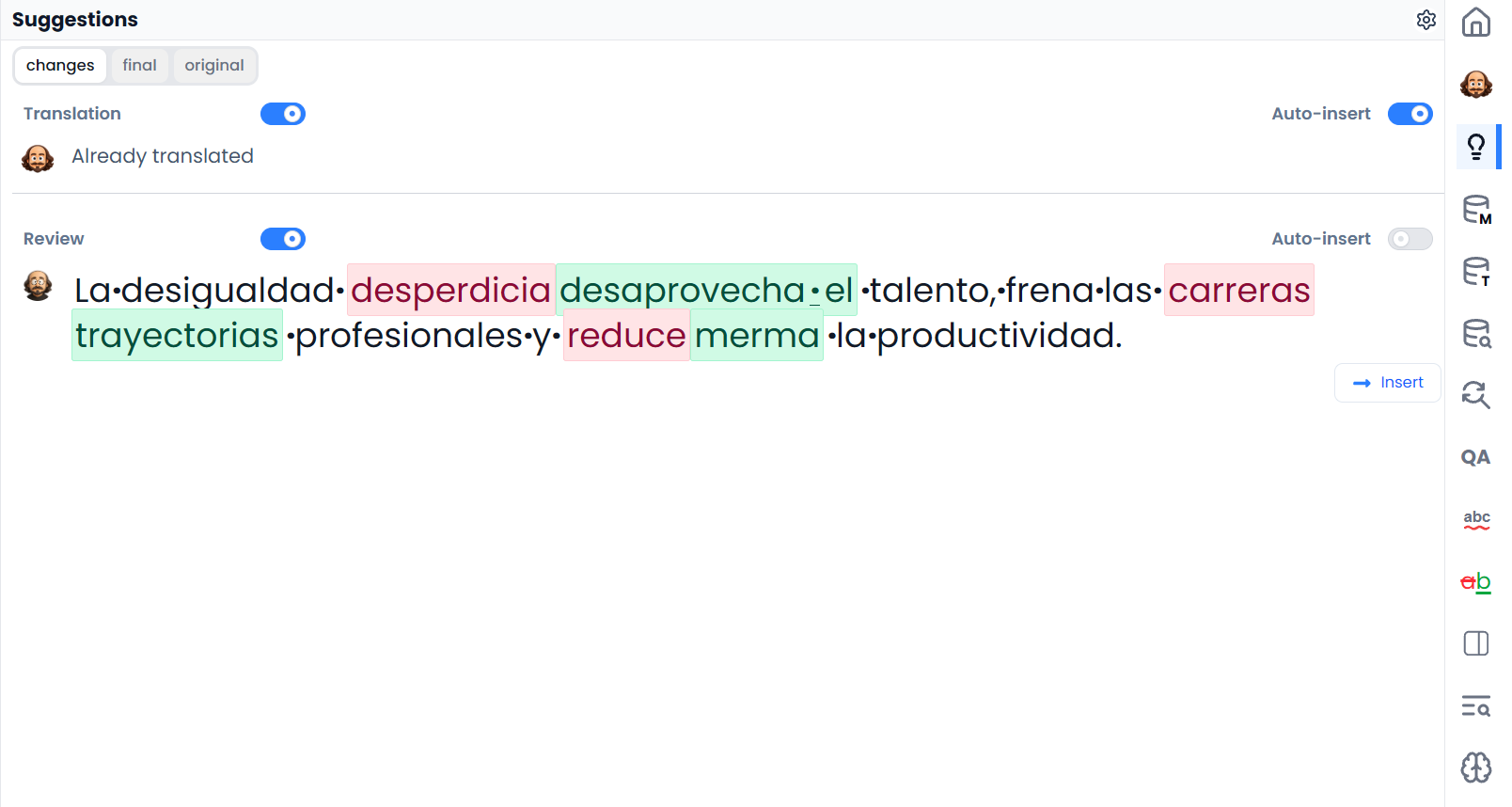
- Choose Changes to inspect the differences.
- Use Final to read the proposed text without change marks, and Original to compare the reference wording.
- Check terms, numbers, negation, names, and tags.
- Use Insert to apply the wanted proposal, or use the detailed difference controls to apply only a useful part.
- Read the resulting target in the editor before confirming it.
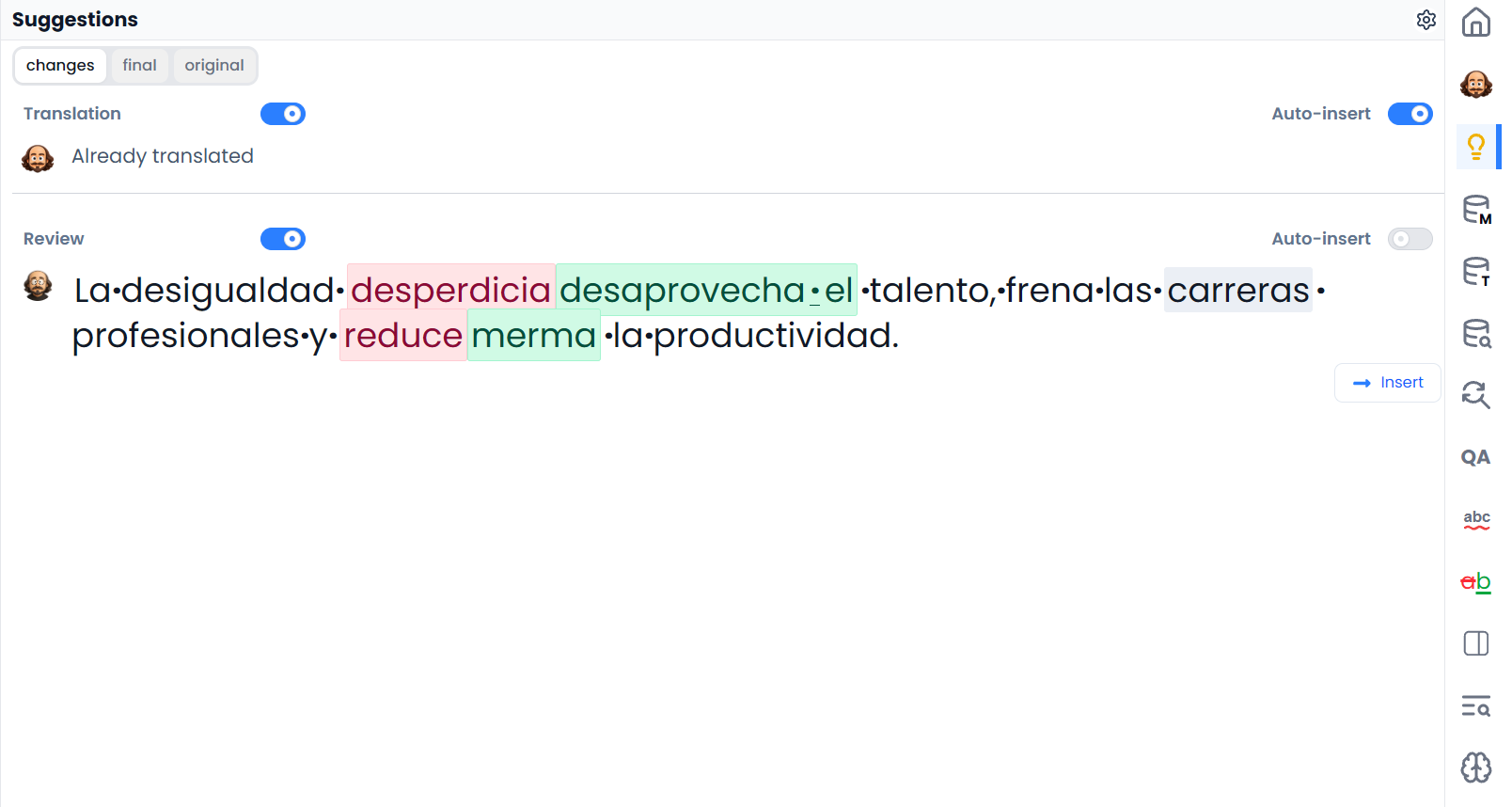
A proposal also supports double-click insertion outside its controls. A single click selects it for inspection. When a proposal contains several independent edits, the difference controls let you inspect groups and leave unwanted parts out rather than treating the whole proposal as indivisible.
Control automatic insertion and change tracking
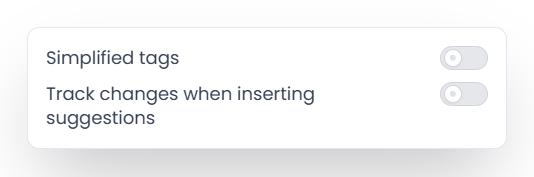
The Suggestions settings menu includes the preference for tracking changes when inserting suggestions. Related memory-patching and automatic-insertion settings are available through the Matches settings menu. Check these preferences when text appears automatically or is inserted as a revision.
Check whether a suggestion was inserted automatically
Viewing a proposal and automatically inserting one are different behaviors. If automatic insertion is enabled for patched matches, inspect the target itself to see what is already there. The display choice inside Suggestions does not accept or reject tracked changes already stored in the document; use the Review tab for those.
When no useful suggestion appears
Check the section's status, the selected segment, and whether the relevant assistance is enabled. Locked, confirmed, empty, or otherwise unsuitable content can be excluded from a particular review. New hosted assistance also depends on available credit. An existing memory match remains a separate resource in Matches.
For a question that needs more context or a different instruction, use Chat. For proposals affecting several segments, see Changes preview.