Export a bilingual file and import corrections
A bilingual file contains both source and target text. Export it when someone needs to continue translating or reviewing the text. You can then import their corrected copy into the same Searchspeare project file.
Quick steps
Export a bilingual copy of the individual project file, have it reviewed without removing its identifiers, then return to the same file and choose File → Import. Matching unlocked targets and statuses can be updated across the whole file.
Choose output for the next person
| Need | Appropriate output |
|---|---|
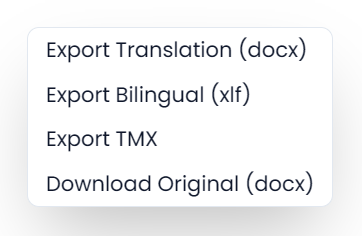
| Read the translated document | Translation in the supported original format |
| Continue editing or reviewing source–target text | A compatible bilingual export |
| Reuse approved pairs in a memory | TMX through the relevant export workflow |
| Obtain the original input | Original-file download |
Check the extension shown by the export menu. A bilingual file supplied by another translation tool normally returns through its applicable bilingual format; producing that tool's final layout document can remain a separate step in that tool.
Comments, tracked changes, tags, segmentation metadata, and embedded originals are format-specific. Do not treat XLIFF, TMX, plain text, and an Office document as interchangeable containers for all of them.
Send a bilingual file for review
- Open the individual project file, not a combined View.
- Save an export or backup of the current work.
- Export its bilingual working copy for the review you intend.
- Keep file/project identity, unit identifiers, and protected code mapping intact during the external work.
- Return to the same current file before importing the compatible corrected copy.
The returned file must still contain the Searchspeare project, file, and segment identifiers. Another tool may remove them when saving the file. Before using that tool for a large review, export a small file, make a correction there, and check that you can import it back into Searchspeare.
Import the corrected bilingual file
Use File → Import in the editor and choose a supported .spxliff, .xlf, or .xliff copy. The action requires one active file and is unavailable in a combined View.
Searchspeare checks that the returned file carries its project and file identity and that both match the open file. Missing identity, another project's identity, another file's identity, or no usable units prevents the intended import. Keep the reported reason when investigating a rejection.
What the import changes
Searchspeare uses the segment identifiers to match the returned segments to the ones in the open file. It updates their target text and status, skips locked segments, and does not add new rows.
The import checks the whole current file. Selecting a few rows or filtering the table does not limit which matching, unlocked segments can be updated.
Changes to target text are recorded as tracked changes, even if you had Track Changes turned off. Segment statuses can also be updated when the wording has not changed.
Your current source text, segment structure, and comments are kept. Comments in the returned file are not imported. To rebuild a file from its stored original, see Reimport.
Review the imported result
Read the imported targets, check their statuses and tags, and accept or reject tracked changes with the Review tools. Run QA and spellcheck before exporting.
If the app reports no changes, the returned eligible targets/statuses may already agree, or no unlocked matching units need an update. If a run stops partway through saving, inspect which units changed before repeating it; completed batches can already be saved.
Keep a working bilingual copy when review history matters, and inspect the actual translated output in its normal application before delivery. See Comments and tracked changes and QA workflow.