Translate text files, web pages, books, and subtitles
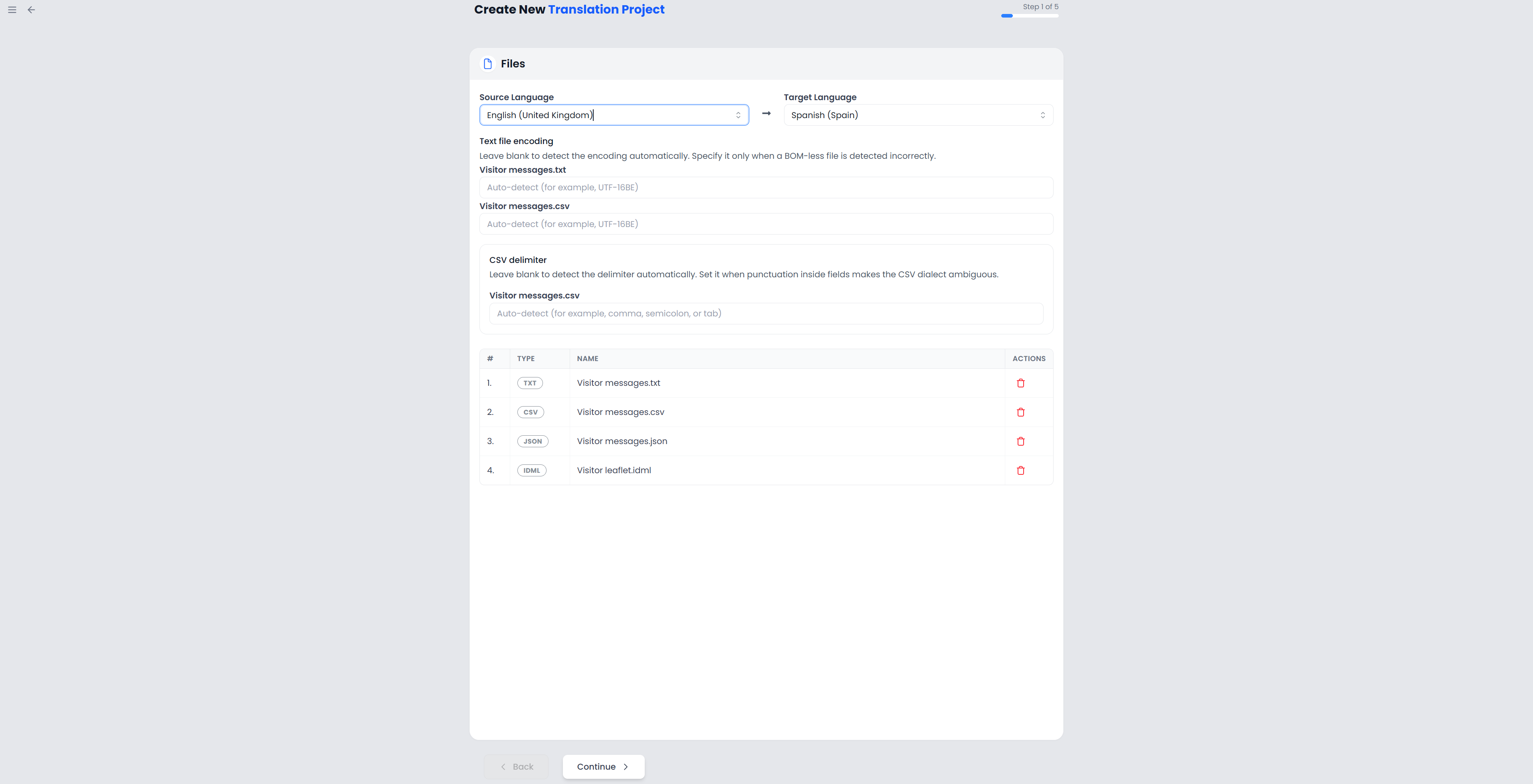
Add these files in the Files step when creating a translation project. Searchspeare imports their text into segments. After translating, export the Translation to get a file in the original format.
Key points
Add the file to a translation project, translate its imported text, and export Translation. For TXT and CSV, use the per-file encoding and delimiter fields if detection is wrong. Keep identifiers, protected tags, placeholders, and subtitle timings intact.
The sections below explain what becomes editable for each format and what to check after export.
TXT: fix incorrectly displayed characters
TXT files contain plain text. Searchspeare divides that text into segments, using line and sentence boundaries.
If accented letters or other characters look wrong, check the Text file encoding field beside the file in the project's Files step. An encoding tells Searchspeare how to read the characters stored in the file.
Leave the field blank for automatic detection. If detection is wrong, enter the file's known encoding, such as UTF-16BE. Click outside the field to apply the change, then recheck the detected language. This per-file field is available for TXT and CSV files in project creation.
Export a bilingual copy as well if you need to keep review information alongside the plain-text translation.
CSV: set the separator and check the cells
CSV files store table cells separated by a delimiter, such as a comma or semicolon. Searchspeare detects comma, semicolon, tab, and pipe separators, and can read a sep= line that declares the separator.
In the project's Files step, use the file's CSV delimiter field if automatic detection chooses the wrong separator. Enter comma, semicolon, tab, pipe, or a single separator character. Quotes and line breaks cannot be used as separators. Use Text file encoding if the characters are also displayed incorrectly.
Cells containing text, including column headings, can become segments. Project creation does not ask you to choose source and target columns. If you are importing existing translation pairs into a memory, use translation memory import instead.
Check imported IDs, product codes, formulas, and other values that must stay unchanged. After export, open the CSV in the receiving application and check that the cells are still in the correct rows and columns. Also check quotes, line breaks within cells, and accented characters.
JSON: translate values and keep keys unchanged
Searchspeare imports JSON string values for translation and keeps the keys unchanged.
For example:
{
  "button.save": "Save",
  "helpText": "Choose a file."
}
In this example, translate Save and Choose a file. The keys button.save and helpText stay unchanged. String values inside arrays and nested objects are also imported. Keep values such as URLs or product codes unchanged when they do not need translation.
Keep placeholders and special characters in the translated text. Searchspeare records where each value belongs so it can put your translation back in the correct place during export. Keep that information intact if you edit an exported bilingual file elsewhere.
After export, check that the application can load the JSON. Test a few translated labels, especially those with placeholders, quotes, backslashes, or line breaks.
XML: translate text and text-bearing attributes
Searchspeare imports text inside XML elements, text in CDATA sections, and text-bearing attributes named abbr, alt, caption, description, display-name, label, placeholder, summary, or title. A CDATA section is a block of text stored inside the XML document.
Translate the imported text and keep protected tags and references in place. Element names and attribute names remain part of the XML structure.
After export, load the XML in the receiving system. Check that it accepts the file and displays the translations in the correct places.
HTML and HTM: translate page text
Searchspeare imports page text, descriptive metadata, and text-bearing attributes such as image alternative text, titles, placeholders, and accessibility labels. Content inside script, style, template, and noscript elements is excluded.
Keep inline tags around the text they format. Translate a link's visible wording while keeping its destination address unless the brief requires a different address.
Open the exported page in a browser. Check the translated headings, links, image descriptions, form labels, and layout.
Markdown: keep formatting, code, and links
Searchspeare imports Markdown text while keeping formatting and protecting elements such as inline code. Front matter—the metadata block at the start of some Markdown files—is not imported as prose to translate.
Translate the text and keep code, link destinations, and placeholders intact. After export, view the rendered document to check headings, lists, emphasis, and links.
EPUB: translate book text
Searchspeare imports text from the EPUB's book content. Translate the segments and keep their protected tags.
Open the exported EPUB in an ebook reader. Check chapter order, headings, internal links, special characters, and whether longer translations display correctly. Text within images needs a separate check in the original book.
SRT: translate subtitles and keep their timings
An SRT file contains numbered subtitles with start and end times. Searchspeare imports the subtitle text for translation and keeps the cue numbers and timings for export.
Keep the tags and required line breaks. After export, play the subtitles with the video in an application that supports SRT. Check that each translation fits its display time and that its line lengths are suitable. Timing adjustments must be made in a subtitle editor.
Import terminology or translation pairs
To import a CSV as a glossary or a set of translation pairs, open the glossary or memory import tool. Their import options differ from those used to translate a source document.
See Files and export, Translate DOCX, PPTX, and XLSX files, IDML extraction, and Bilingual export and corrections for the related workflows.