
Searchspeare spelling assistance
The Spellcheck setup has two optional Searchspeare choices. They perform different jobs:
| Choice | Starts with | Produces |
|---|---|---|
| Spellcheck with Searchspeare | Target text in the filtered unlocked segments | Proposed language corrections in Changes preview |
| Filter false positives with Searchspeare | Reports from the Hunspell dictionary pass | Candidate words to inspect as likely valid exceptions |
Use the first when you want proposed corrections. Use the second when you want help reviewing dictionary reports without immediately rewriting the text.
Request proposed corrections
- Prepare the file or View and the document filters for the intended scope.
- Open Spellcheck and enable Spellcheck with Searchspeare.
- Choose Run spellcheck.
- Wait for the request to complete.
- Inspect the proposed changes, including any explanation, in Changes preview.
- Apply only corrections that preserve meaning, terminology, numbers, and tags.
This mode can propose broader language corrections, not just substitutions for dictionary-unknown words. A grammatical improvement can still be unsuitable for the brief, so read the differences as well as the final sentence.
With Spellcheck with Searchspeare on, Run spellcheck requests AI corrections. To run Hunspell instead, turn this switch off. You can still use Filter false positives with Searchspeare with the Hunspell results.
Apply a correction before confirming the segment
Opening a proposal does not apply it. Applying a proposal and confirming a segment are separate decisions, subject to the preview acceptance preference described in Review proposed AI changes.
Review likely dictionary false positives
- Install and select an appropriate Hunspell dictionary.
- Leave Spellcheck with Searchspeare off.
- Enable Filter false positives with Searchspeare.
- Inspect its options, including whether names or source-language words should be considered for discarding.
- Choose Run spellcheck.
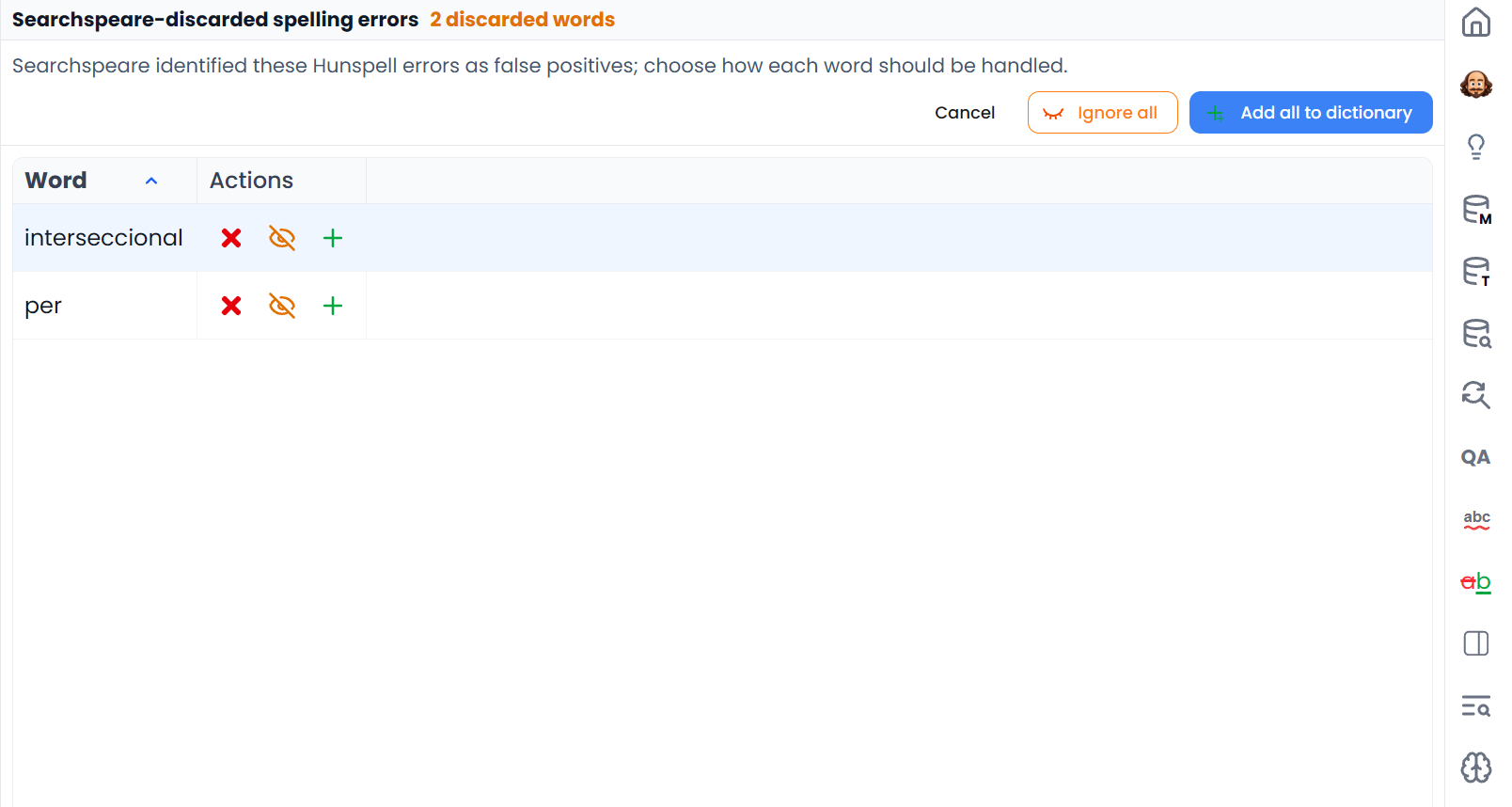
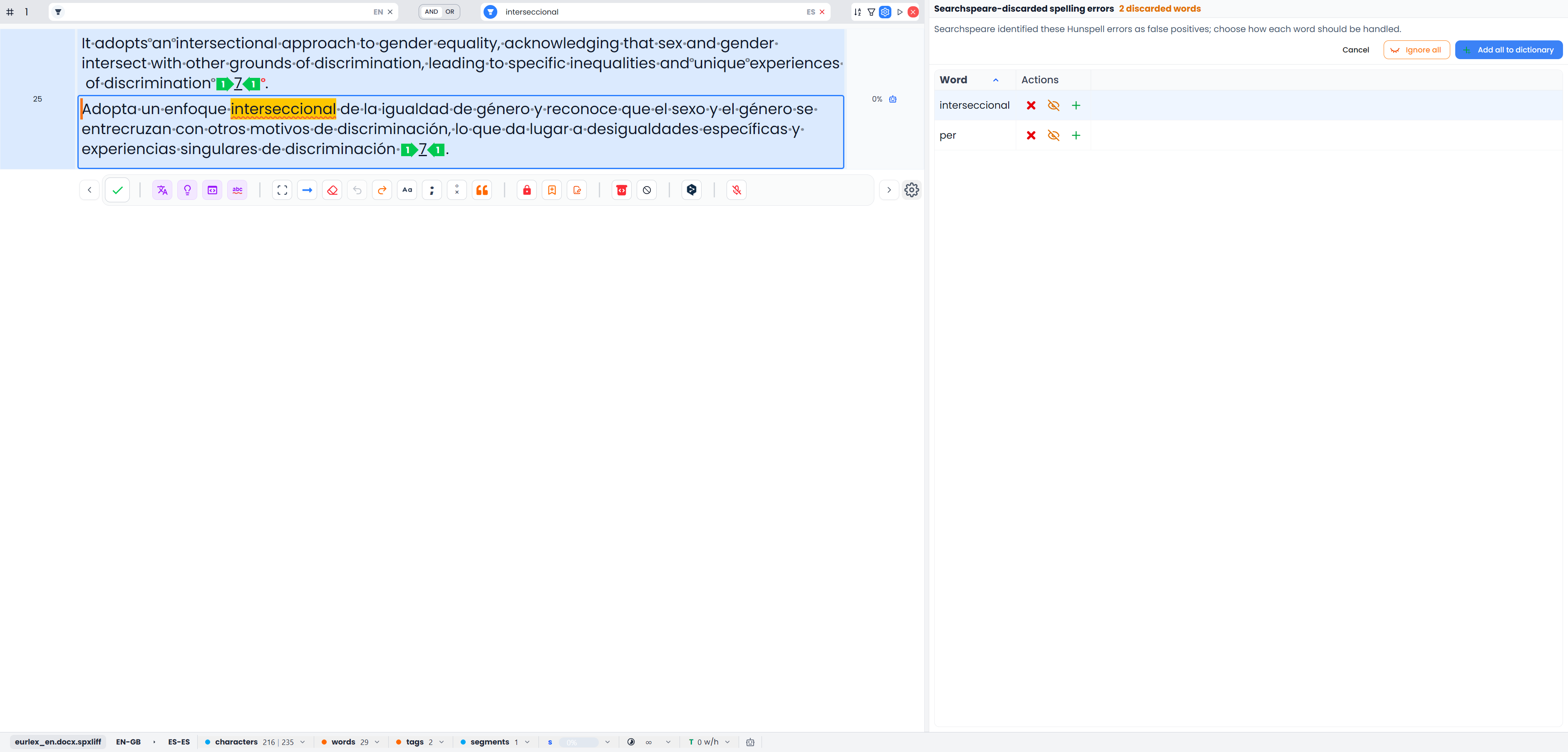
- Review the ordinary dictionary results and any Searchspeare-discarded spelling errors tab that opens.
Dictionary reports are collected first. Searchspeare then identifies likely exceptions for review. The discarded-word label describes that assessment; it does not guarantee that each candidate is valid or that it has already been added to the dictionary.
Review words marked as likely valid
Click a candidate word to filter the document to its target occurrences. This uses a literal whole-word search, so you can inspect how it is used before deciding.
| Action | What it means |
|---|---|
| Keep as a spelling error | Leave the word available as a spelling problem and remove it from this dismissal preview |
| Ignore | Dismiss the corresponding current reports without adding dictionary vocabulary |
| Add to dictionary | Save the valid spelling for the relevant dictionary and dismiss corresponding reports |
| Ignore all | Dismiss the remaining candidate reports in this preview |
| Add all to dictionary | Try to accept all remaining candidate words as valid spellings |
| Cancel | Leave the remaining pending candidates unapplied and return to spelling review |
The two bulk actions concern the remaining preview candidates. This is different from Add all in the ordinary result list, which concerns unresolved words across that result set. Neither is restricted by selecting document rows.
Individual decisions already applied remain in effect if you later cancel the remaining preview. If some words cannot be added, Searchspeare reports the problem and leaves the unsuccessful candidates available for review.
Handle unavailable or incomplete assistance
AI spelling controls depend on the assistance settings and available allowance. Non-AI mode hides these choices. A downloaded Hunspell dictionary remains a separate spelling resource.
If the optional false-positive filter fails, the dictionary results remain available. Continue reviewing them normally or retry later; a failed assessment does not turn the unknown words into accepted vocabulary.
If a correction request is interrupted or partly completed, inspect any retained proposals and the current targets before retrying. Do not assume every filtered segment received a successful assessment.
When finished, use the document filter bar's Clear all if you want the full open table again, then run the relevant final spelling pass.