
Segmentation and abbreviations
Segmentation divides a document into pieces you can translate or review. A segment is often a sentence, but it can also be a heading, label, paragraph fragment, or other format-defined unit.
Choose the operation
Use Split or Merge for individual boundaries, Resegment to apply saved rules across the current file, and Restore Original to return to imported boundaries. Check the resulting source–target pairs after any change.
Useful boundaries make the source easy to understand and improve reuse. Poor boundaries can split an abbreviation from the rest of a sentence or combine unrelated instructions.
Segmentation guides
| Task | Guide |
|---|---|
| Correct a few individual boundaries | Split and merge |
| Apply saved rules to existing work or restore imported boundaries | Resegmentation and restoration |
| Protect abbreviations or create/import a boundary rule | Rules and abbreviations |
| Identify every command in the tab | Segmentation ribbon |
Check boundaries before translating a large file
Inspect several paragraphs after import. Pay particular attention to abbreviations, numbered lists, initials, and specialized punctuation.
For example, a full stop after an abbreviation should not always end the segment. A heading without a full stop may still be a separate unit because of the document's structure.
If the problem repeats throughout a source document, adjust the relevant rules before investing heavily in translation. If it affects only a few rows, manual splitting or merging may be more suitable.
Split or merge in the editor
Use Split segment when one row should become separate units. The split action uses the source cursor position, so place it at the intended boundary and inspect both source and target afterward.
Use Merge segments when adjacent rows belong together. Select the intended contiguous rows, apply the merge, and check spacing, punctuation, tags, and target text. Format restrictions and existing review information can limit what a particular operation can do.
With just one row selected, Merge attempts to include the next row. Split keeps existing target text with the first portion and creates an empty second target, so review the target correspondence yourself. Confirmed and locked rows are protected, and these structural operations are unavailable in combined Views.
These actions change the units you will confirm, search, and export. Keep a working export before a substantial restructuring pass.
Manage abbreviations
Open Settings → Abbreviations to manage language-specific abbreviation files. Add a relevant abbreviation when the same unwanted split keeps recurring.
Working-language setup can load abbreviation resources for newly added languages. Verify the file's language instead of assuming an abbreviation added for one language applies to another.
Customize segmentation rules
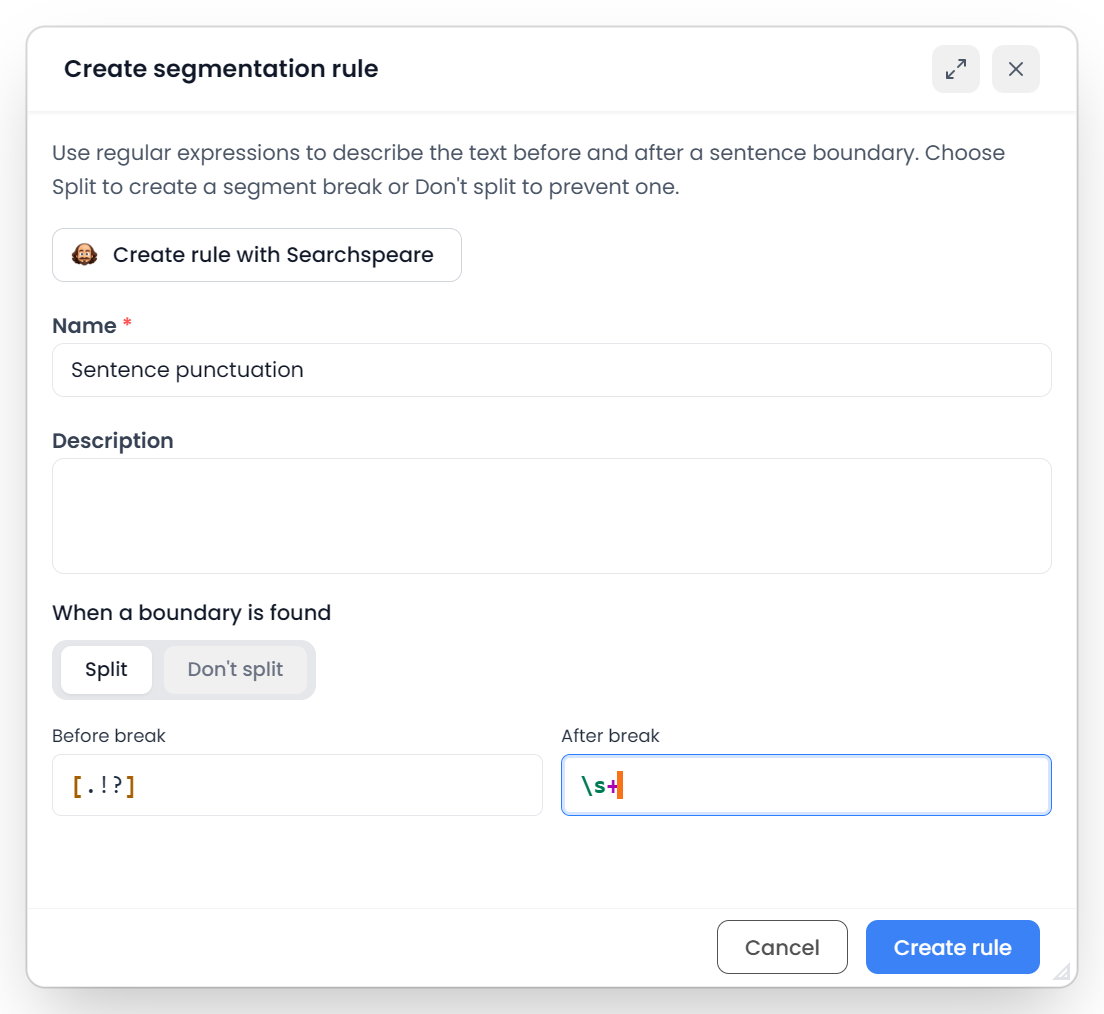
Open Segmentation → Rules in the editor for the current source language's custom rules. You can create, edit, delete, and search rules, choose Split or Don't split, or import a supported SRX or memoQ rule resource. The manager saves language-specific custom rules; importing replaces its custom list with the compatible imported rules. Create rules with Searchspeare explains the helper available inside the rule form.
A boundary rule uses text before and after the possible break. The order matters, and abbreviation protection is evaluated before the split rules. Test on sample text, including examples that should split and examples that should stay together.
A dot in a regular expression can mean any character. If Searchspeare offers to escape wildcard dots, decide whether you intended a literal full stop or a broader match. Regular expressions explains the syntax.
Resegment an existing file
Saving a rule is different from resegmenting an already prepared file. Use the explicit resegmentation action when you intend to apply rules to eligible existing content. Read the app's confirmation and inspect the result.
Use Restore Original to return to the imported segment boundaries. Export your current work first, keep the required boundary tags, and check the resulting source and target pairs afterward.
Resegment concerns the current file regardless of row selection or filters, while protected confirmed/locked content keeps its boundaries. Restore Original uses boundary tags to put current translations back into the original segments. The required tags must be present in the target. Read the dedicated guide before restructuring existing translations.