Clean up document formatting
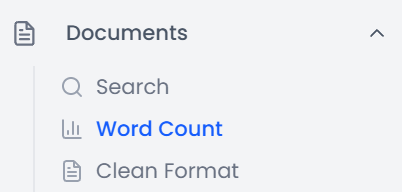
Open Documents → Uniformize Format to prepare DOCX, PPTX, or XLSX copies before import. The tool can reduce unnecessary formatting differences that create extra tags. It can also perform optional text and layout changes, so choose the options according to the document's content.
Quick steps
Open Documents → Uniformize Format, add the files, review Advanced options, and run Clean format. Download and inspect the prepared copies before importing them. Some options change text or layout.
Process and download files
- Add the files and check the list. Remove any file that does not belong in this batch.
- Open Advanced options and review the enabled choices.
- Close the options dialog and run Clean format using the page's processing action.
- Wait for the results. Download an individual file or choose Download all for a ZIP archive.
- Open the prepared copy and compare the content and important formatting with the original.
Prepared filenames add -uniformized before the extension. Download all produces uniformized-files.zip. The original files on your computer are not overwritten, and existing project segments are not updated by preparing a separate copy here.
Use New file to clear the current input/output list and prepare another batch. If you change an option, run Clean format again to produce a new copy.
Which cleanup options start enabled
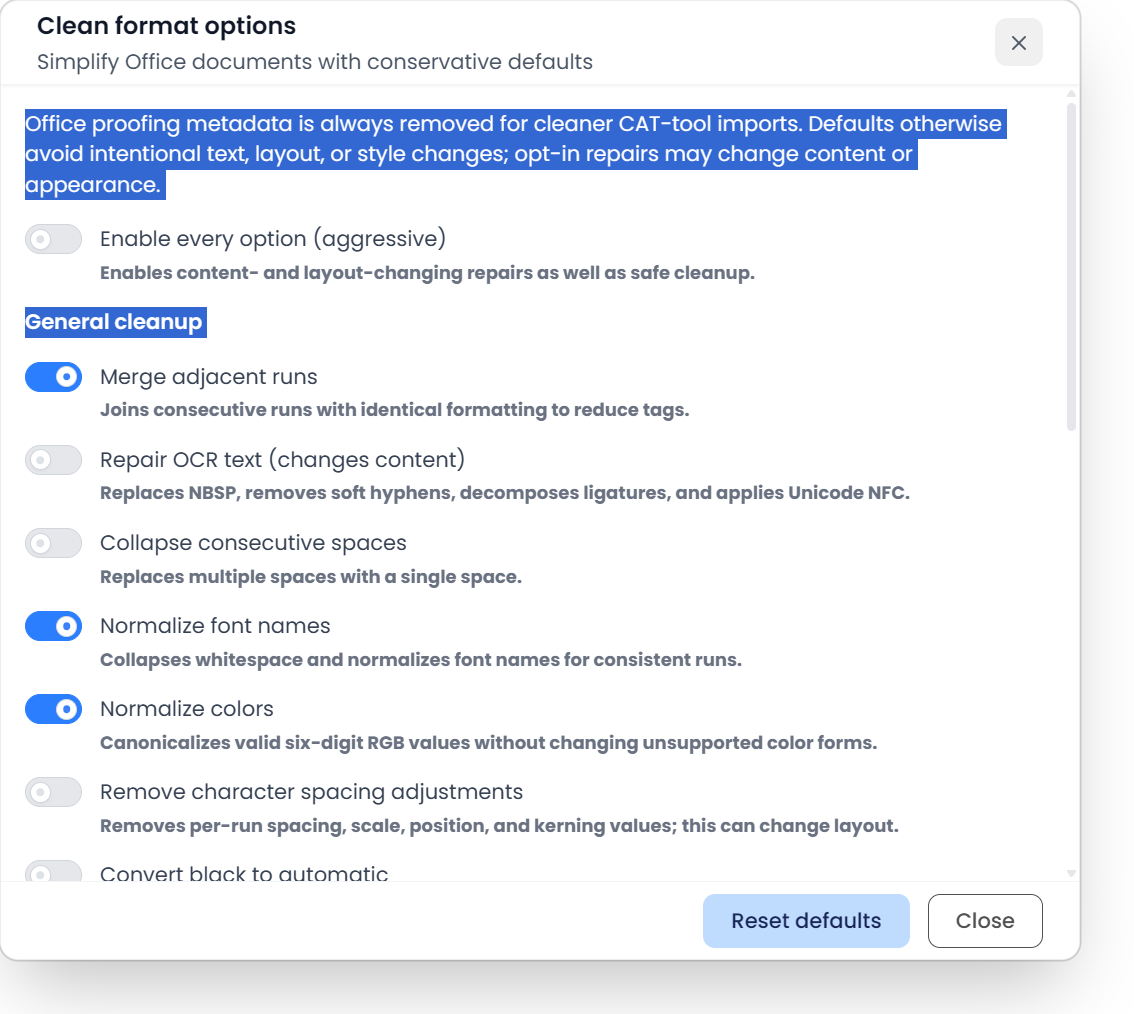
The defaults enable merging of compatible adjacent text runs, font-name and color normalization, list-numbering deduplication, and processing of all supported DOCX text parts. Content-changing OCR repair, repeated-space collapse, paragraph-wide font changes, layout cleanup, and removal of superscript/subscript are initially off.
A run is a span of text with its own formatting. Several identical runs can often be combined without needing separate translation tags. The tool also removes stored proofing information, such as language flags used by spelling tools. Run spellcheck separately on the text.
Use Reset defaults to restore the initial options. Enable every option (aggressive) turns on the content- and layout-changing repairs too. Review these options before running them, because they can change text and layout.
General cleanup options
| Option | What changes and what to check |
|---|---|
| Merge adjacent runs | Joins consecutive text spans with identical formatting, reducing unnecessary run boundaries |
| Repair OCR text (changes content) | Replaces non-breaking spaces, removes soft hyphens, expands supported ligatures, and normalizes equivalent character sequences. Check wording and spacing afterward |
| Collapse consecutive spaces | Replaces repeated spaces with one space. Leave off when repeated spaces carry intentional meaning or alignment |
| Normalize font names | Normalizes font-name spelling/whitespace so equivalent names do not create unnecessary differences; this is different from making a paragraph use one font |
| Normalize colors | Normalizes supported six-digit RGB representations; it does not make every colored span use the same color |
| Remove character spacing adjustments | Removes per-span spacing, scaling, position, and kerning adjustments. This can change layout |
| Convert black to automatic | Removes explicit black formatting so the inherited theme color applies. The visible result can change |
| Remove explicit default run properties | Removes supported explicit default or empty properties; it is not a command to delete all formatting |
| Normalize paragraph sizes | Unifies font size within a paragraph. Intentional size differences can disappear |
| Normalize paragraph fonts | Unifies the font family within a paragraph. Intentional font differences can disappear |
| Normalize paragraph colors | Unifies font colors within a paragraph. Color distinctions can disappear |
| Convert symbol fonts | Converts a supported Symbol/Wingdings span only when all its non-space characters have known character mappings. Inspect symbols in the output |
For a formula, product code, footnote marker, or color-coded instruction, check whether a proposed normalization would remove meaningful information before enabling it.
Shapes and charts
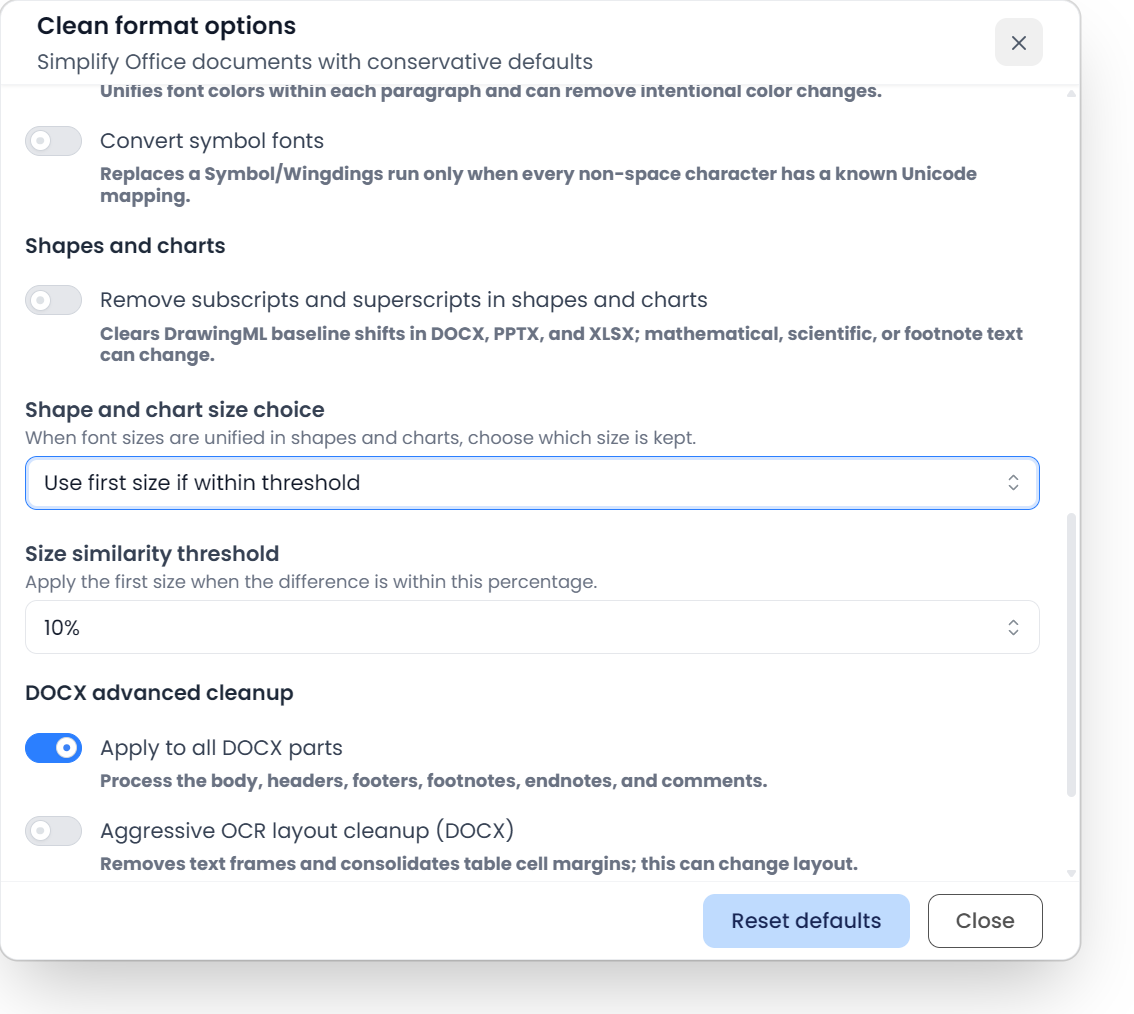
Remove subscripts and superscripts in shapes and charts removes the text-position shifts used by those elements in supported DOCX, PPTX, and XLSX content. A chemical formula or mathematical expression can change appearance or meaning.
The following choices appear when the corresponding paragraph-normalization option is enabled:
| Choice | Available behavior |
|---|---|
| Shape and chart font choice | Keep the most common font or the first font in the paragraph |
| Shape and chart color choice | Keep the most common color, use the first color where colors meet the similarity test, or use the first color for all |
| Shape and chart size choice | Keep the most common size, use the first size within the chosen similarity threshold, or use the first size for all |
| Size similarity threshold | For the threshold-based size choice, select 10%, 20%, 30%, or 40% |
Use first for all replaces differences throughout the paragraph. Use the similarity-based choices when you want to combine only close colors or sizes, and check that meaningful differences remain.
DOCX advanced cleanup
| Option | Effect |
|---|---|
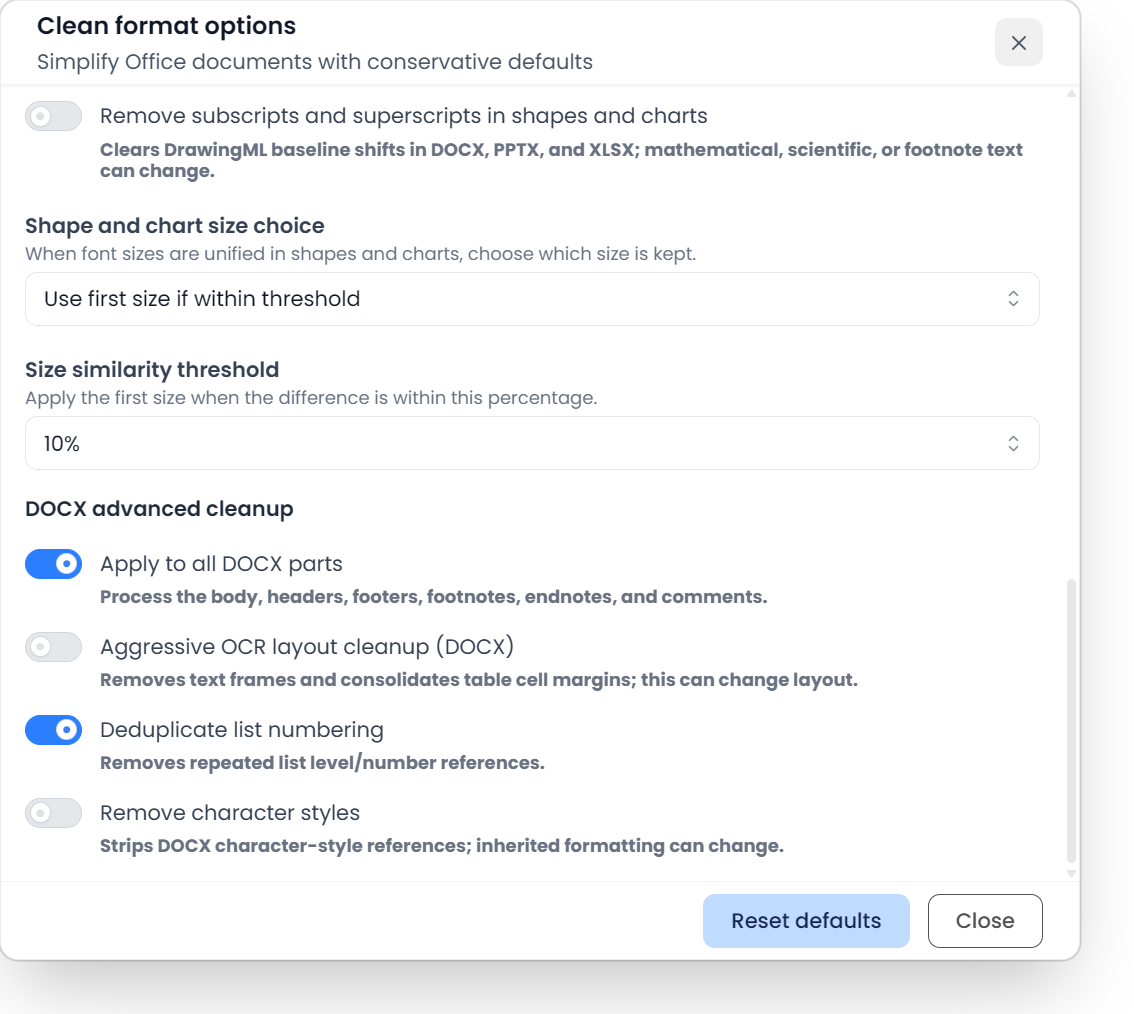
| Apply to all DOCX parts | Applies the supported cleanup to body text, headers, footers, footnotes, endnotes, and comments. With it off, the main body is the primary text-processing target |
| Aggressive OCR layout cleanup (DOCX) | Removes text frames and consolidates table-cell margins. Inspect text placement, tables, and pagination |
| Deduplicate list numbering | Removes repeated list-level/number references |
| Remove character styles | Removes character-style references. Formatting inherited through those styles can change |
The DOCX options apply to the listed document parts. Inspect the prepared file before using it for translation.
Inspect before importing
Read headings, tables, lists, footnotes, formulas, symbols, and any content affected by the enabled choices. Compare line breaks and page or slide layout where those matter. Keep the original alongside the prepared copy.
When the output is suitable, add that checked copy to the intended translation project. If a meaningful distinction disappeared, return to the original, adjust the responsible option, and prepare a new copy. This tool is separate from reimporting an existing project file.