
Create a quotation
Open Business → New Quotation. The wizard has five steps. Use Continue to move forward and Back to correct an earlier choice before saving.
Before you start
Have the files, client record, seller details, translation direction, currency, and rate available. The wizard analyzes the files you supply; it does not copy an existing translation project.
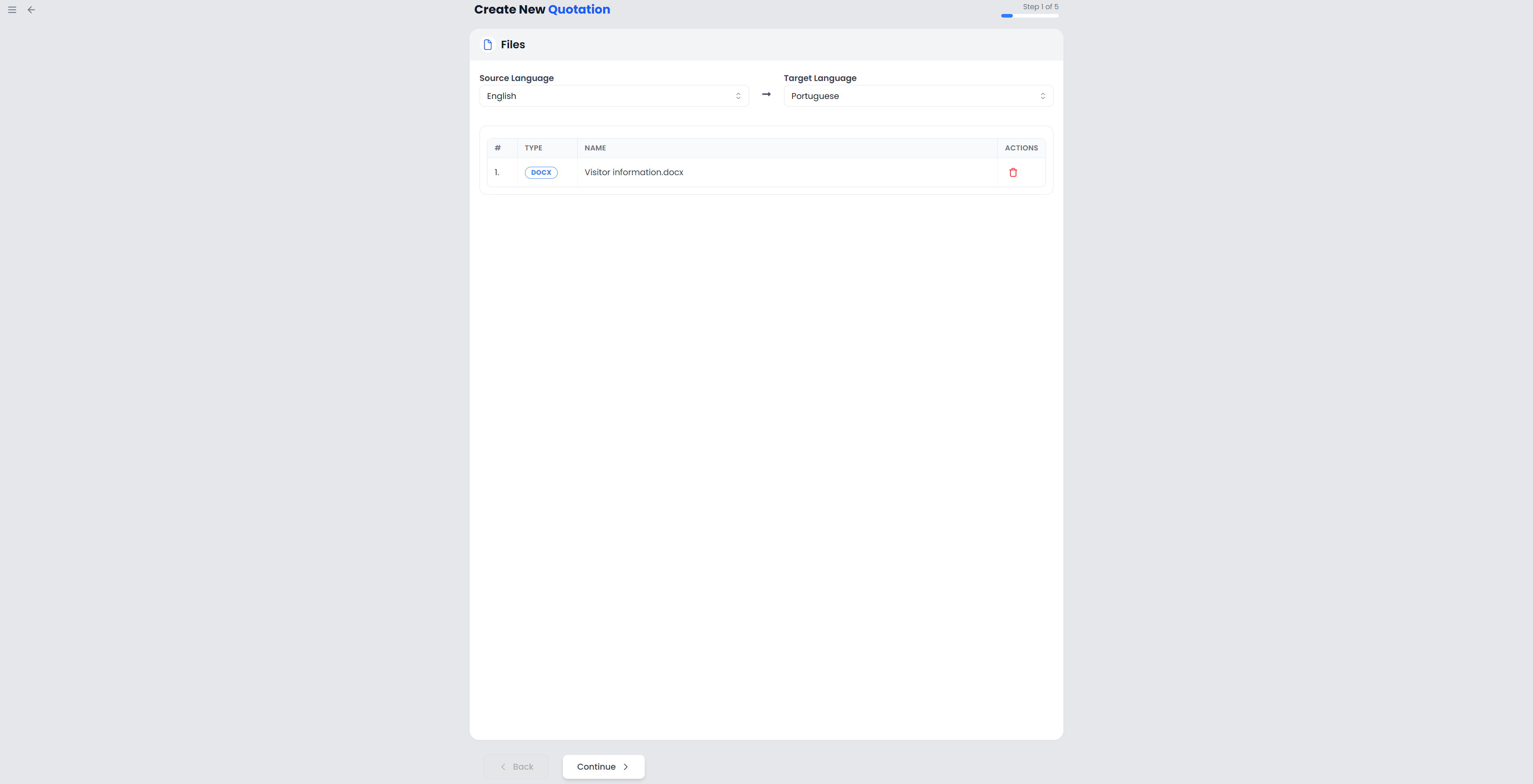
Files
Add the files whose work you want to quote. Check the file list and remove files that do not belong to the offer. Files with the same name are treated as one entry; give distinct files different names before adding them.
Check both source and target language selections. Language detection or information in a bilingual file can help fill the choices, but you must verify the intended direction. These choices also affect which memories are available and how the analysis is performed.
Use the formats offered by the file picker. Files and export explains the translation-file families. Adding a file here prepares it for quotation analysis; it does not add it to an existing translation project.
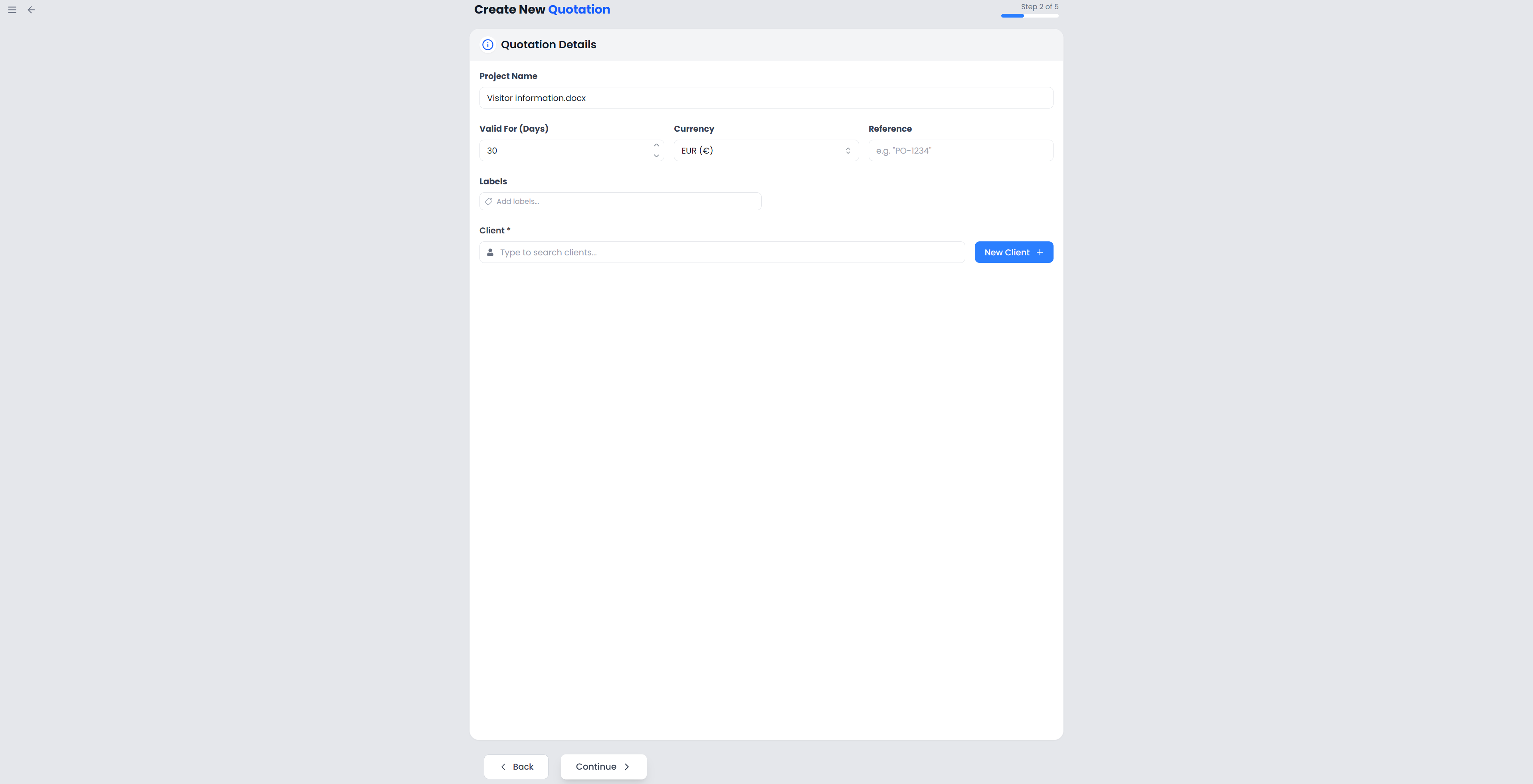
Quotation Details
| Option | What to enter and what it affects |
|---|---|
| Project Name | A clear name for the work being quoted; it appears as the job description |
| Valid For (Days) | How long the offer remains valid from creation; the control accepts 1–365 days and initially shows 30 |
| Currency | The currency of the per-word price and quotation amounts; choosing another currency does not convert the price for you |
| Reference | The client's job reference or another identifier to include with the work |
| Labels | A setup field currently offered by the wizard; labels are not retained as searchable quotation labels in the saved quotation |
| Client | The customer receiving the offer; you must select a client before continuing from this step |
Use New Client if the customer has no record yet, then select the saved client. Check its name, address, business details, and VAT rate before creating the quotation. The calculation uses that client's recorded VAT rate.
The validity date concerns the offer. It is different from a translation delivery deadline. The issue date and quotation number are assigned when you create the quotation.
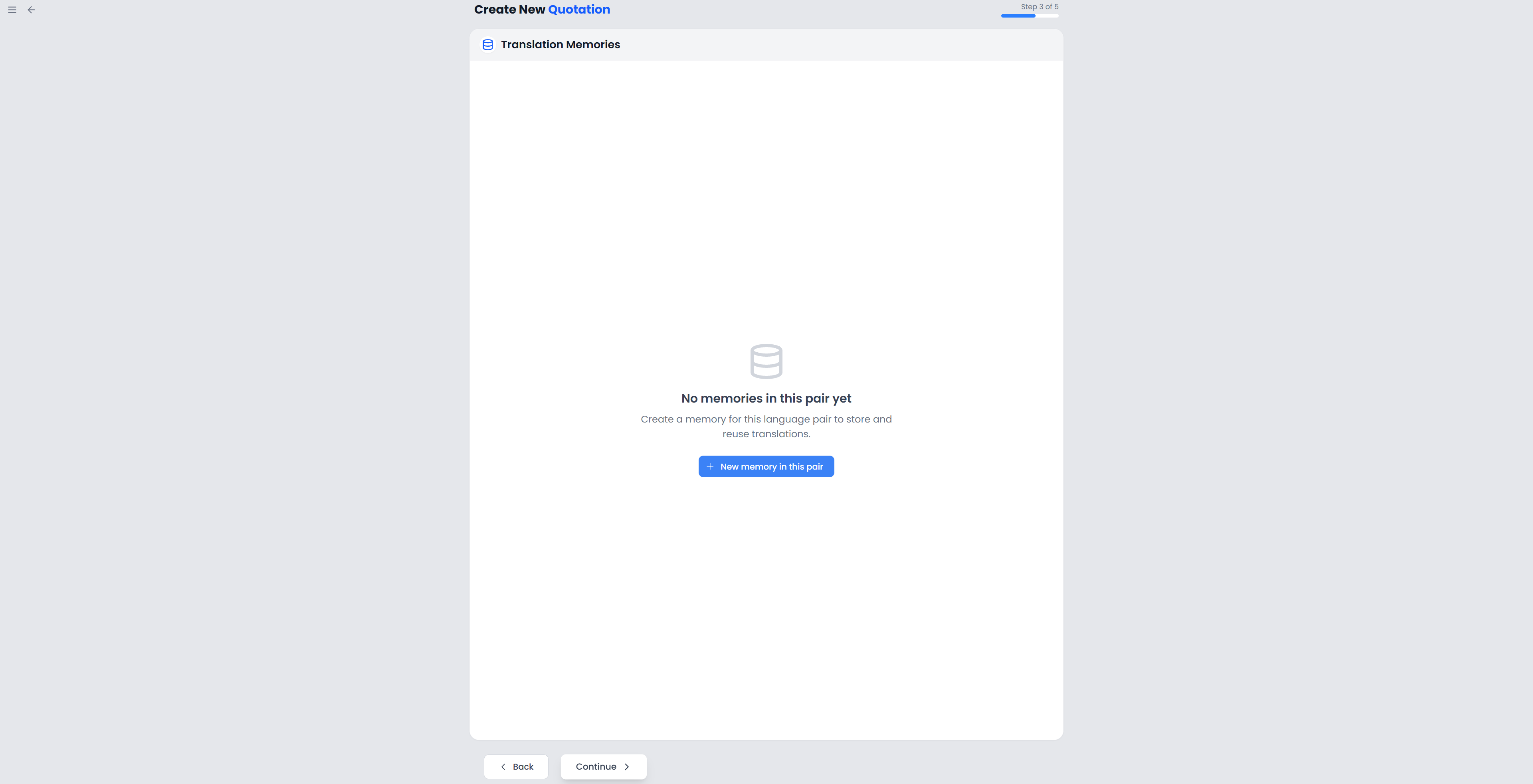
Translation Memories
Select the memories that should be used to analyze reusable wording. Check the language pair and the selected memory names. Search the memory list if necessary, or use its new-memory action when appropriate.
An empty memory selection still allows an analysis of internal reuse in the supplied files. It does not search every saved memory automatically. An empty new memory also contributes no saved translation matches.
Selecting memories for the quotation does not insert their translations into a project or confirm segments. This step prepares a price analysis. Read Translation memories if the resource is unfamiliar.
If the memory list cannot be loaded, use Retry and wait for a successful result. A loading failure is different from having no memories to select.
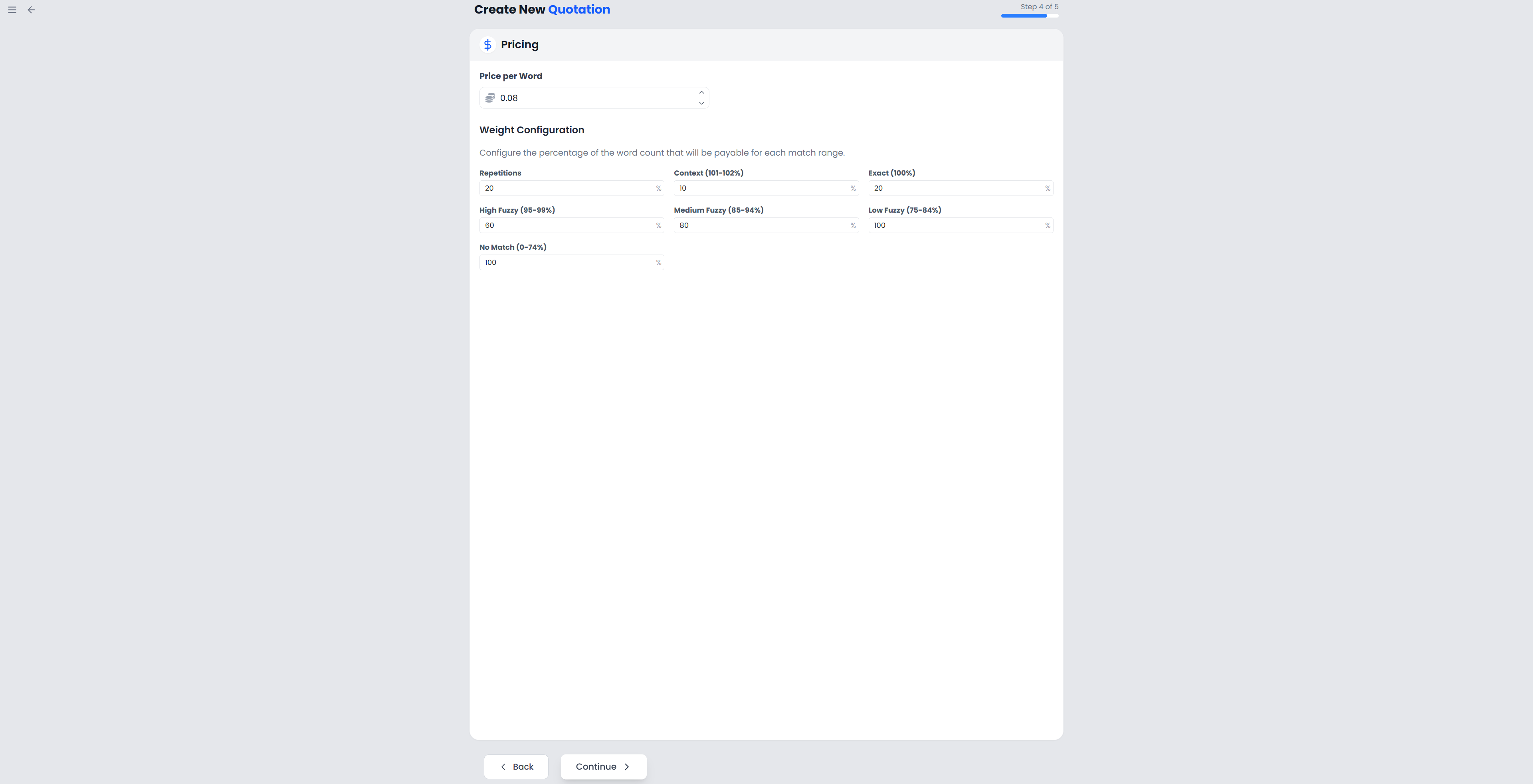
Pricing
Enter Price per Word in the chosen currency, then set the Weight Configuration for repetitions and each match band. The price accepts up to four decimal places; each weight is a percentage from 0 to 100.
These are quotation-specific choices initialized from your weighted-word settings. Changing a quotation's weights does not save new general defaults. See Analysis and pricing for every category and a worked example.
Quotation Calculation
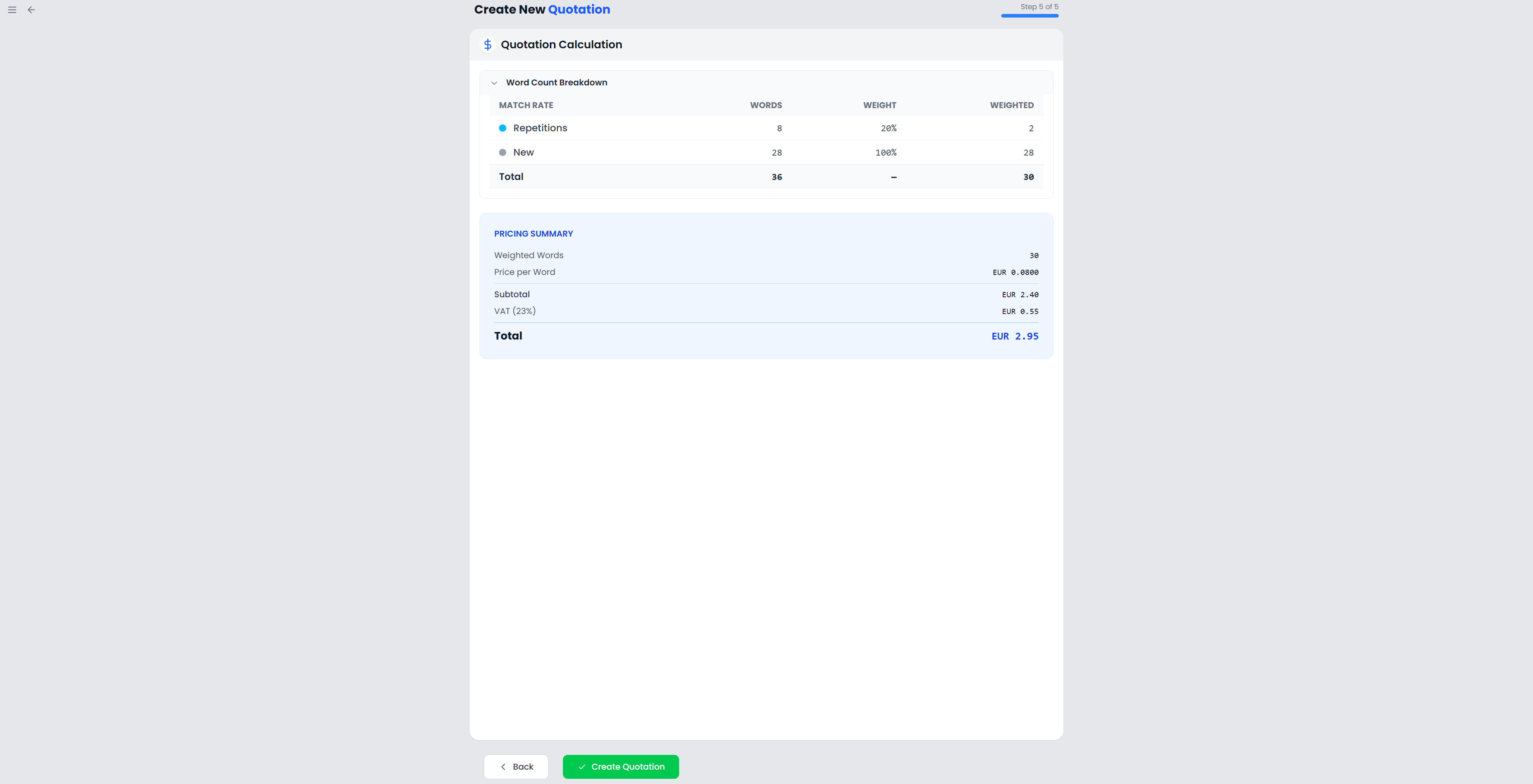
Entering this step starts file preparation and analysis automatically. Wait for it to finish. Expand Word Count Breakdown to inspect the raw words, weight, and weighted contribution for each category that has results.
Check Pricing Summary:
- Weighted Words agrees with the categories and your weights.
- Price per Word and the currency match the offer you intend.
- Subtotal is the weighted-word total multiplied by that price.
- VAT reflects the selected client's rate.
- Total is the subtotal plus the calculated VAT amount.
Changing files, languages, or selected memories makes the previous analysis out of date. Return through the wizard and let the calculation run again. Changing a rate or weight changes the pricing calculation without requiring a new search for matches.
Save the draft
Choose Create Quotation when the analysis and client details are ready. Searchspeare saves a numbered Draft and opens the quotation list. Creation does not send or automatically download the document.
If your seller profile is incomplete, complete the information requested by the message before trying again. If the app says the quotation was created but the list could not refresh, reopen Quotations and look for the saved record before creating another copy.
Continue with Manage quotations and statuses and Export and document appearance.