
QA profiles and settings
A rule looks for a particular kind of problem. A profile chooses which rules to run together and stores the available settings for those rules. The results are the findings from running a profile against your text.
Use separate profiles when different jobs need different checks. A client-specific terminology restriction, for example, should not silently become a requirement for unrelated clients.
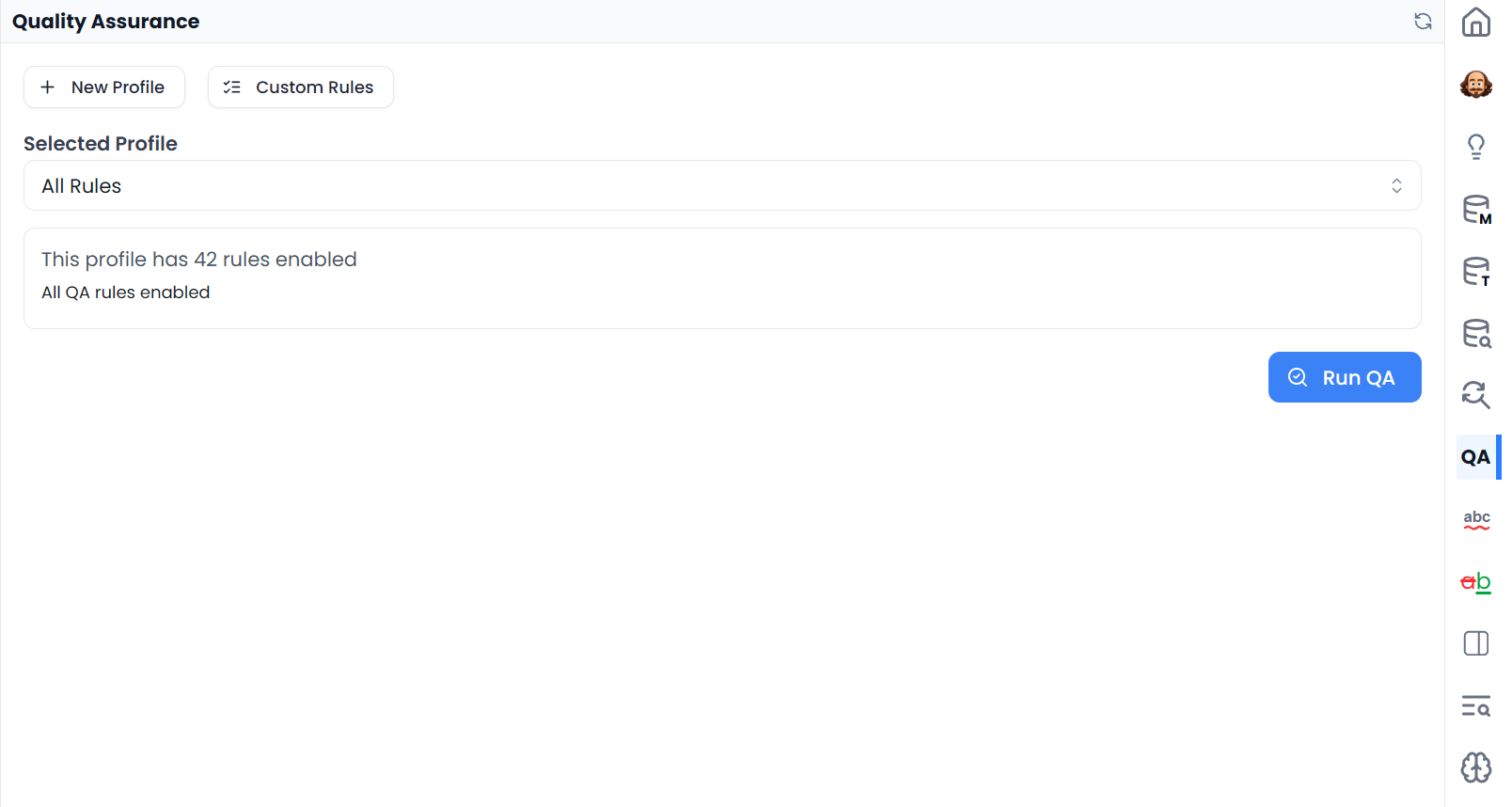
Choose a profile and run it
- Open the editor's Quality Assurance tab.
- In the profile controls, choose the intended Selected Profile.
- Check its description and enabled-rule count.
- Choose Run QA.
- Wait for completion, then review the results.
Recheck keeps the profile; Reset returns to setup
When previous results are already displayed, Recheck QA runs the last selected profile again. To return to profile selection and choose or manage a different profile, use Reset QA. Reset removes the current scope's saved QA results and decisions; it does not change the translation. Read Results, rechecks, and resets.
QA uses unlocked segments across the whole open file or View, including rows hidden by table filters. A profile defines the checks, not a smaller row selection. See Selecting segments and batch actions.
What All Rules includes
All Rules is the protected comprehensive profile. It includes the available built-in and custom rules, rather than being your editable client-specific selection. Its edit and delete actions are unavailable.
Custom rules added to your available rule collection are included when All Rules is resolved. This can include Searchspeare QA rules that require AI evaluation. Choose a configured profile if you want a stable subset or want to run standard checks without those AI-evaluated rules.
Some built-in checks need settings before they can report anything. For example, Forbidden characters needs a character list, and Forbidden target terms needs replacement pairs. Enabling their names alone does not supply those requirements. Create your own profile to configure them.
Create a QA profile
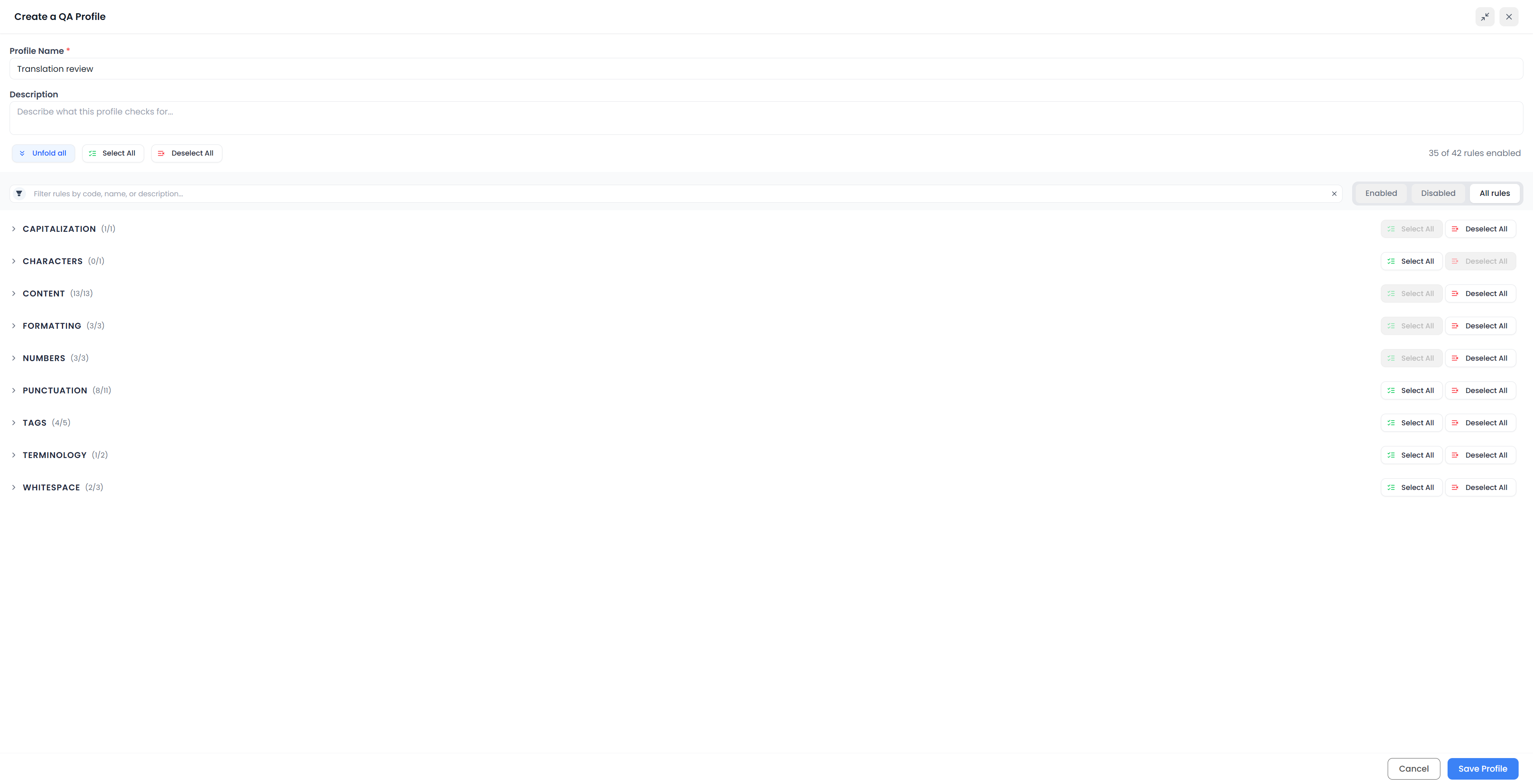
- Choose New Profile.
- Enter a clear Profile Name and a description of when to use it.
- Inspect the rules grouped by category.
- Enable the checks relevant to the job and disable those you do not need.
- Open Configure rule for a rule with available settings and fill them in.
- Choose Save Profile.
- Select the saved profile in the run controls and run a sample check.
For example, “Client A — technical manual” is more useful than “My profile” when it contains that client's forbidden wording. Its description can explain the intended language pair and which exceptions the reviewer should expect.
New profiles begin with a default selection; some optional checks start disabled. Inspect the selection rather than assuming a new profile has exactly the same enabled set as All Rules.
Search for rules and change their selection
Search by code, name, description, or category. The search can also be negated. Use Enabled, Disabled, or All rules to inspect the current profile selection. Fold categories to reduce scrolling.
The profile form's Select All and Deselect All affect the full rule collection, not just rules visible through the search. Category selection controls act on the rules currently shown in that category. Recheck the enabled count before saving.
These controls select rules. They do not select segments in the translation table.
Configure Forbidden characters
Open this rule's settings and enter the literal characters that must not occur in the target. Each entered character is a separate forbidden character; this field is not a phrase list or a pattern.
Use it for an explicit delivery requirement. Do not enter the word “tab” expecting it to represent a tab character: that would supply the letters themselves.
Configure Forbidden target terms
Add a Replacement pair containing the Word or phrase to flag and the preferred Replacement. The check uses case-sensitive whole-word or phrase matching.
Both sides of a pair are needed. Include separate entries for forms you intend to treat differently, and test the exact capitalization used in the document. These pairs belong to the profile; they are separate from terminology entries in an attached glossary. See Terminology checks.
Edit or delete a profile
Choose your custom profile and use Edit, make the changes, then choose Save Changes. Leaving the form without saving does not update the profile. Run QA again when you want findings based on its new selection or settings.
Use Delete only when the profile itself is no longer needed. Deleting a profile is different from deleting a custom rule used by more than one profile. Use the Custom Rules controls when you intend to maintain the underlying check.