
Spellcheck tab
Spellcheck is the panel for running a spelling pass and working through its results beside the document. It is separate from general QA: a correctly spelled word can still be the wrong translation or technical term.
The dedicated Spellcheck section explains the complete workflow, including installing a Hunspell dictionary, options, result actions and automatic table filtering, Searchspeare assistance, and commands and troubleshooting.
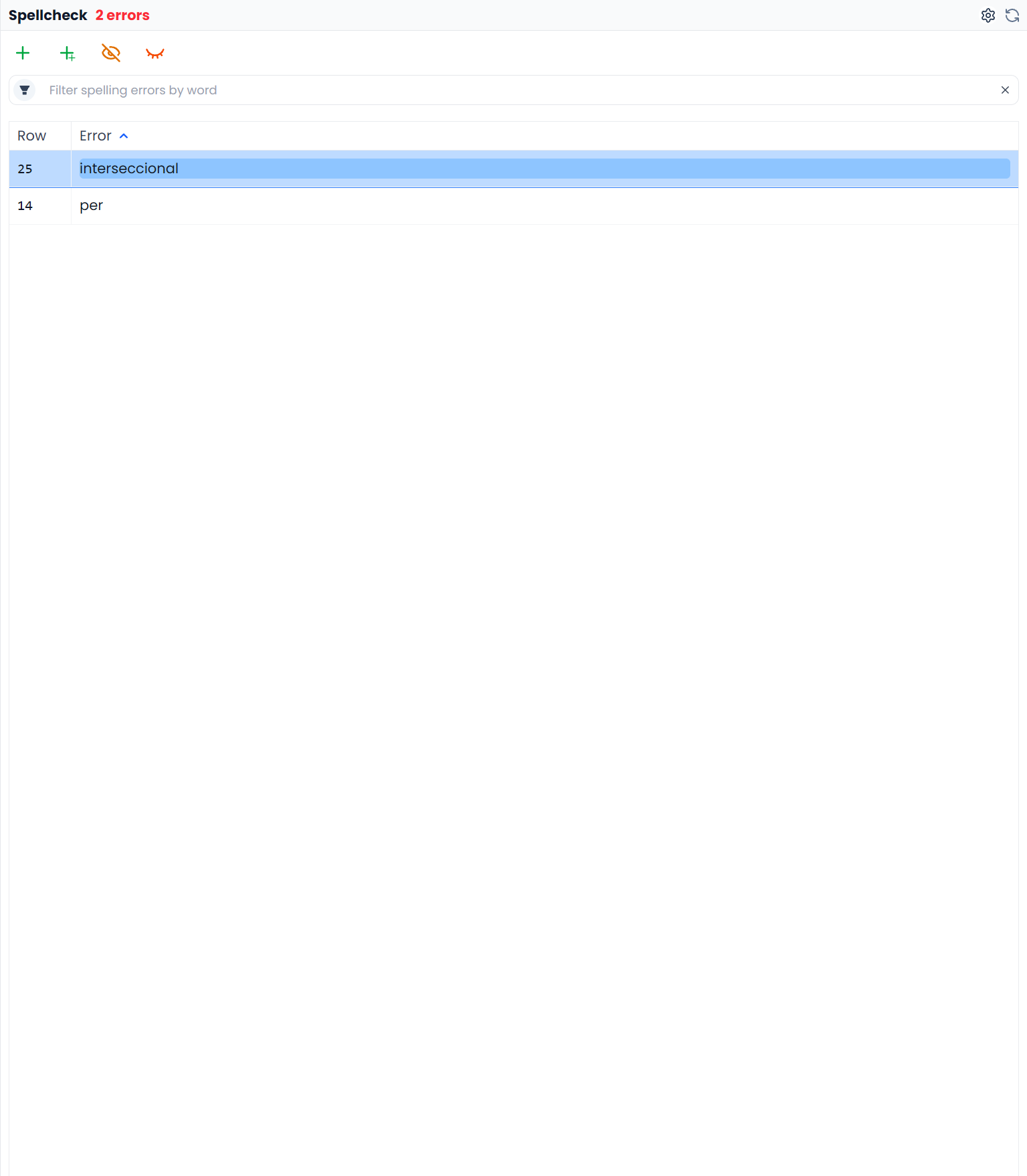
Prepare and run the pass
The tab initially shows the spelling-run controls when no result set is available. Once a pass has results, it displays the spelling review list.
Clear filters before a full spelling pass
Dictionary Spellcheck uses eligible target text in the filtered unlocked segments. It is not limited to the selected rows. For a full pass over the open file or View, use the table filter bar's Clear all control first. This differs from QA, which checks the whole loaded file or View regardless of table filters. See Selecting segments and batch actions.
- Check the document language and the file or View you intend to review.
- Use Install dictionary if a suitable Hunspell dictionary is not yet available.
- Choose the installed dictionary under Spellcheck engine for a dictionary pass.
- Leave Spellcheck with Searchspeare off when you want dictionary results; that switch starts the AI correction workflow instead.
- Inspect the spelling options, choose Run spellcheck, and wait for results.
- Click a reported item and inspect its sentence in the editor.
A missing dictionary is not the same as a successful pass with no errors. Resolve a dictionary prompt before drawing conclusions about the document's spelling.
The default F6 shortcut toggles this tab. Run spellcheck is the separate action that starts a pass. Use Reset spellcheck tab to return from old results to the setup controls when preparing a fresh run.
Choose a dictionary and spelling options
The options let you decide how to handle uppercase words, words with initial capitals, mixed letters and numbers, single letters, and wording also present in the source. A technical file with model numbers may need different choices from ordinary prose.
Excluding a category can reduce noise, but it also means mistakes in that category may be missed. For example, excluding initial capitals can hide a misspelled word at the beginning of a sentence.
Spelling options explains all five dictionary word-type controls and the separate false-positive preferences.
Review each reported word
Clicking a result selects its segment and filters the document to literal, whole-word, case-insensitive target occurrences of that word. It clears the source search and other document filter conditions. Right-click the result for available suggestions and actions.
Read the whole sentence before choosing a correction. Inspect the offered alternatives rather than selecting the first suggestion simply because it is recognized by the dictionary. A valid spelling can name a different component or change the meaning.
Use the available ignore or dictionary actions according to the result you want:
- Correct when the document contains a spelling mistake.
- Ignore when the report does not need action in the current review.
- Add to dictionary when the spelling is valid vocabulary you want recognized in later checks.
Adding a word to a spelling dictionary does not make it an approved source–target glossary pair. Maintain translation terminology in a glossary.
The list's Ignore all groups reports for the selected word. Add all instead accepts unresolved words across the result set, including reports outside the result-list search. See Reviewing spelling results before using these broader actions.
Clear the word filter
Use the X labeled Clear all in the document filter bar to show every segment in the open file or View again. Clearing the search inside the spelling list only changes the reports shown there. Closing or resetting the panel can restore earlier search settings, so check the table filters again before a full pass.
The commands guide explains resetting, clearing filters, and rerunning in the correct order.
Review AI-assisted decisions
The available AI spelling and false-positive tools can help with specialized vocabulary. Inspect their proposed corrections and dismissals. The Searchspeare-discarded spelling errors tab lets you review words identified as likely false positives, keep them as errors, ignore them, or add valid words to the dictionary.
See Searchspeare spelling assistance for the two AI workflows and candidate-review controls. After editing, rerun the relevant pass and continue with the wider quality workflow.