Word counts and analysis reports
Word-count analysis counts source words and groups them by repetitions and translation-memory matches. Use the report to estimate a job or review how much text can be reused.
Check which text is counted
Editor Word Count uses filtered, unlocked segments. Counts from project file lists can include locked segments. Before comparing reports, check the files, filters, memories, and weighting settings used by each action.
Choose files, a project, a file, or a View to count
| Entry point | Content analyzed |
|---|---|
| Documents → Word count | The files you add in Documents → Word count |
| Word Count in the current editor | The current filtered, unlocked units, using the project's selected memories |
| A project's word-count action | The project's current working segments, excluding locked ones, using the attached memories |
| Word count from the project file list | The working units in the files passed to that action; this path does not exclude locked rows merely because they are locked |
| Word count from project Views | The units belonging to the chosen Views; this path does not automatically apply the current editor's filters or unlocked-only scope |
Selecting two rows does not restrict the editor Word Count action to those rows. Clear the editor filters first when you need its unlocked segments across the open file or View. Use the file-list action when you need a count that includes locked file units.
Record the entry point and scope with a report. Two reports can differ because one excludes locked or filtered-out content, not because the source file changed.
Count files before creating a project
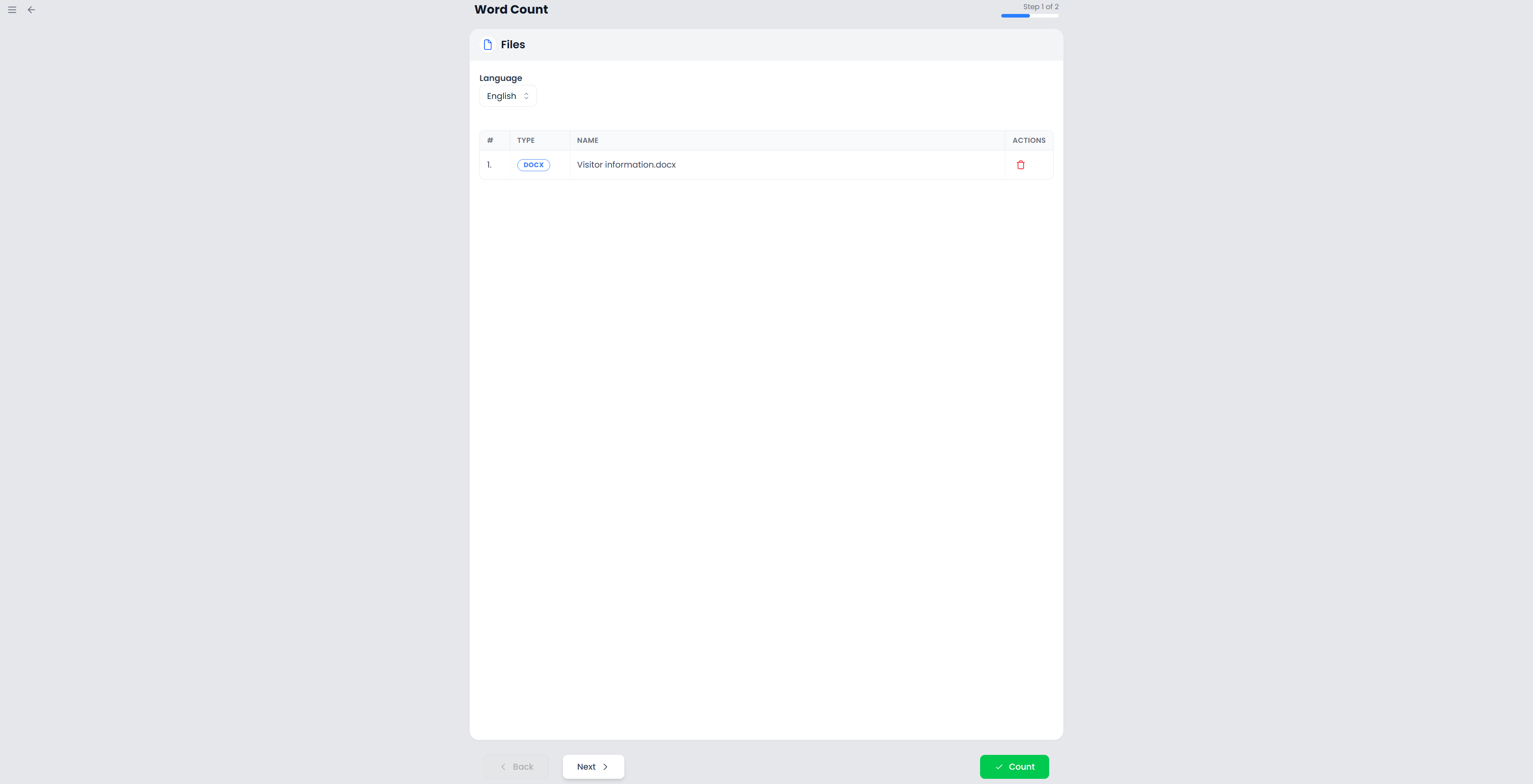
- Open Documents → Word count and add the intended files.
- Check the file list and remove unrelated inputs. Different files with the same name are treated as one entry, so rename them before adding if necessary.
- Check the language setup.
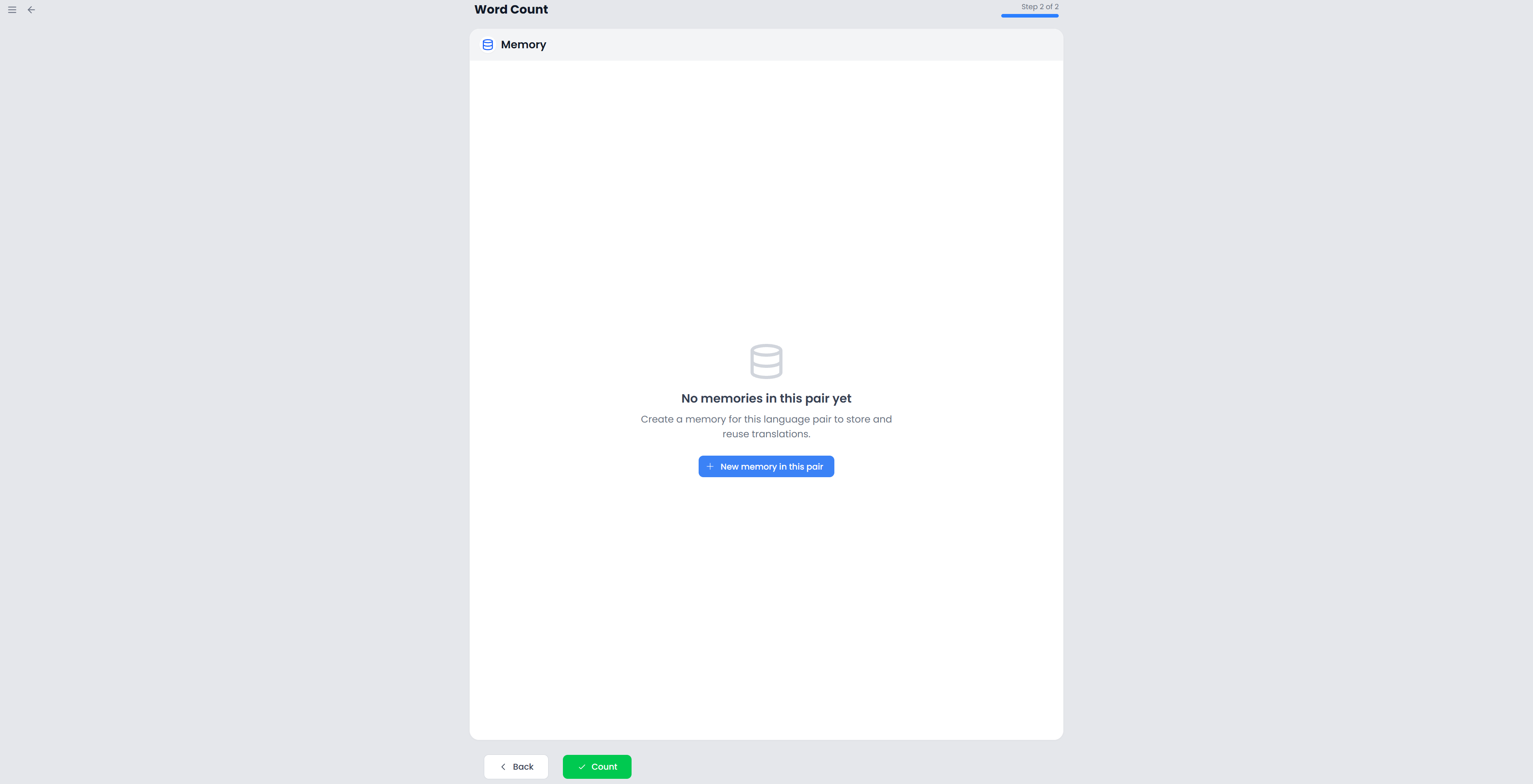
- Continue to Translation Memories if you need to inspect the available resource selection.
- Select the offered memory if appropriate, then choose Count. You can also finish from the files step when its requirements are satisfied.
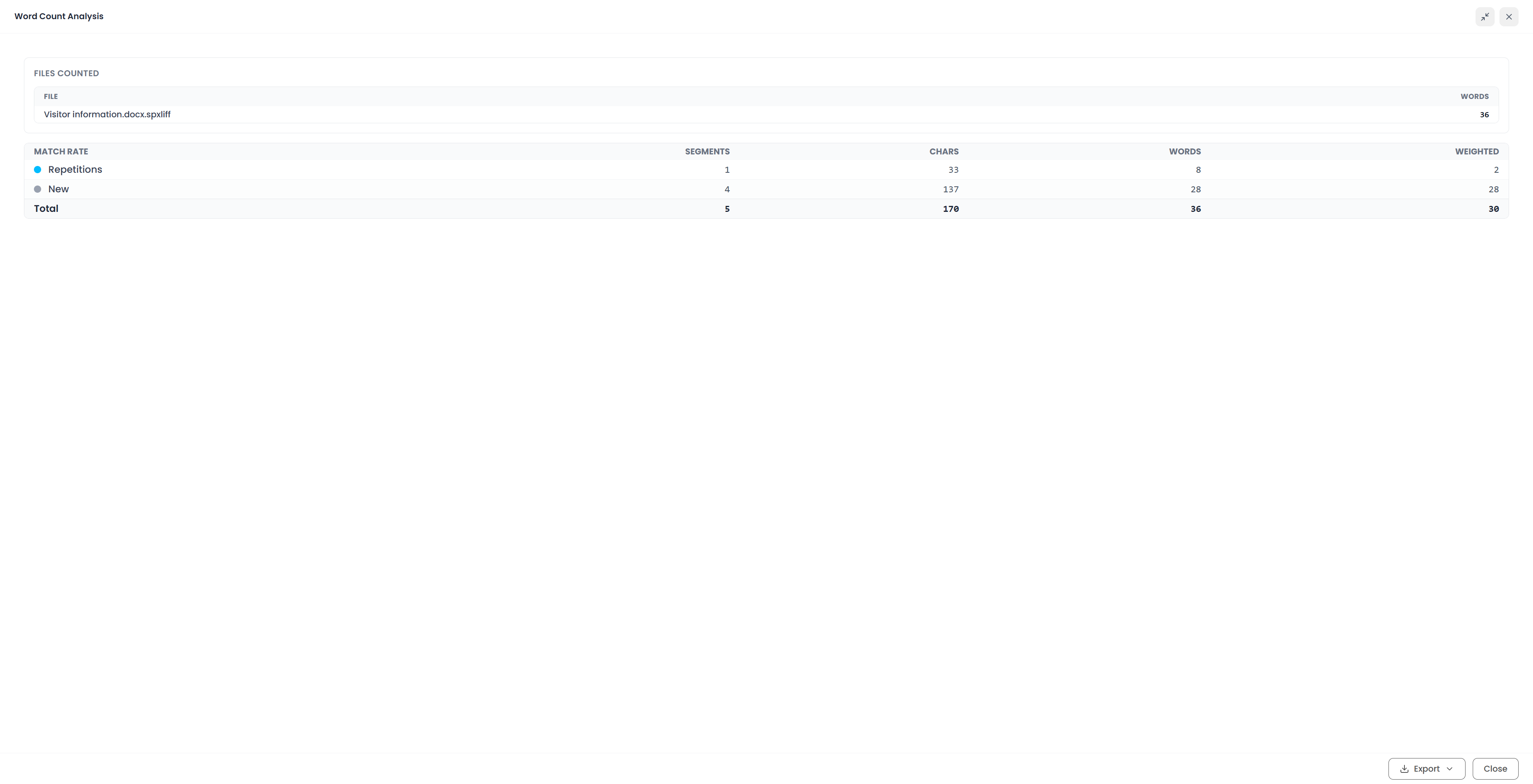
- Wait for file preparation, parsing, and counting to finish, then read the analysis report.
For a monolingual source document, this standalone form shows a single Language choice. It does not ask for a separate translation target. For a bilingual input, it reads the source–target pair and displays it read-only. The languages must be among the accepted working-language choices; a detected missing variety can trigger a prompt to add it.
The standalone memory step uses single-memory selection. No selected memory means internal reuse is still analyzed; it does not mean search every stored memory. To analyze a monolingual source against a specific translation direction, use a suitable bilingual project or the quotation setup, where that direction is specified.
This workflow prepares a report without saving a new translation project. After success, the setup resets; export the report you need before closing its results. Closing an in-progress report cancels that count.
Read the report
| Value | Meaning |
|---|---|
| Segments | Number of analyzed units assigned to the category |
| Characters | Source-text characters excluding whitespace |
| Words | Raw source-word count for the category |
| Weighted | The category's words multiplied by its configured percentage and rounded to a whole word |
The bands are 102%, 101%, Repetitions, 100%, 95–99%, 85–94%, 75–84%, and New. Context matches above 100 use the Context weight. Repetitions, exact matches, fuzzy bands, and new text use their corresponding weights. The report shows categories with results.
Read Quotation analysis and pricing for the meaning of these bands. A high match score describes textual reuse and context, not guaranteed translation quality or a measured amount of effort.
Where the report includes a file list, those file word totals describe the file summaries supplied by the action. A category total can describe a narrower set, especially when filters or locks excluded units. Do not assume every displayed file total and analysis total have the same scope.
Configure weighted words

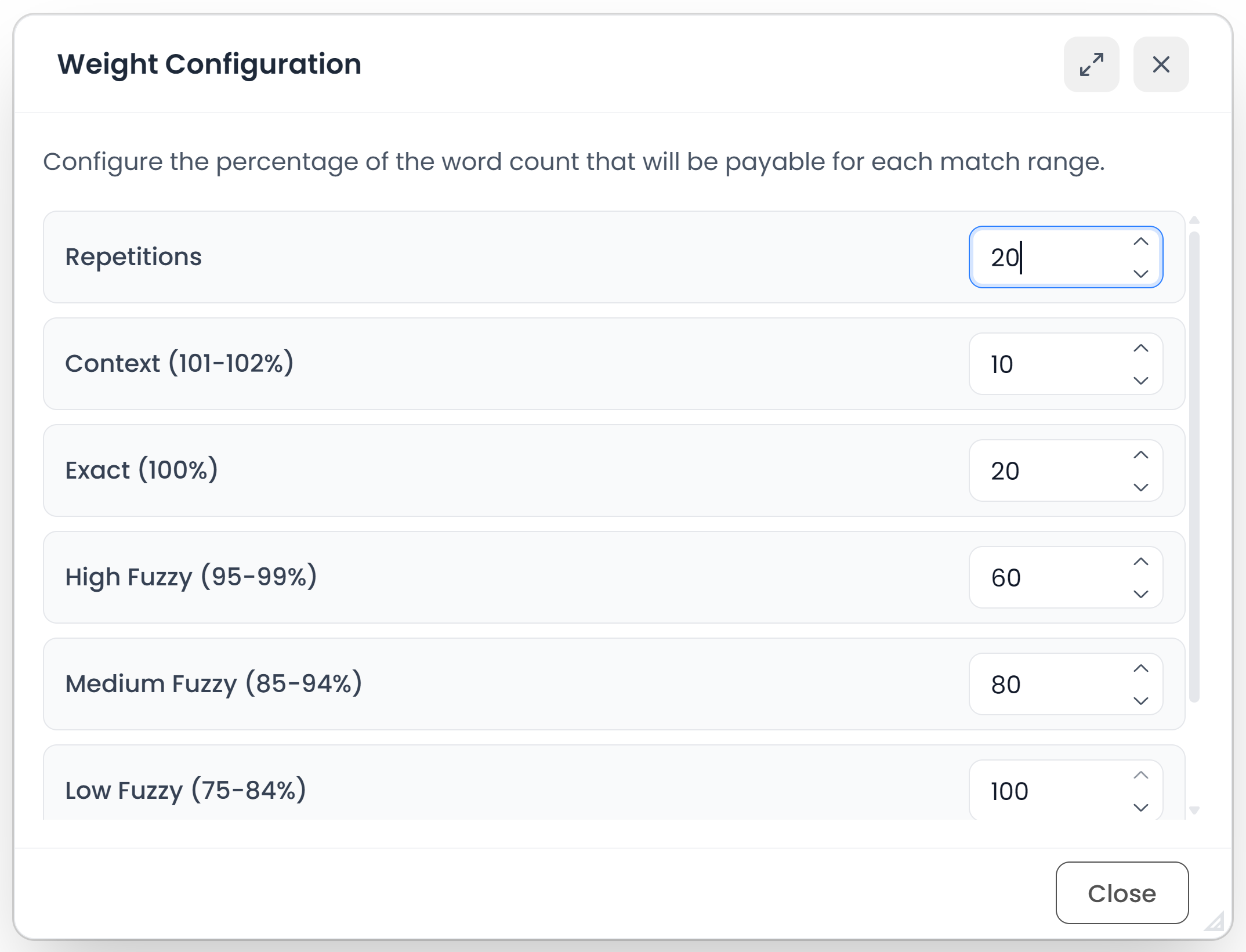
Use Stats → Weighted Words in the editor to set the category percentages. These settings save as you change them and affect the report's weighted totals. They do not change raw source text or word counts.
For example, 1,000 words at 20% contribute 200 weighted words. Each category is rounded separately before the weighted total is added. The quotation wizard starts from these settings but has its own quotation-specific weight controls.
Export the report
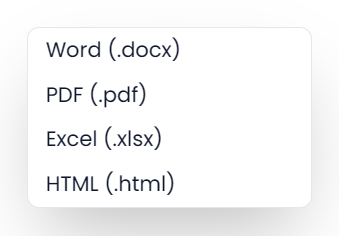
Use the report's Export menu:
| Choice | Result |
|---|---|
| DOCX | An editable document report |
| XLSX | A spreadsheet report |
| HTML | A web document report |
| A separate print view; choose an available PDF destination in the print dialog |
PDF uses the print workflow rather than an automatic PDF download. Allow the requested window if it is blocked. The other formats download files with a word-count-analysis name.
Check the file list, scope, languages, chosen memories, and weighting settings before sharing a report. A word-count report does not create a quotation or record an agreed price.