
Quotations and translation projects
Create quotations through Business → New Quotation and translation projects through Projects → Translation → New. The instructions below explain how to use them for the same job and how to correct a saved offer.
Key points
Creating or accepting a quotation does not create a translation project. Saved offer details have no editing form; create a corrected quotation when the client, files, rates, validity, or totals need to change.
Quote work that already has a project
The current app does not provide a quotation command that converts selected existing projects into an offer. New Quotation opens a fresh file-based wizard, including when reached while you have been working on another project.
For work already in a project:
- Have the original files and the job details available.
- Open Business → New Quotation and add the intended files.
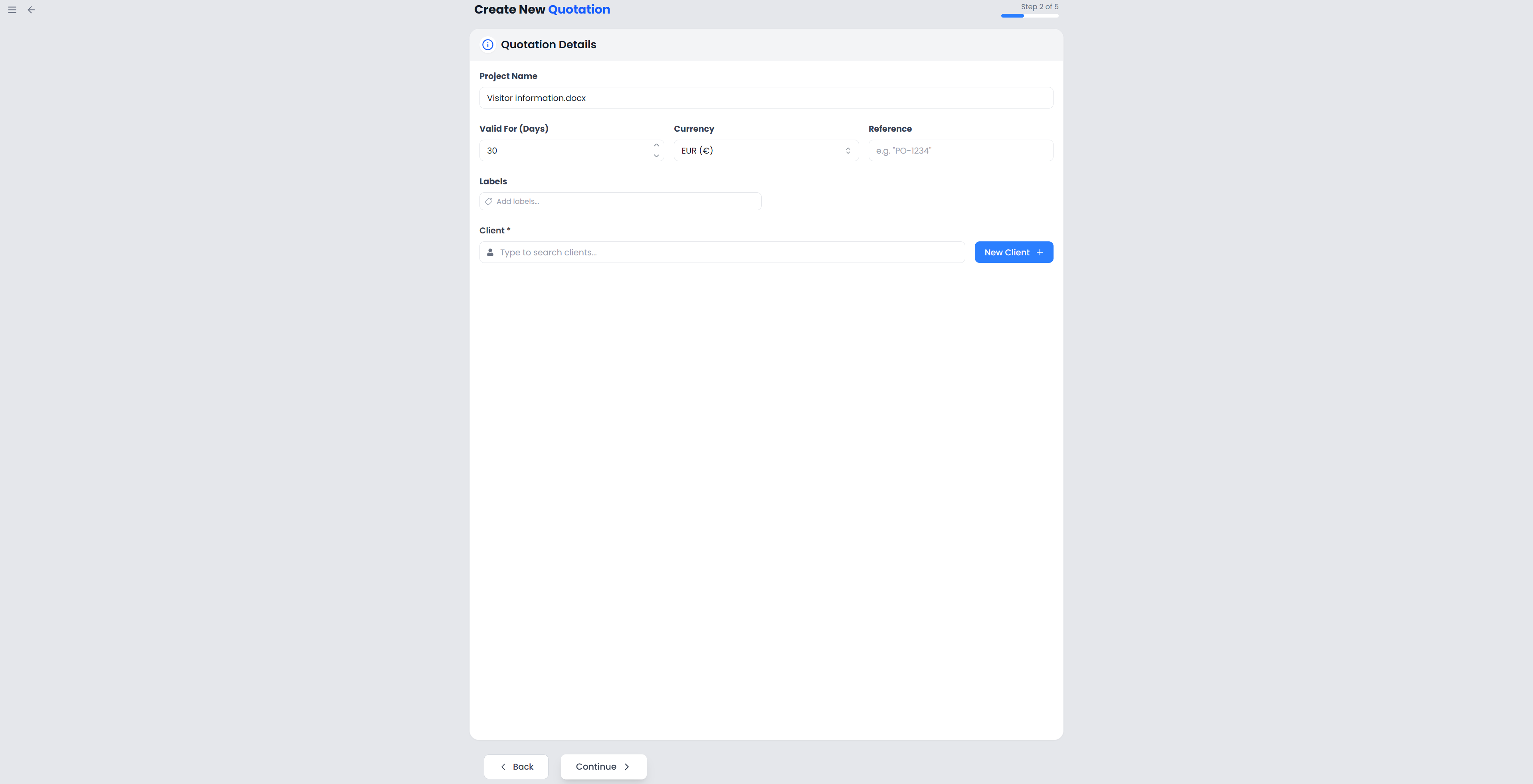
- Enter the name, client, reference, currency, and validity for this offer.
- Select the memories that should form the basis of its analysis.
- Review the rate, weights, breakdown, and final total before creating the quotation.
Do not expect the selected project's current price, resource selection, or filtered segment set to be copied. The quotation analyzes the files supplied to its wizard. A separate project's existing word-count report is not automatically reused.
What Project Name and file summaries mean
The quotation stores a job description with its name, languages, source-word total, weighted total, rate, price, reference, and file summaries. A Project column in the quotation list refers to that saved job information.
Creating this record does not create a translation workspace or import the analyzed files as a new project. The file summaries contain names, languages, and counts; they are not a project backup or a package of editable files.
Continue after acceptance
Use Mark as Accepted once the client has accepted the offer. That action changes the quotation's status only.
If a suitable translation project already exists, return to it and check its current instructions, files, memories, terminology, dates, and agreed price. If you need a new project, use Your first project or Review projects as appropriate, and enter the agreed job details there.
There is no automatic quotation-to-project conversion action in the current quotation screens. Acceptance also does not start time tracking, confirm translation segments, or mark a project finished.
Correct a saved quotation
The current quotation screens let you inspect and export the record, change its status, and delete it. You cannot edit its saved client details, job description, files, rates, validity date, or calculated totals there.
If those offer details need changing, create a new quotation with the corrected inputs. Check the new number and document, then make clear to the client which offer applies. Keep any earlier record or downloaded copy needed to understand the exchange.
Changing a client record or a separate project's price does not recalculate an existing quotation. Editing a downloaded DOCX changes only that copy; the saved record and Statistics still use the saved quotation amounts and status.
For wording, language, or images used in the generated document, use Export and document appearance. Those controls change presentation and shared labels, rather than the saved financial calculation.
Compare quotation figures with Statistics
Statistics: Finances groups quotations by issue date and their current recorded outcome. Accepted or rejected values do not use the date on which you changed the status.
For example, an offer issued in May and accepted in June contributes to the May issue group when that range is selected. A corrected new offer is a separate record. Include the record's status and issue date when investigating an unexpected chart total.