
Quality Assurance tab
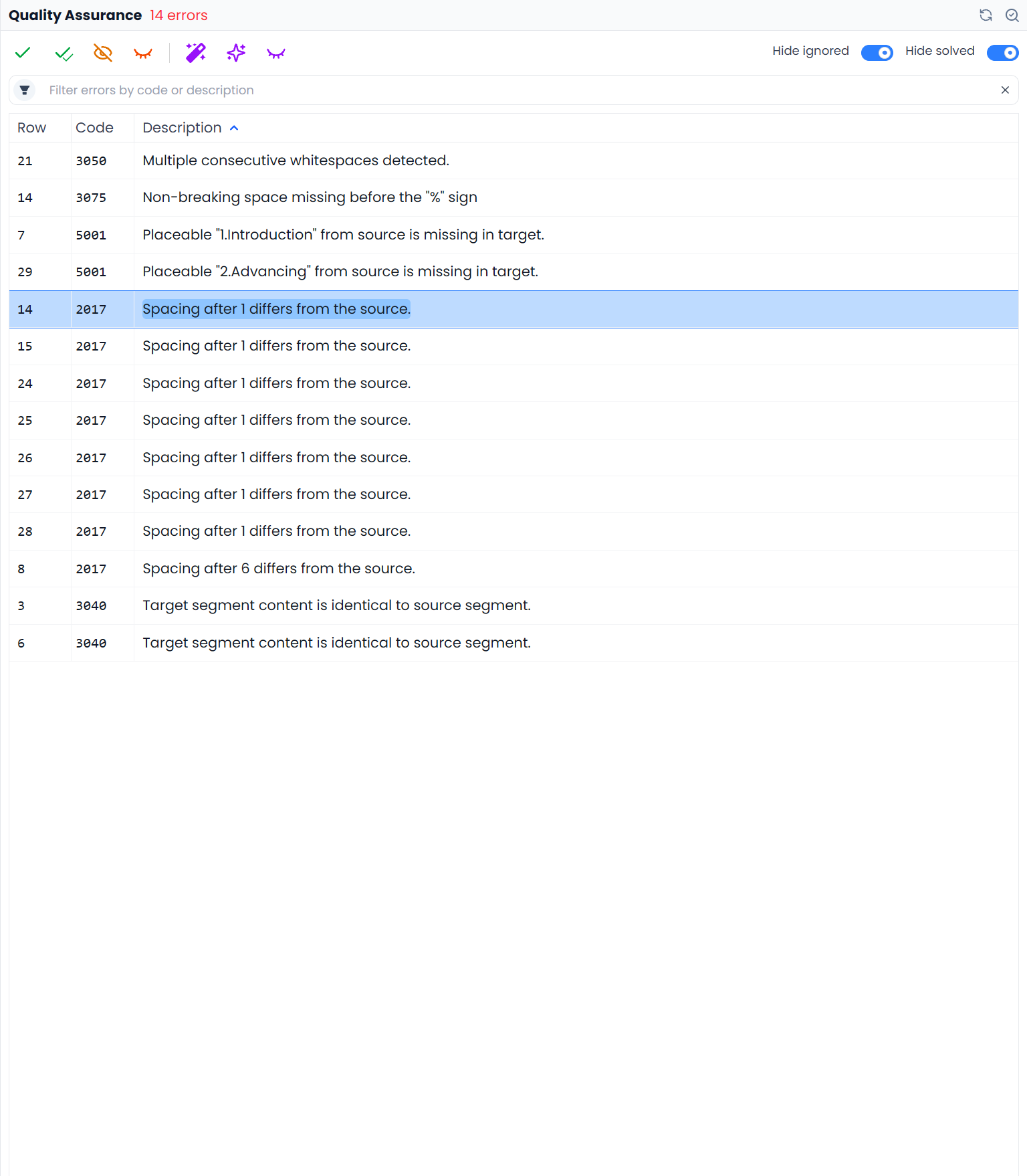
Quality Assurance brings check selection and QA results into the side panel. QA detects possible problems such as missing numbers, inconsistent wording, terminology issues, and tag or punctuation differences. It gives you a list to investigate rather than certifying the translation's meaning.
The dedicated Quality assurance section provides the complete learning path: profiles, built-in checks, results, fixes and false positives, custom pattern rules, Searchspeare QA rules, and terminology checks.
Start a check or return to results
When there are no results to display, the tab shows the profile-selection controls. Choose a suitable profile and run it. When results are available, the same tab becomes the review list. Searchspeare can also restore saved results for the current file or View.
Restored results describe a previous check. If the content or scope has changed, rerun the relevant checks before treating that list as the current state of the job.
Table filters do not narrow QA
A QA profile checks unlocked segments across the whole open file or View, including hidden rows. Table filters and row selection do not narrow that run. Dictionary Spellcheck instead uses the filtered rows. See Selecting segments and batch actions for the full scope comparison.
Work through the list
- Check which file or View is open; this defines the QA run's loaded scope.
- Choose and run the intended QA profile if you need a new pass.
- Select a result to locate the segment and affected wording. Clicking its Row, Code, or Description can filter the document table by segment, rule, or message respectively.
- Read the source, target, and issue description together.
- Correct the text manually or inspect an available fix.
- Ignore a result when the wording is correct for the requirement.
- Rerun the relevant checks after the pass.
An unresolved-result indicator on the tab helps draw attention to new issues. It does not replace opening the list and reviewing its scope.
Decide between correcting and ignoring
Correct the content when the reported condition is a real error. Ignore it when the condition is intentional and valid: for example, a number-like identifier may legitimately differ from ordinary numeric text.
An automatic fix can be convenient, but inspect the actual resulting sentence. Some consistency issues require choosing which translation is preferred; replacing every variant with the first one is not always the right decision.
AI-assisted corrections and false-positive detection are additional review tools. False-positive detection can open a separate QA false positives tab, where you choose which reported issues to ignore. Ignoring an issue changes its review state; it does not correct document text.
Profiles, custom rules, and final checks
A profile is a reusable group of checks and settings. Use a custom profile when a client's requirements differ from the built-in collection. The protected All rules profile is distinct from your own editable profiles.
See Quality assurance for the complete workflow. Use the document filter bar's Clear all to leave a focused result inspection and show the full open file or View. Before delivery, check other files outside the loaded scope and open the actual exported deliverable as a separate final check.