Translate DOCX, PPTX, and XLSX files
You can translate DOCX documents, PPTX presentations, and XLSX spreadsheets. When creating the project, choose whether hidden text and text with particular highlight colors should be translated or protected.
Quick steps
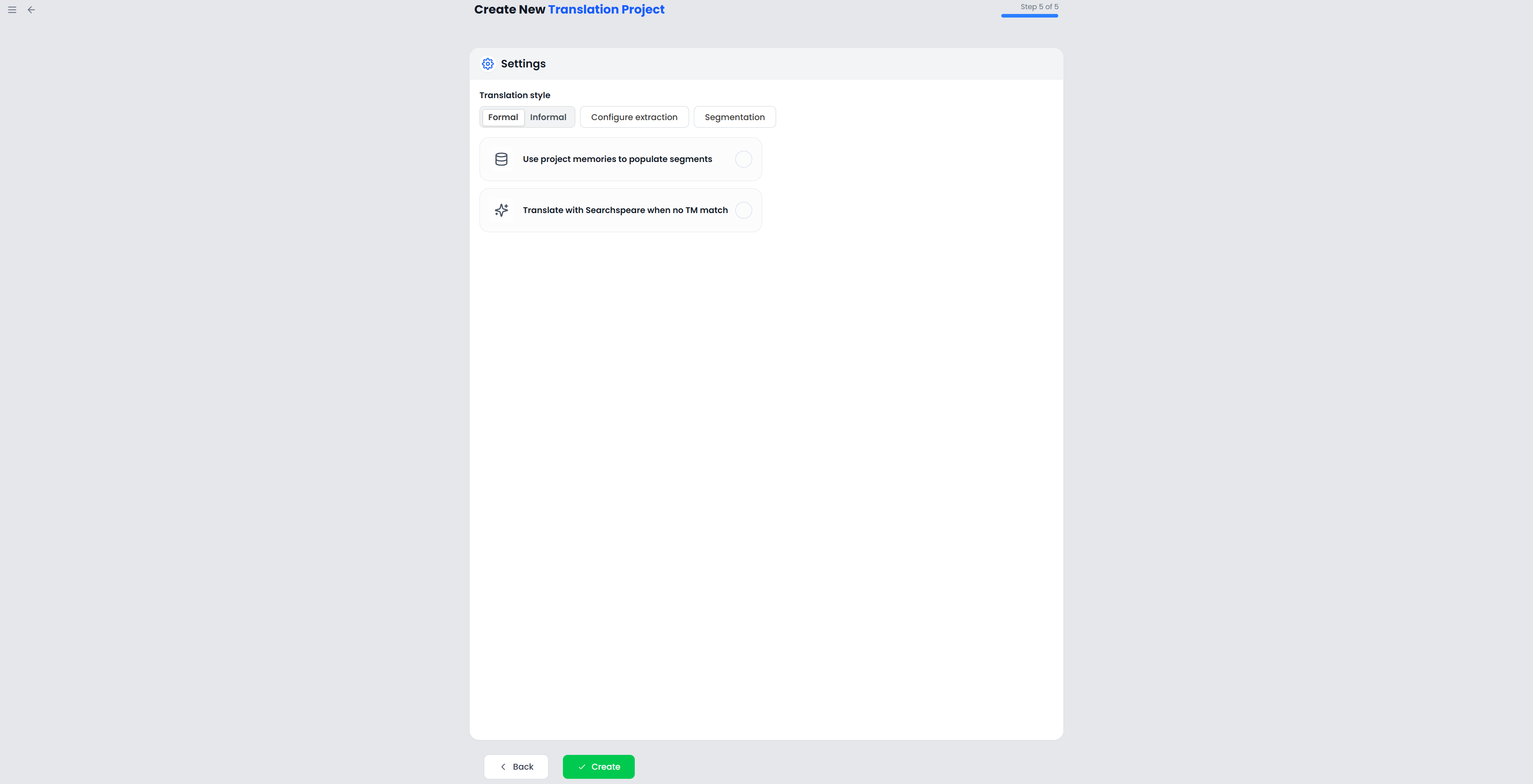
Add a DOCX, PPTX, or XLSX file, then open Settings → Configure extraction in project creation. Choose how hidden and highlighted text is handled, click Save options, and check the imported segments.
Open the import settings
- Start a new project and add a DOCX, PPTX, or XLSX file.
- Continue to Settings and click Configure extraction.
- Set the hidden-text and highlighted-text options below.
- Click Save options and finish creating the project.
These options choose what you can edit after import. To change how text looks in the editor, use the View ribbon. To clean up formatting in a source copy before importing it, use Uniformize Format.
Hidden text
| Choice | Result |
|---|---|
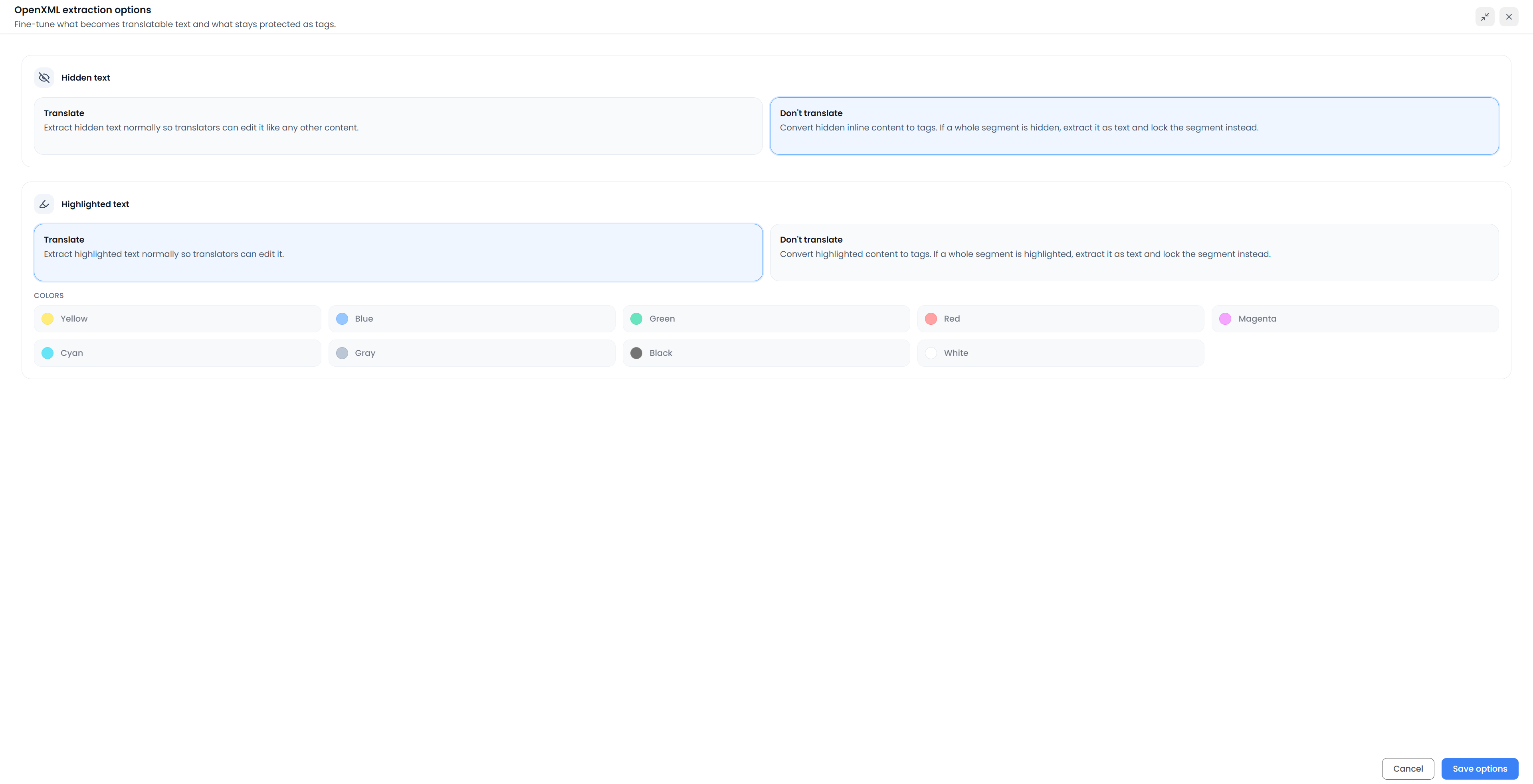
| Translate | Extract supported hidden text as normal editable text |
| Don't translate | Protect hidden inline content as tags; if the whole extracted segment is protected, keep the text visible and lock that segment |
The default is Don't translate. With this choice, an imported segment may be locked because all its text is hidden.
Protected text is kept in the document. Check the source document or translation brief before deciding whether hidden text needs translation.
Highlighted text
Choose Translate for ordinary extraction, or Don't translate and select the highlight/background colors whose text should be protected. The available color names are Yellow, Blue, Green, Red, Magenta, Cyan, Gray, Black, and White.
Select colors to protect highlighted text
Color selection is active only with Don't translate. Selecting no colors applies no color-based protection. Switching the mode alone does not mean protect every highlighted span.
Text with a selected highlight color becomes protected tags. If the whole segment is protected, its text remains visible and locked. This option uses highlight or background colors, rather than font colors.
For example, if a client marks product codes with yellow highlighting, choose Don't translate, select Yellow, and check an imported segment containing a code. Only the selected colors receive protection from this option.
Save and inspect the choices
Save options applies your choices to the project setup. Cancel closes the dialog without applying changes made there. After creating the project, check examples of body text, tables, notes, text in shapes, and any text you chose to protect.
Text inside an image does not become editable document text. Check images and layout in the application used to open the source file.
If Searchspeare cannot read a required part of the document, it may ask whether to skip that part. Read the message before continuing: skipped text will be missing from the segments you translate. Cancel if you need to repair the original first.
Export and check the document
Use the Translation output for the supported original document format and a bilingual export for continued translation/review work. Check the extension offered by the export menu.
Open the translated DOCX, PPTX, or XLSX in its normal application. Inspect protected content, formulas and numeric values where relevant, tables, headings, line wrapping, notes, and text inside shapes. Working-editor font size is not a document-layout adjustment.
Changing extraction after work has started is not a harmless display change. Reimport rebuilds from the stored original and can replace current working translations. Keep an export before intentionally rebuilding a file.