
Create and maintain AI rules
An AI rule is a saved instruction for Searchspeare translation and translation chat. It can express a requirement such as preserving product names, addressing readers formally, or using a particular convention in a certain kind of text.
Write one requirement per rule. Give it a name that describes that requirement, add an example if needed, and choose the languages and project labels where it should apply.
Open the rule manager
In a translation editor, open the Searchspeare ribbon tab and choose Rules. Choose New rule in the manager.


Rules are shared between matching projects
The manager opened from a project shows your saved rules and marks rules that do not fit the current project's languages or labels. Creating a rule here saves a reusable rule; it does not create a private copy attached only to the open project.
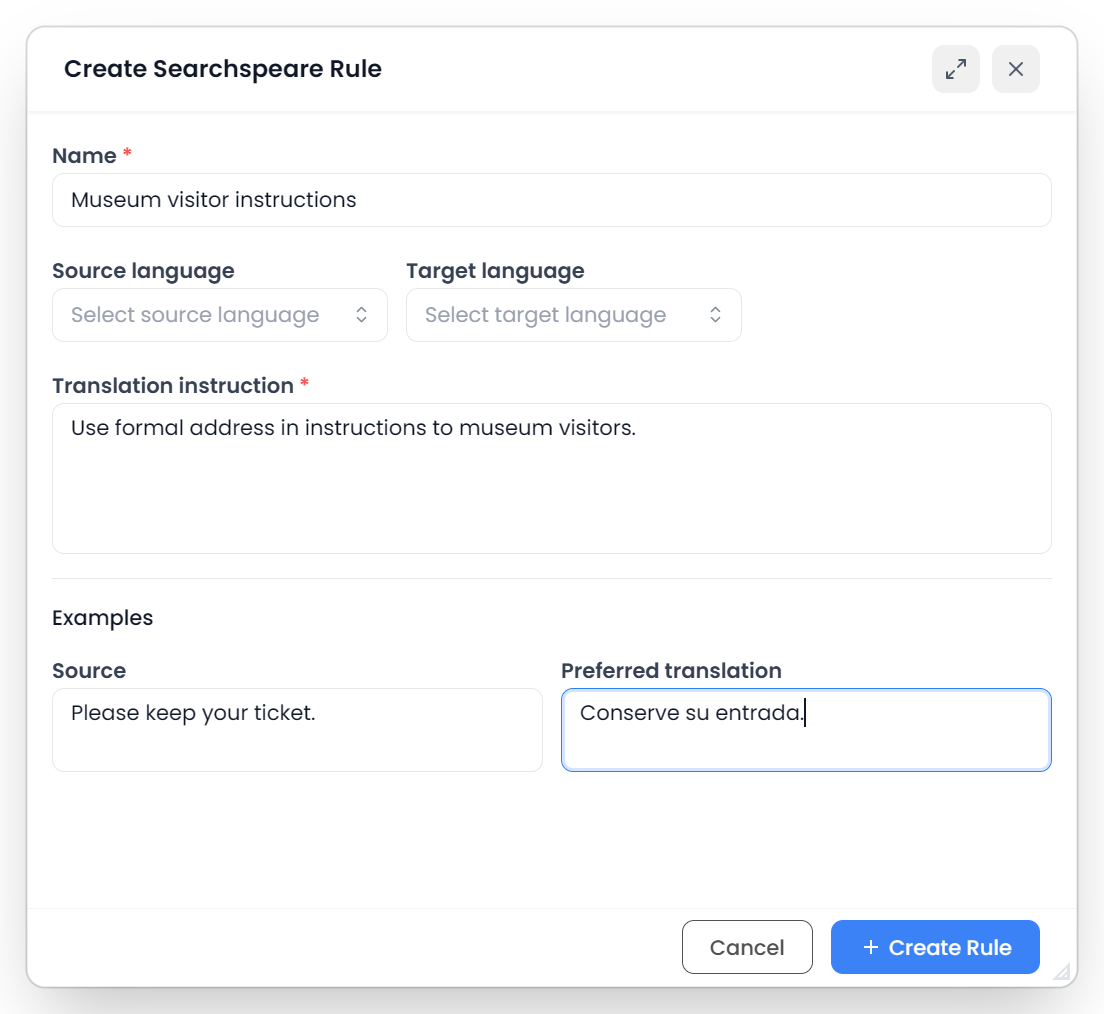
Complete the form
| Field | What to enter |
|---|---|
| Name | A short description you will recognize later, such as Preserve Atlas product names |
| Translation instruction | The actual behavior to follow, including an exception when needed |
| Source language / Target language | The translation direction where the requirement belongs; leave an individual field empty to make that side general |
| Source / Preferred translation | An optional complete example pair demonstrating the intended result |
| Labels | The project labels relevant to the rule; understand the matching behavior before using these for client scope |
| Enabled | Whether eligible requests may use the rule |
Name and Translation instruction are required. If you provide an example, complete both its source and preferred translation. A half-completed example cannot be saved as a usable pair.
Finish with the form's create or save action. Review the saved row and its enabled state before testing it.
Example: preserve product names
Consider this requirement:
Keep the product names Atlas Connect and Atlas Sync unchanged, including their spelling and capitalization. Translate the surrounding sentence normally.
Its scope is clear: preserve two specified names. It does not ask Searchspeare to leave every English expression untranslated.
A complete English → Portuguese example could be:
| Source | Preferred translation |
|---|---|
| Open Atlas Connect to continue. | Abra o Atlas Connect para continuar. |
This example shows how to complete the form. Use your own product names and translations.
Name the requirement explicitly. For example, specify the form of address to use instead of writing “follow the client's style.” If it applies only to a document type, include that condition in the instruction.
For terminology pairs, also consider a glossary. A rule can explain a behavior; a glossary maintains terms, examples, matching behavior, and forbidden wording.
If you need help creating a pattern-based QA or segmentation rule, use Create rule with Searchspeare inside that tool's form. Those helpers create checks or sentence-boundary rules, rather than the reusable translation instructions managed here.
Edit, disable, or delete
Open a rule through its name or Edit action to revise it. The manager can search names and instructions and filter language fields. Clearing those list filters changes what you see; it does not change rule applicability or disable hidden rules.
Turn Enabled off when you want to keep a rule saved but exclude it from future applicable requests. This is a saved rule setting, shared across projects where the rule would otherwise apply. It is not a per-project checkbox.
Delete removes the saved rule after confirmation. Disabling is usually the appropriate choice when you may need the requirement again later.
Test the result
- Read Project applicability and check the languages, labels, and enabled state.
- Choose a few segments that demonstrate the requirement.
- Run a selected-segment translation, or ask translation chat to check the wording with AI Rules included.
- Compare the result with the requirement and example.
- Include a case that should remain unaffected, then refine any ambiguous instruction.
Saving a rule does not rewrite existing targets or approve any result. Translation, chat, and review behavior explains which actions use rules and how to check the outcome.