
Tag, number, and length mismatches
Open Filters in the translation table toolbar and find the Mismatches section. Clear Search filters to see the complete menu, then scroll to this section. That search field only narrows the menu items; choosing a filter changes the document rows.
Each image below shows the individual filter enabled, with its blue icon. Click the condition again to exclude it, and once more to turn it off. See the three filter states and Filter Settings for how these conditions differ from source and target text searches. Other active conditions and searches still apply.
A mismatch is a reason to inspect the text
These conditions do not repair a segment or establish that its translation is wrong. Tags mismatch and Malformed tags check unlocked rows. Empty targets have their own Empty condition.
Tags mismatch

Shows unlocked segments with required source tags that are missing from the target. It is not a general comparison of every formatting difference.
When to use it: Find targets that need missing tags restored. Use Malformed tags for broken target tag structure.
Example: A source contains a paired formatting tag that the target has not used. This row is a candidate for Tags mismatch; inspect it with the tag tools.
Red: No tags mismatch. Excludes rows that trigger this missing-tag check. For example, use it to leave reported tag problems out of a separate reading pass. Locked rows can remain because the positive check skips them; the red state is not a guarantee that every remaining row's tags are correct.
Numbers mismatch

Shows segments where at least one sequence of digits from the source is absent from the target.
When to use it: Look for omitted or changed source numbers. This filter does not prove that all numbers are correct and does not find every extra number added in the target.
Example: A source says 2026 and the target says 2025: investigate the result. A number found inside a longer target number can still require manual checking.
Red: No numbers mismatch. Keeps rows where this check finds no missing source digit sequence. For example, source 2026 and target 2026 qualify. Extra target numbers and some changed numerical forms may still require checking, so use the red state to exclude these findings rather than certify numerical accuracy.
Length mismatch

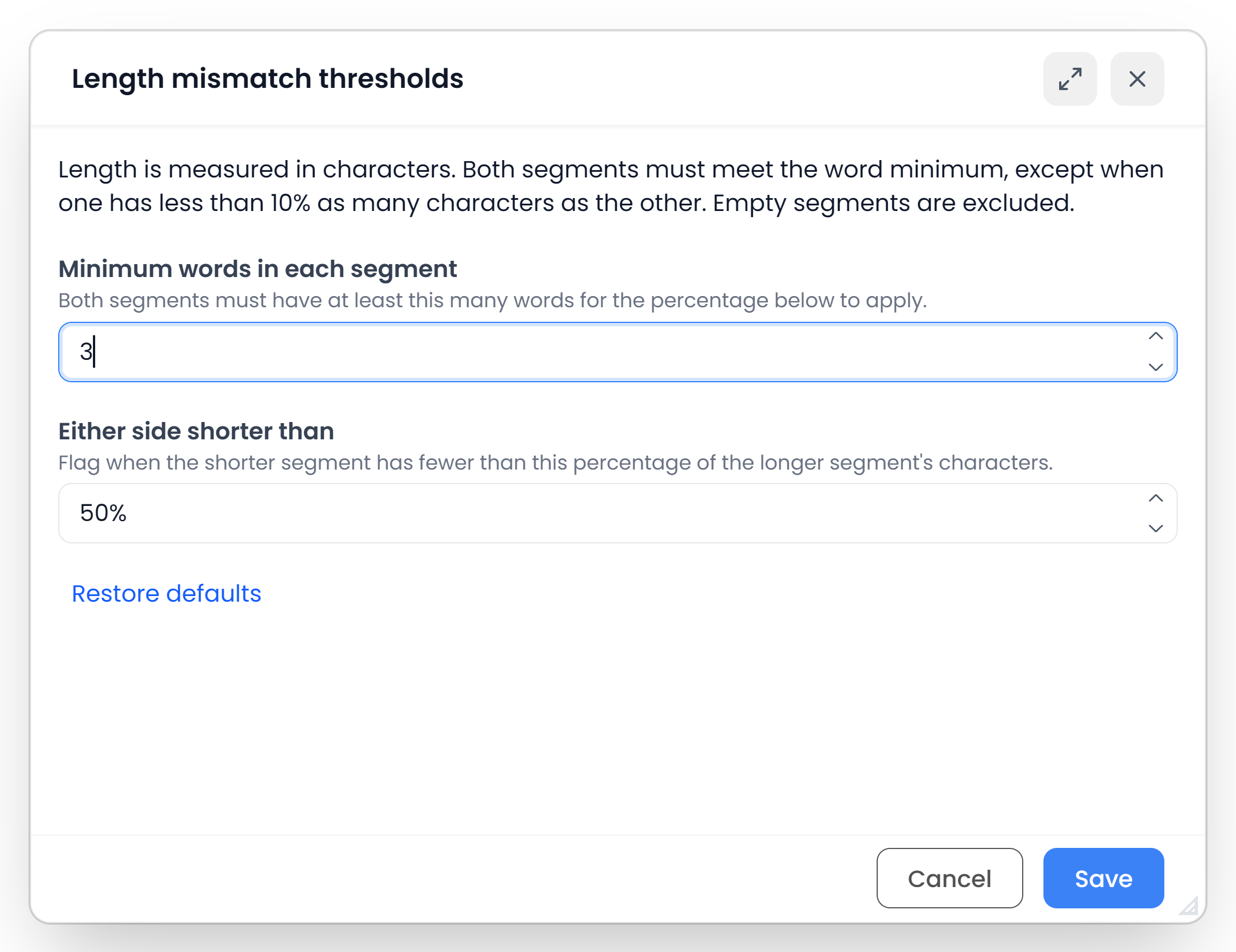
Shows nonempty source–target pairs with a large difference in character length. The standard ratio and minimum word count are configurable.
When to use it: Investigate a possible omission or unexpectedly expanded translation. Right-click this filter and choose Change thresholds to inspect its settings.
Example: With a 50% ratio, a 100-character source and 40-character target can be reported when both meet the word minimum. Different language lengths can be valid.
The default standard ratio is 50%, with a minimum of three words on each side for the standard check. A nonempty shorter side below 10% of the longer side is also reported without that word minimum. Empty source or target text is excluded from this check.
Red: No length mismatch. Keeps rows that do not trigger the configured check. For example, with the default settings, similar-length sentences can remain while a qualifying 100/40-character pair is excluded. Empty pairs and short pairs that fail the word minimum can also remain. Use it to leave length findings out of another pass, not to establish that nothing is missing.
Show all segments again
Use the table filter bar’s Clear all to remove its searches, conditions, matching options, automatic result restrictions, and sorting. This restores the rows in the open file or View. It does not open files outside that scope.