
Glossary bulk editing and maintenance
The glossary editor supports direct corrections and larger maintenance passes. Use filters to identify the relevant entries, select the rows required by the command, and unlock content before applying edits that need it.
Which entries each command changes
| Operation | Scope or effect |
|---|---|
| Source/target term searches and filters | Narrow the loaded language-pair view |
| Select all | Selects the current filtered term set |
| Unlock | Unlocks the selected group when it includes locked entries |
| Confirm | Saves pending selected entries and locks them again |
| Properties → Save | Applies edited fields across the selected entries; modified fields can unlock entries and remain pending for confirmation |
| Case and cleanup commands | Use the selected entries and active language side, subject to editing locks |
| Find and Replace Terms → Replace all | Prepares changes across the filtered term set, with From here restricting the starting row when enabled |
| Fix Selected / Purge Selected | Prepare proposed corrections or removals for the selected terminology |
| Delete Terms | Deletes the selected concepts through the deletion workflow |
| Dedupe | Finds duplicate pairs across the loaded glossary entries, including rows hidden by filters |
| Export from the glossary editor | Exports the filtered terms for the displayed language pair |
Selection and filters do not limit every command
Selection, filtering, and unlocking are separate preparations. A broad operation does not become a two-row operation just because two entries are selected. Deletion and duplicate cleanup are also not disabled merely because entries are locked.
Apply properties to several entries
Properties can apply the same change to several selected entries. For example, you can mark several obsolete target terms as Forbidden without changing their wording.
- Filter the glossary if necessary, then select the entries with Shift-click, Ctrl/Command-click, or Select all for the filtered set.
- Click Properties in the term toolbar or the right-side panel toolbar. Opening the tab keeps the group selected.
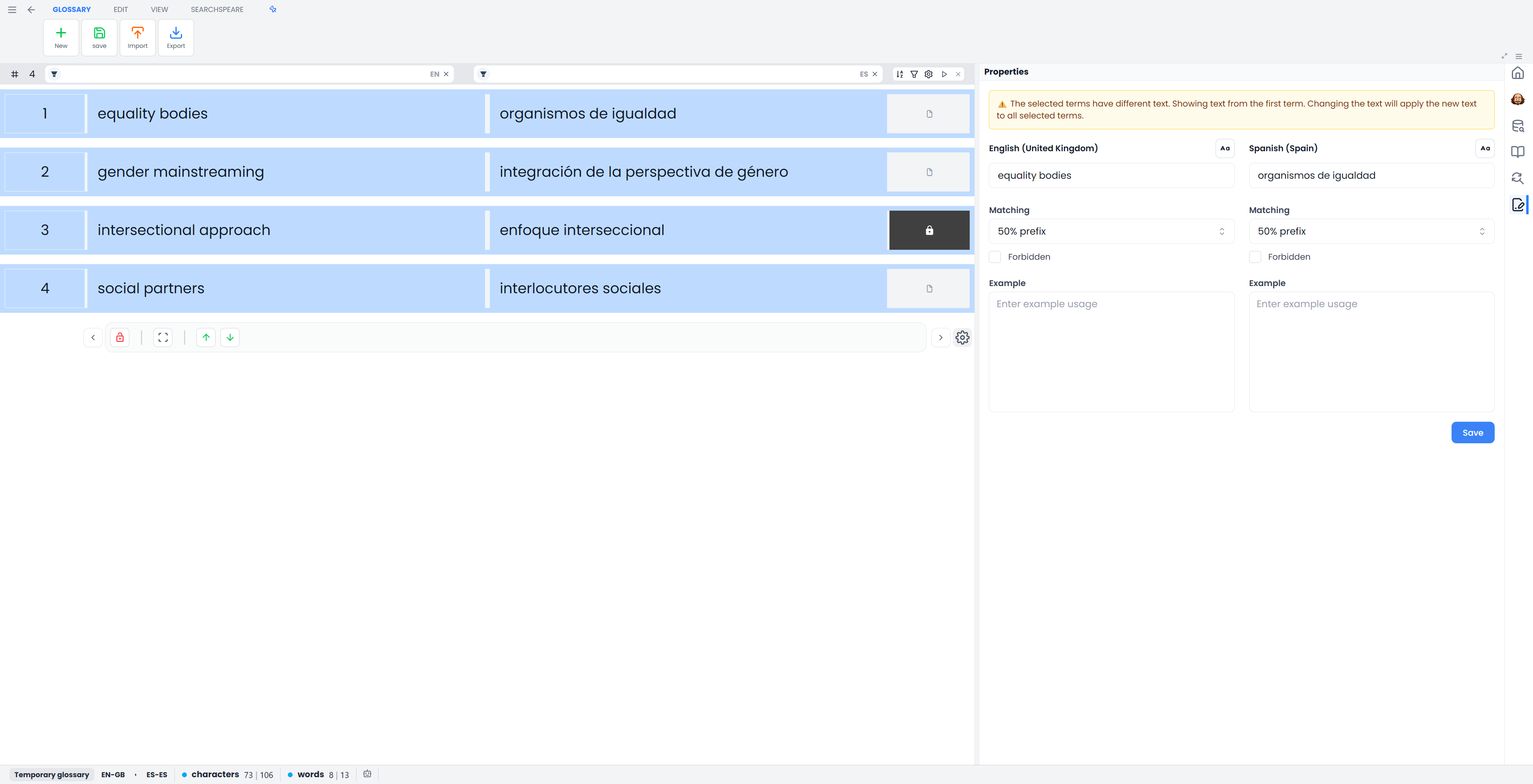
- Check the selected rows. The panel displays the first selected entry's values; it is not a summary of values shared by the whole group.
- Change only the intended field on the intended language side. For the example above, enable the target-side Forbidden checkbox and leave the term text and examples untouched.
- Choose Save. Fields you edited apply to the selected entries; fields you did not edit keep each entry's own values. Entries whose values actually change become unlocked and pending.
- Inspect the resulting entries, keep the intended group selected, and use Confirm to save those pending corrections to the glossary.
Changing a field shares that value
Editing source text, target text, or an example applies that one value across the selection too. The panel warns when selected texts or examples differ. Leave those fields untouched when you only want to change matching or Forbidden settings. If you supply an example, it must contain the corresponding term for each affected entry; validation can prevent Save if it does not.
The matching controls and Forbidden checkboxes also display the first entry's settings. To give a mixed group one setting, explicitly change the control rather than assuming the displayed value already describes every selected entry. If a checkbox already displays the value you want, change it and change it back before Save so it is included in your edit. See Matching behavior for what each choice means.
Check Custom terms individually
Changing a Custom matching mode to a normal mode also removes the * and | markers from the displayed term text. That is a wording change too. With a group selected, this changed text can be shared across the group. Maintain different Custom term forms one entry at a time to avoid replacing them with the first entry's wording.
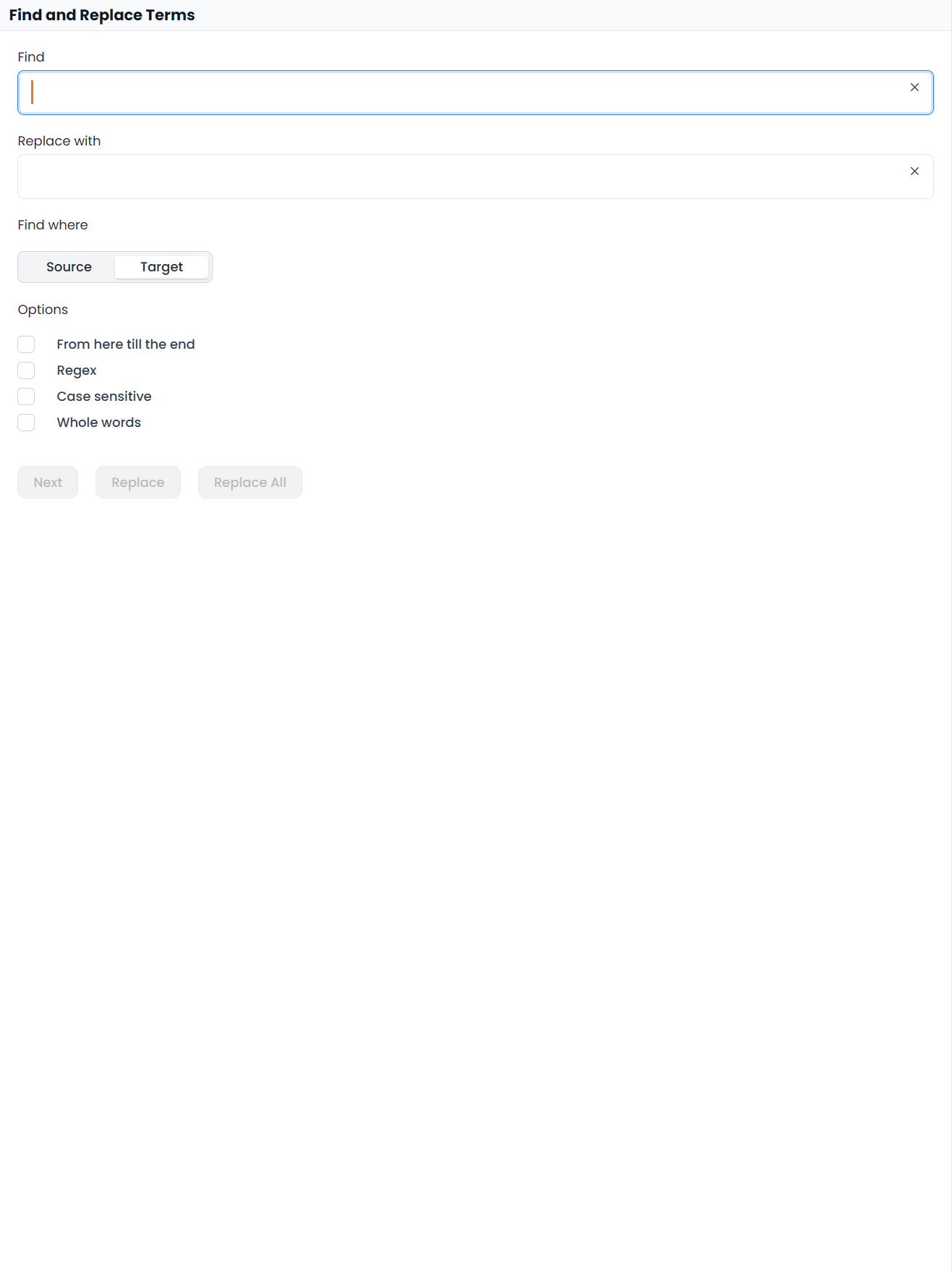
Replace repeated term wording
- Open Find and Replace Terms.
- Check Find where: source or target.
- Enter Find and Replace with text and inspect case, whole-word, pattern, and From here options.
- Use Next to find and inspect a sample occurrence.
- Use Replace for a controlled individual correction and continuation, or Replace All for the intended filtered group.
- If a Changes preview opens, inspect and apply only suitable proposals.
- Confirm the resulting edited entries.
Replace all opens a preview. Unlock the entries you want to edit before applying their proposed wording changes. A preview may include locked entries whose changes cannot yet be applied.
The supplied glossary-workspace shortcut for this replacement tool is F3, unless you changed it. This is different from F3's Concordance binding in the translation workspace. Check the current workspace when using shortcuts.
Clean selected terms
The term toolbar includes case changes and tools to remove numbers, non-word characters, or brackets and slashes. These use the active source or target side of the selected entries and respect normal editing locks.
Inspect the language side before running them. Numbers and punctuation can be essential parts of a product code or scientific term. Start with a sample entry, use Undo where appropriate, and confirm only the cleanup you intend to retain.
Review proposed fixes and removals
Fix Selected and Purge Selected request assistance with the selected terminology. Review the resulting preview rather than assuming every proposed correction or removal is suitable.
Confirm applied additions and wording changes to save them. Accepting a deletion proposal can delete the entry directly. Check whether each preview row proposes an addition, an edit, or a deletion before applying it.
Delete terms
Delete Terms acts on the selected concepts. It can remove their terminology in other languages too, not only hide the visible two-language row. Check the selection and resource before running it; a multiple-entry deletion asks for confirmation, while an individual deletion can proceed directly.
Locks protect editing, not every deliberate resource-maintenance command. Use filters when you merely want content out of view, and remove a project attachment when the resource should not guide that job.
Remove duplicate entries with Dedupe
Dedupe compares source–target text pairs without distinguishing case in the currently loaded term set. Its scope is not limited to the selected rows or current table filters.
Before running it, check the language pair and review entries whose text is identical but whose examples or properties may contain useful differences. This is record cleanup, not a preview of every semantically similar concept or a general merge of terminology knowledge.
Import and export glossary entries
Glossary import accepts the supported CSV and TBX structures. Check detected languages and example entries rather than assuming any spreadsheet headings will be interpreted as language columns.
The editor's export uses the filtered terms in the displayed language pair and offers CSV or TBX. Clear the term filters first when you want the complete loaded pair, and confirm pending resource changes before relying on a saved, maintained version.
The Export action in the glossary library reads the saved resource, including its available language forms. It does not use the open editor's row selection or filters. Confirm pending editor corrections first when you need them in that saved-resource export.
This differs from exporting a translation memory as TMX. See Glossaries and terms for resource creation and attachment, and Extract a glossary for reviewing terminology prepared from bilingual material.