
Use research links while editing
Once you have a custom search link or search group, you can run it from wording in your editor. A single link opens one resource; a group opens its saved member resources for the same lookup.
Key points
Select the phrase to research, then open a link or group from the toolbar. The lookup language direction follows the active source or target side. A new lookup closes the tracked result windows from the previous lookup.
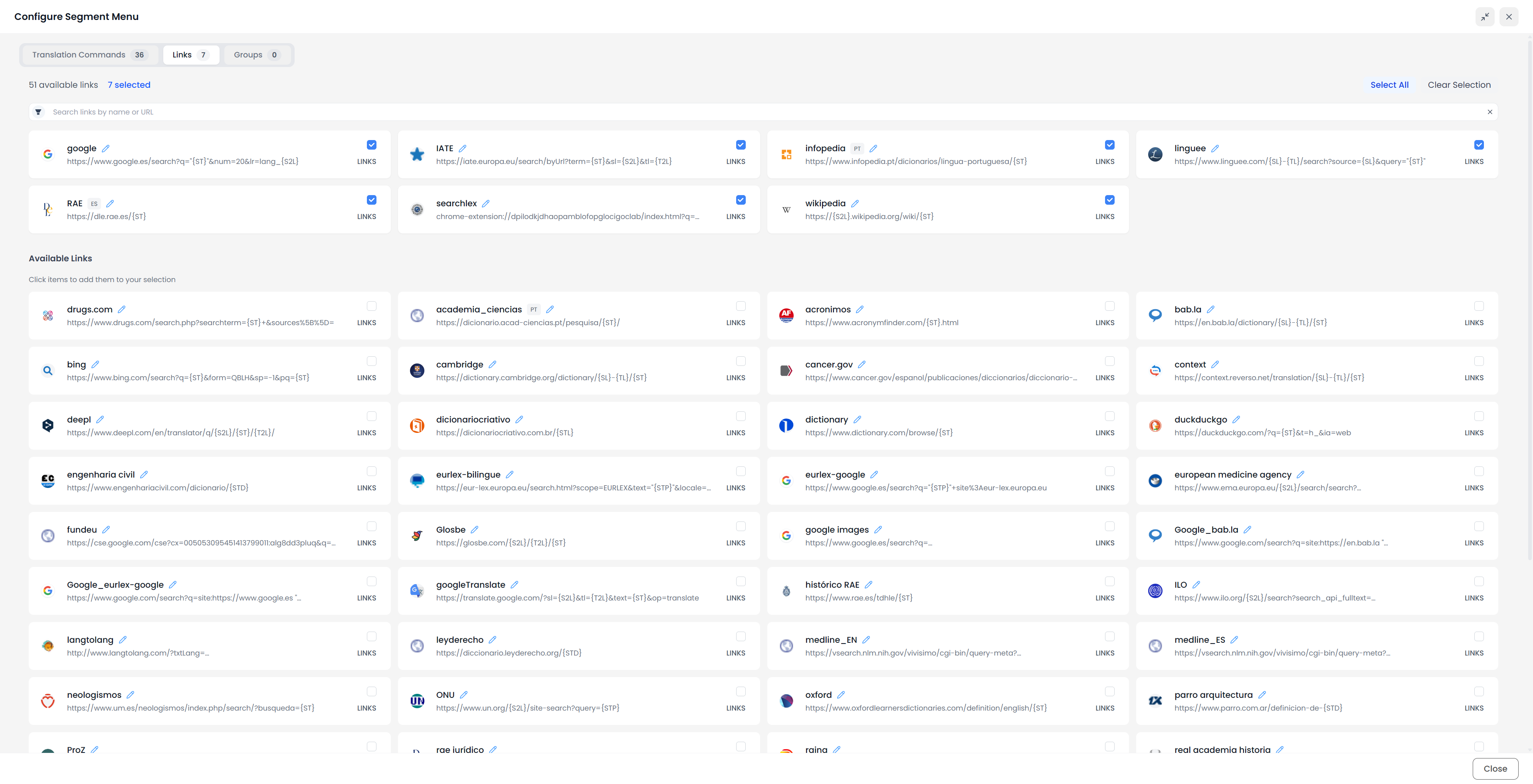
Add links and groups to the toolbar
- Open the editor's segment toolbar. If it is hidden, open Settings → Advanced and use the Segment menu display choice.
- Open the toolbar's gear.
- Choose Links for individual resources or Groups for collections.
- Search for the item and select it.
- Close the configuration and return to the text.
Configuration changes save as you make them. Creating a link or group does not necessarily add its button to your toolbar; selecting it here makes it part of your configured menu.
See Toolbar controls for horizontal scrolling, layout, shortcuts, and removing a button from the menu.
Research a selected phrase
- Select a single row in the translation, alignment, or memory editor.
- Highlight the source or target phrase you want to look up.
- Use the corresponding link or group button in the segment toolbar.
- Check the query and language direction on the opened website.
- Read enough context to decide whether the result fits your passage.
- Return to the editor and make any wording change yourself, or save a useful term pair.
Research links use a text selection, rather than treating several selected rows as separate searches. If a button is missing, return to one row and highlight a phrase. Check the toolbar's Links or Groups choices as well.
In the termbase editor, a single selected entry can also supply the whole term on the active language side when no phrase is highlighted. You can research a locked entry without unlocking it first. Select only one term entry for this lookup.
Check the language direction
The search template's language placeholders follow the wording you are researching. The active language becomes the lookup source; the other language becomes the lookup target.
For an English → Portuguese project:
| Where you highlight wording | Lookup source | Lookup target |
|---|---|---|
| English source cell | English | Portuguese |
| Portuguese target cell | Portuguese | English |
Consequently, {S2L} can become pt when you research target-side Portuguese wording, even though the project's source language is English. This allows the same bilingual link to support research in both directions when the website supports it.
A language value left fixed in the template stays fixed. Selecting a different side does not rewrite it. Always check the opened website after creating or changing a bilingual template.
An individual link's Languages choices can hide its toolbar button when the active text is in another language. Group searches run their included links together; a group is not an automatic selection of only its language-compatible members. Build focused groups for the references you need.
Open and close search-result tabs
Searchspeare opens external searches in browser tabs or windows. A group opens multiple addresses, and the browser can block some of those openings. If Searchspeare reports blocked pop-ups, allow the intended openings for Searchspeare and retry the lookup.
Starting another research-link lookup closes the result tabs or windows that Searchspeare kept track of from the previous lookup, then opens the new set. Browser handling can affect this behavior. Keep this in mind when moving to another phrase while you are still reading an earlier result.
The Search Groups page can open all members through the group-card heading, but the editor is the right place to test a language-dependent template: the editor supplies the selected phrase and its language pair. Opening a Links Store home page is not a test of text substitution.
Use a result in your translation
Running a research link does not edit a target, confirm a segment, or add terminology automatically. The lookup sends the selected wording to the chosen external resource. Use the result as evidence, then apply your decision in Searchspeare.
It also does not clear an existing document filter. If you were investigating a filtered set of segments, use the document filter bar's Clear all when you want the whole loaded table again.