
Multi Search and research links
Multi Search opens your configured external research resources with the text you want to look up. It is useful for consulting dictionaries, specialist websites, and reference collections during translation.
Quick steps
Save a search link or group, add it to the editor toolbar, select a phrase, and open the resource. External search results do not change the translation until you edit or insert wording yourself.
This is different from concordance, which searches translation memories, and from filtering, which narrows the current project's segments.
Understand links and groups
A search link is a reusable website search. It contains a changing search-text position and, where supported, language positions.
A search group is a collection of links you want to consult together. For example, you might create one group for legal reference resources and another for engineering terminology.
Open Multi Search → Links Store to manage links and Multi Search → Search Groups to organize them.
Search link and group guides
| What you need | Guide |
|---|---|
| Turn a website search into a reusable link | Create a custom search link |
| Understand placeholders and correct a detected template | Template editing and examples |
| Collect resources into one lookup command | Create search groups |
| Add buttons and research selected wording | Use research links while editing |
Start with one working custom link, test it, then put it in a group with other useful references. The guides include separate steps for saving a resource and making it available in the segment toolbar.
Add a search link
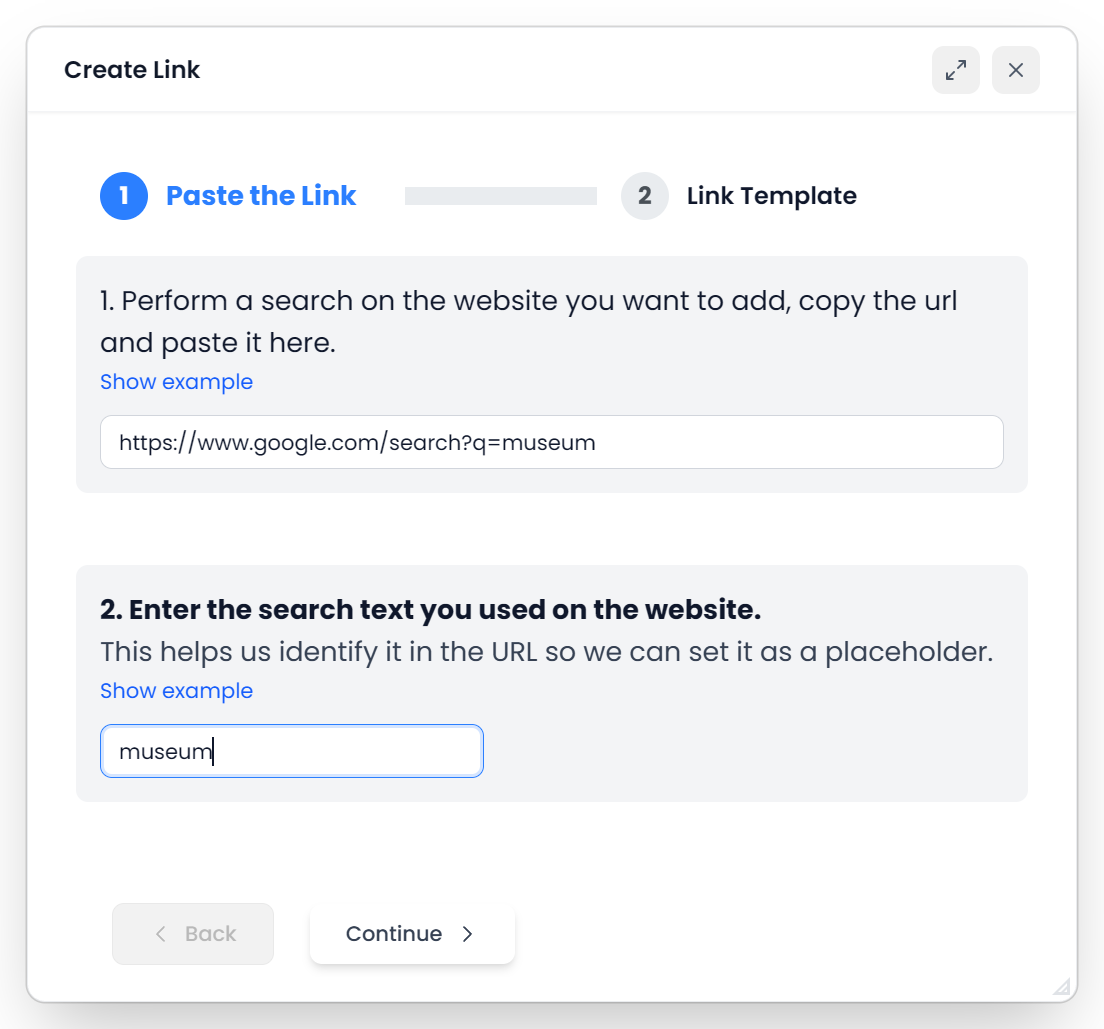
- Run an example search on the reference website in your browser.
- Copy the result-page address.
- In Links Store, choose New to open Create Link.
- Paste the address and enter the exact example query you used.
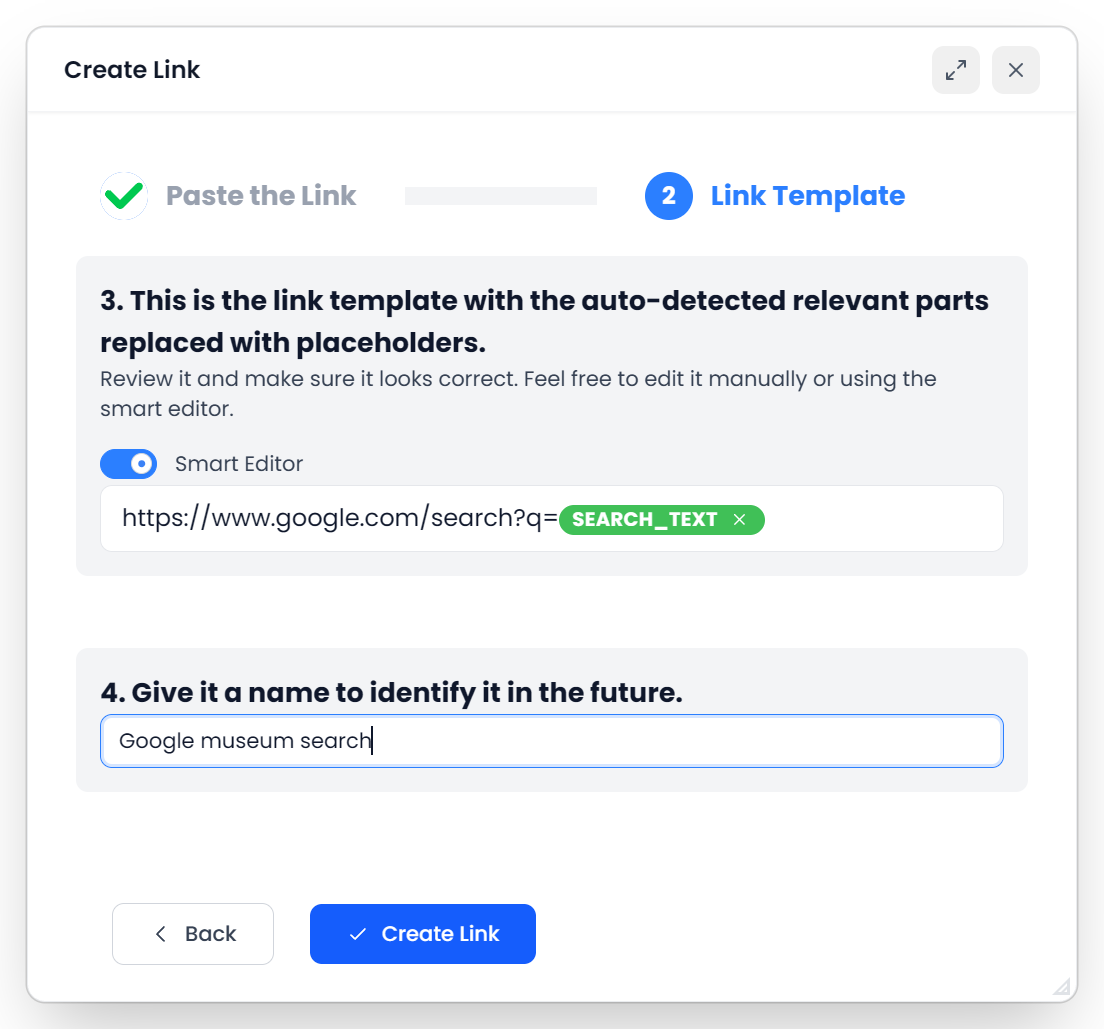
- Inspect the generated template so the changing search text is in the correct place.
- Give the link a clear name and finish with Create Link.
- Test it with another phrase.
The template can also recognize supported language information. Check it rather than assuming that a site uses the same language codes or direction as another site.
The custom-link tutorial explains the example-query field, Smart Editor chips, Simple Editor placeholders, language restrictions, and site-specific Google searches.
Some websites do not put the search in a reusable address. A link template is most useful when changing that address actually runs a new search.
Create a group of search links
Create a group with a task-oriented name, add the relevant saved links, and arrange them as needed. A small group of useful resources is easier to research than many unrelated result tabs.
Open Search Groups → New, name the group, and choose Create. Then use Add Links from the Store, check the intended members, and choose Save Changes. You can also create a new link directly from the group editor. Finish with Close.
Use the group filters to find a group by name or by its links. When you create a link from a group context, check that it has been added to the intended group as well as the link library.
Create search groups covers membership, ordering, language choices, member editing, removal, and toolbar setup.
Research from selected text
In the editor, select the phrase and use a configured research link or group. You can make links and groups available in the segment toolbar configuration.
Open the toolbar's gear, choose Links or Groups, and select the resources you want to show. Then select one row and highlight the wording to research. Language placeholders follow that wording: a target-side lookup uses the target language as its lookup source.
Verify the search text and languages on the opened site. Consult enough context to judge the term's meaning and usage, then return to Searchspeare and apply your decision.
Using research links explains lookup direction, whole-term searches, missing buttons, and how result tabs are managed between searches.
An external search opens the selected text on the chosen website. Choose what to search accordingly; local project storage does not turn an external website lookup into a local operation.
If a link stops working
Open the website normally and run another example search. Compare the new result address with the saved template. If the site's search structure has changed, edit or recreate the link.
If several sites should open but only one appears, check browser handling of new tabs and the group's saved links. Do not treat an empty external result page as evidence that the term does not exist.