
Project Home
After you create a project, Searchspeare takes you to the project home.
This is your control center for the job: you can see what files are in scope, which resources (TM + glossary) are attached, and the project metadata (client, due date, etc.).
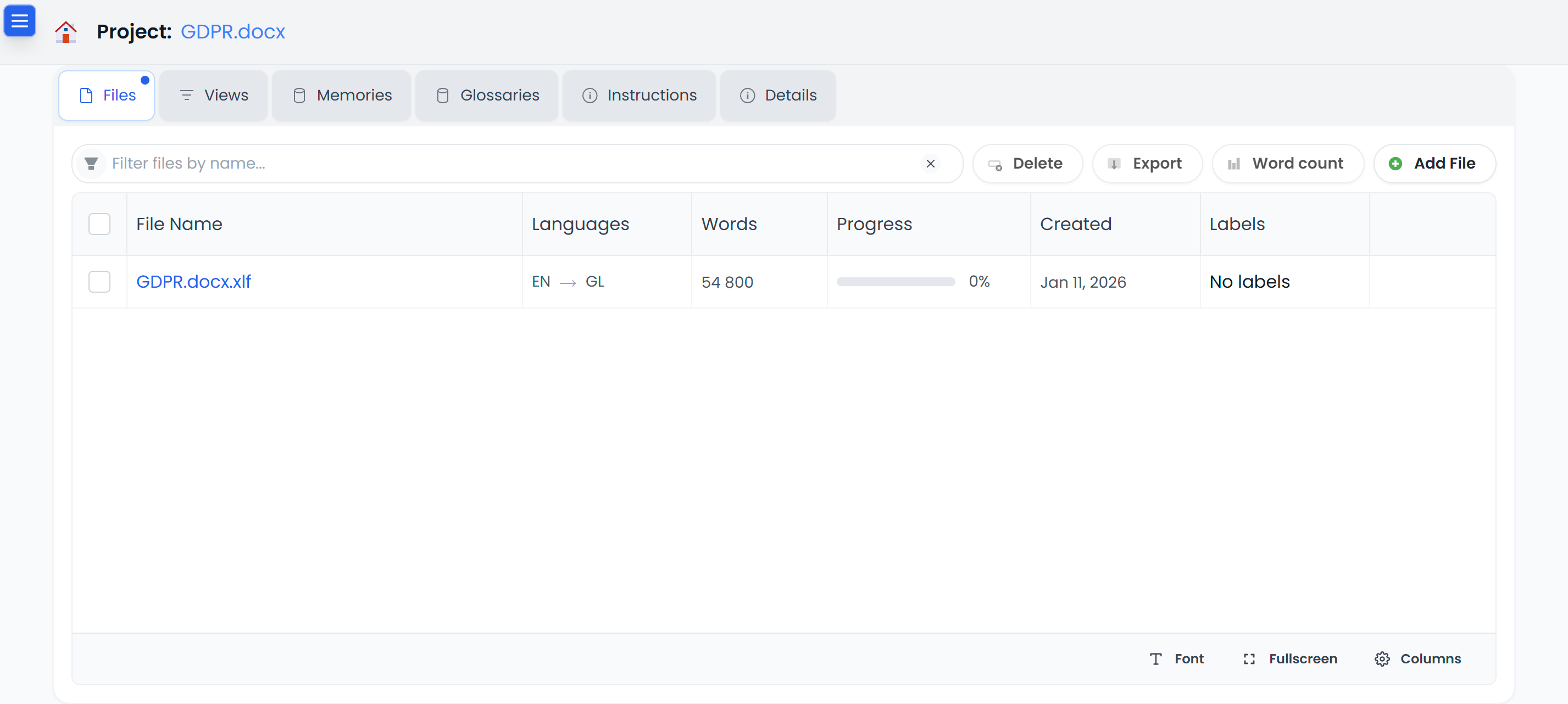
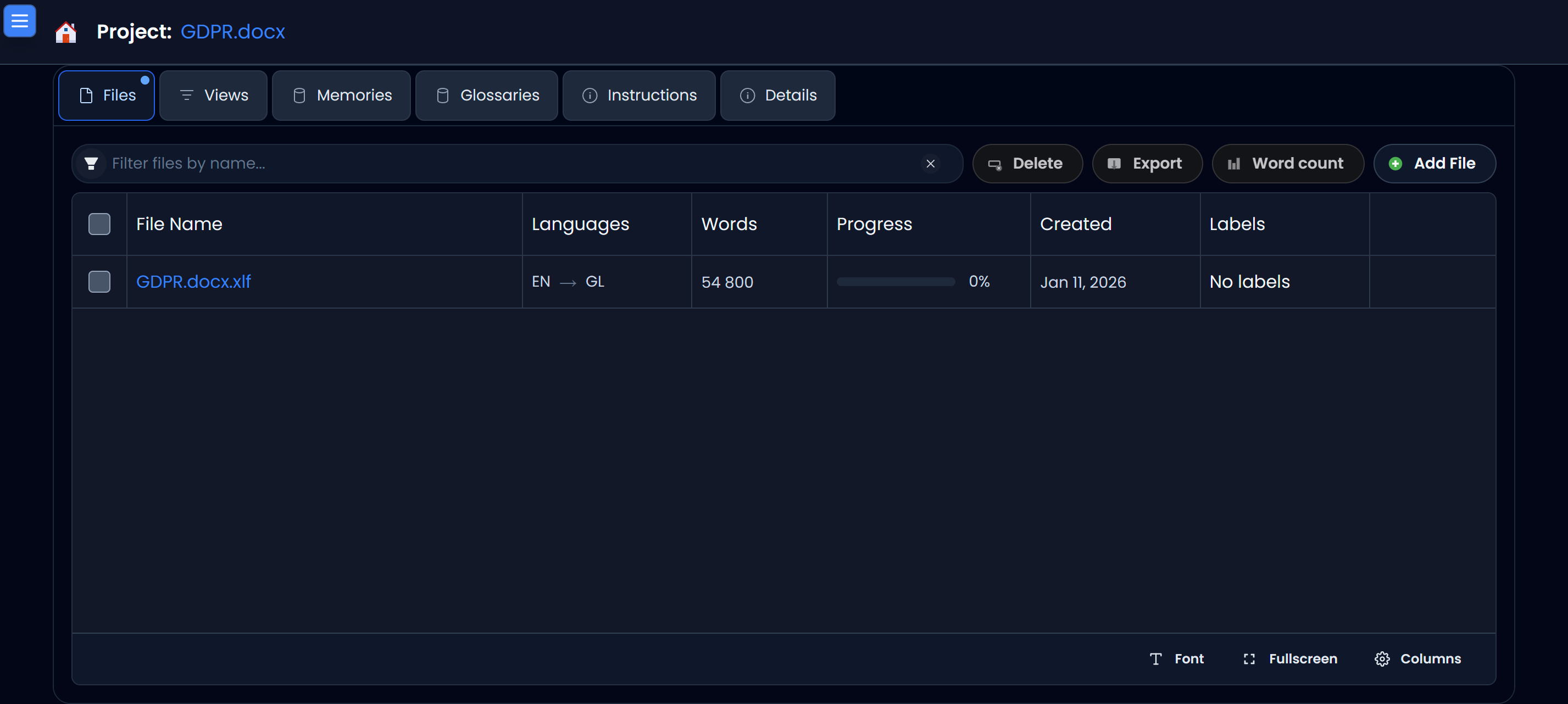
Project home layout
At the top of the page you’ll see the project title, for example:
- Project: GDPR
Below that is a row of tabs. Each tab focuses on a different part of the project.
Tabs
Files
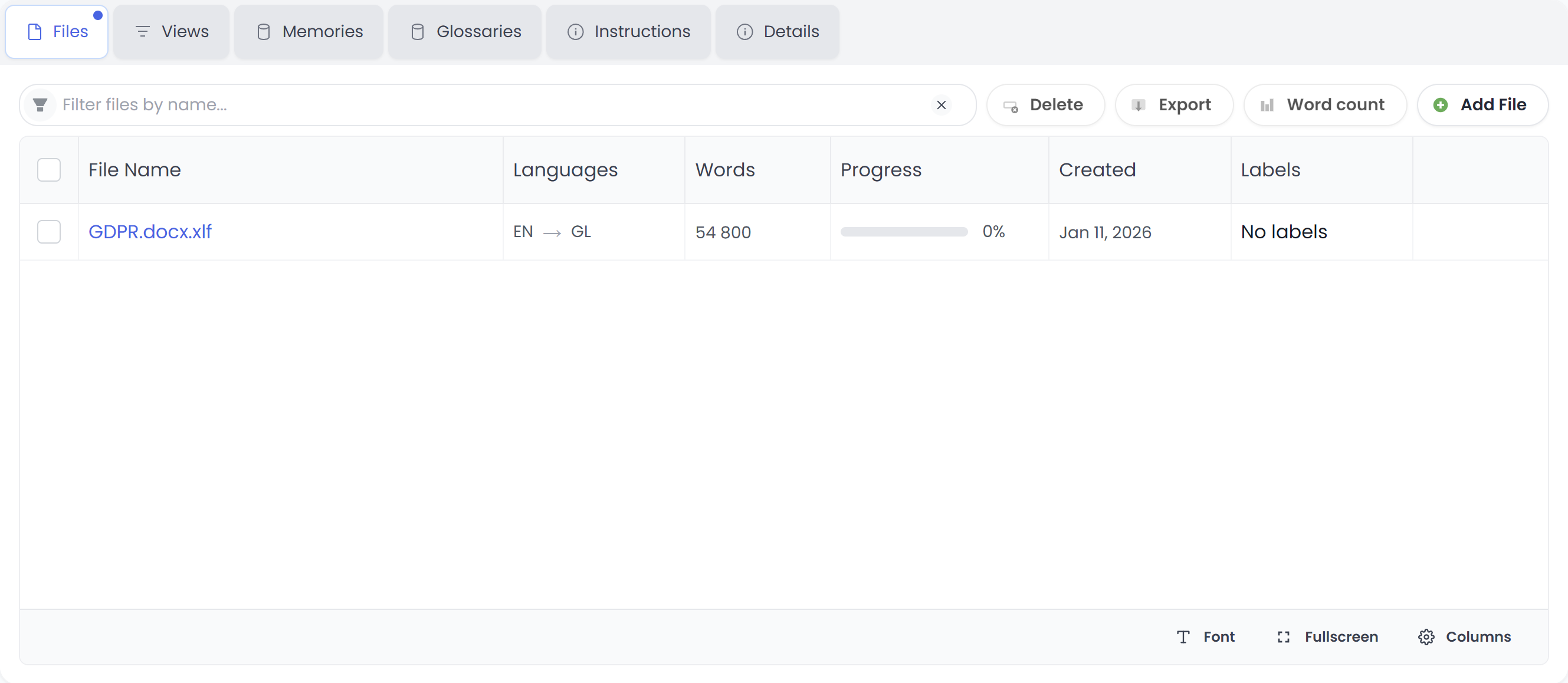
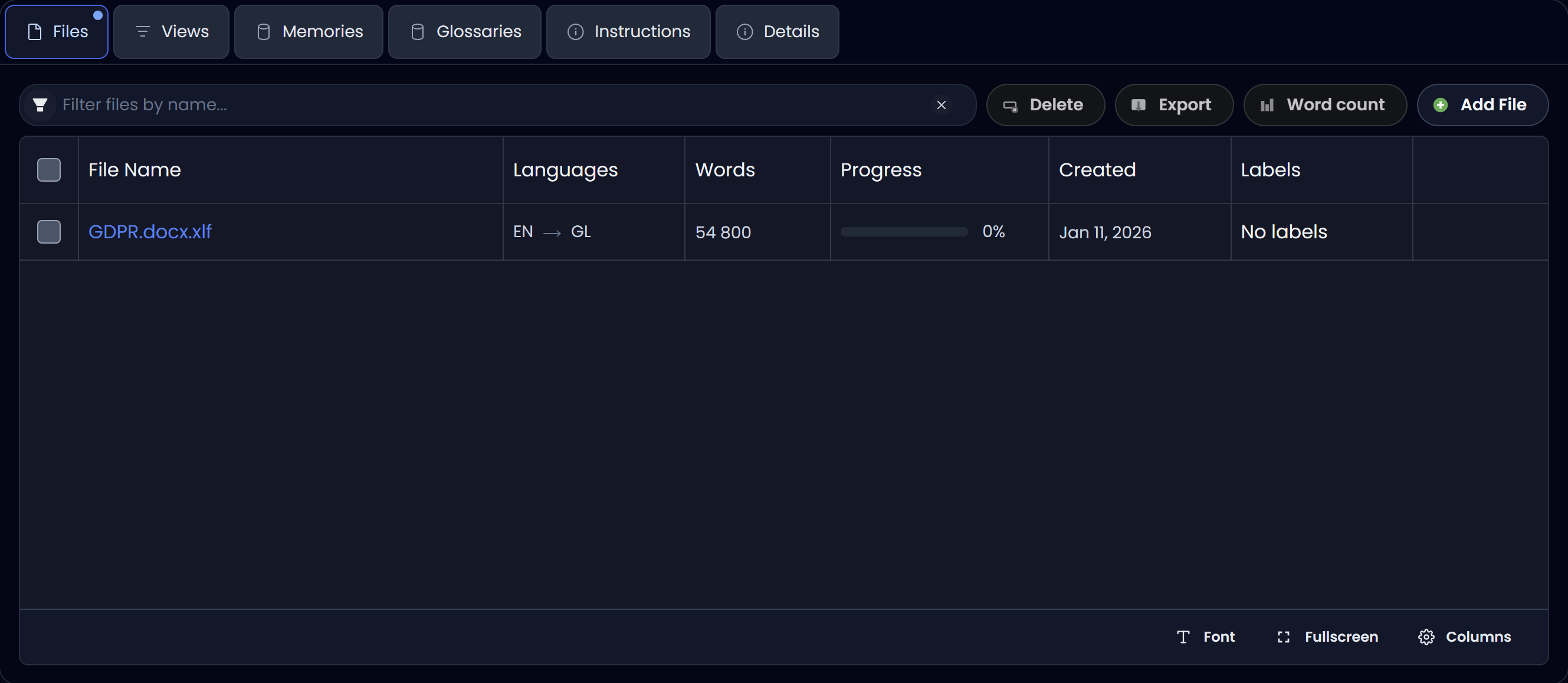
The Files tab shows the list of source files included in the project.
Typical columns you’ll see:
- File Name: the file you are translating.
- Languages: the project’s language direction (for example PT → ES).
- Words: word count for the file.
- Progress: how much of the file is translated/reviewed (shown as a percentage).
- Created: when the file was added.
- Labels: any labels assigned to the file.
Common actions from this tab:
- Add File: attach another file to the same project.
- Delete: remove selected files from the project.
- Export: export translated output for the selected file(s).
- Word count: open the word count summary.
To find files quickly, use Filter files by name….
At the bottom, you can also adjust how the table is displayed:
- Font: increase/decrease table font size.
- Fullscreen: expand the table to use more screen space.
- Columns: show/hide columns.
Views
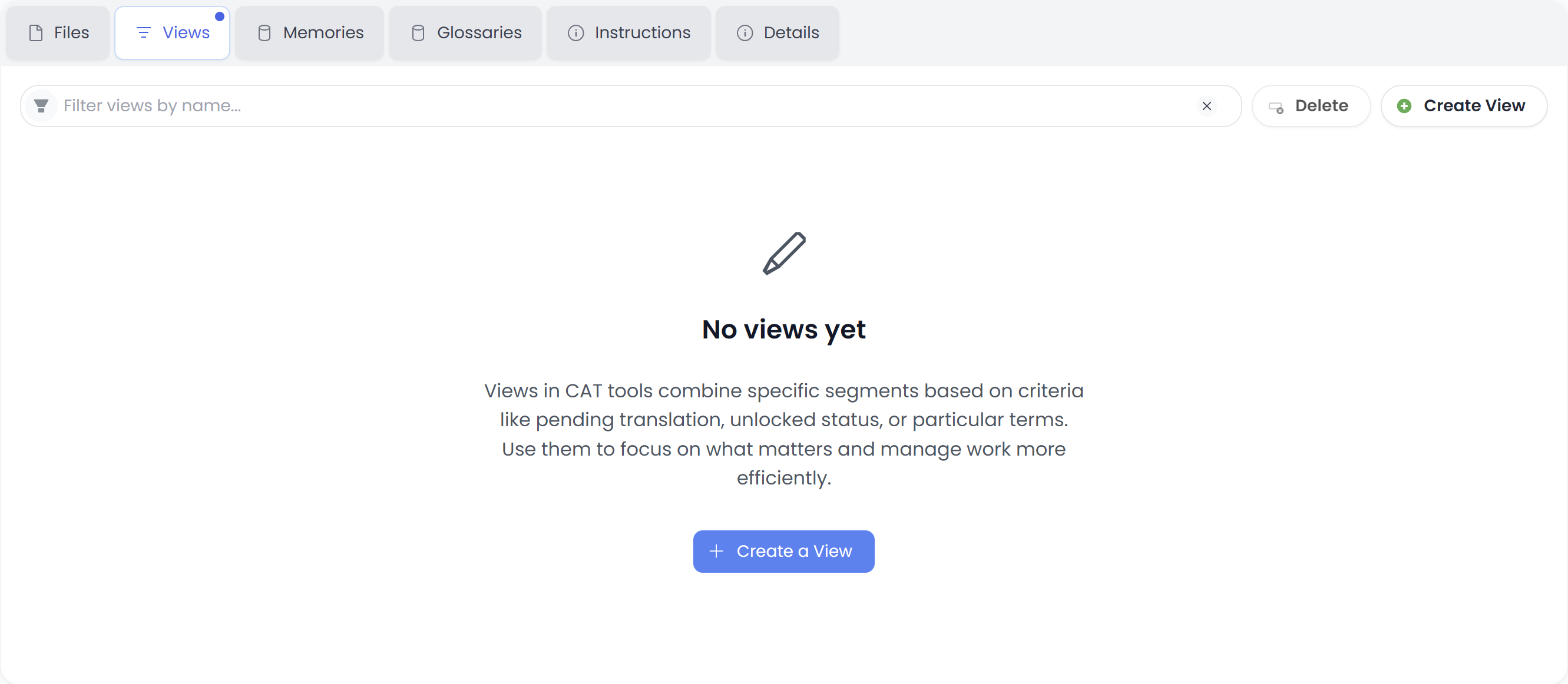
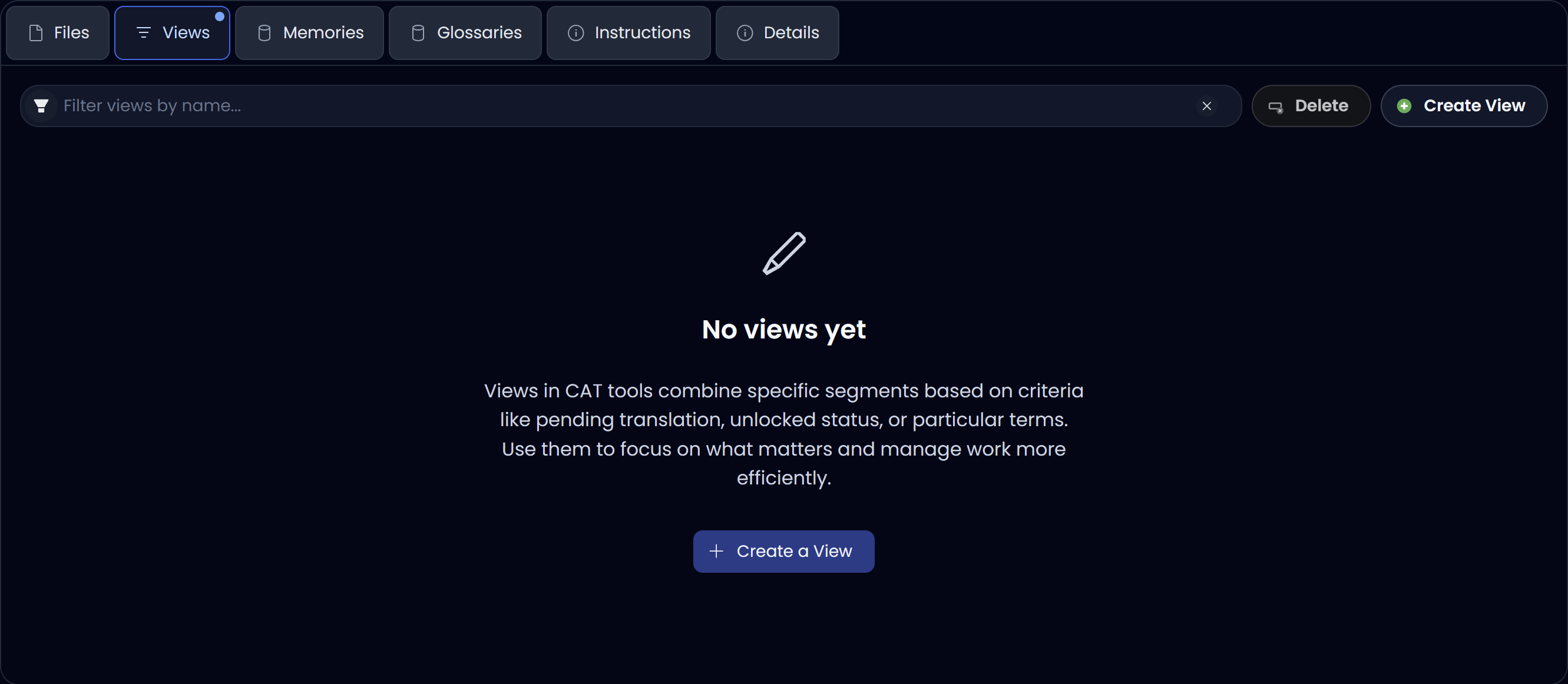
The Views tab helps you focus on specific subsets of segments based on criteria.
If you’ve used other CAT tools, this works like a saved filter or “worklist” (for example: untranslated segments, unlocked segments, or segments containing a particular term).
From here you can:
- Create View: define a new view using criteria (what to include) and save it.
- Delete: remove one or more views.
- Use Filter views by name… to find a view.
Memories
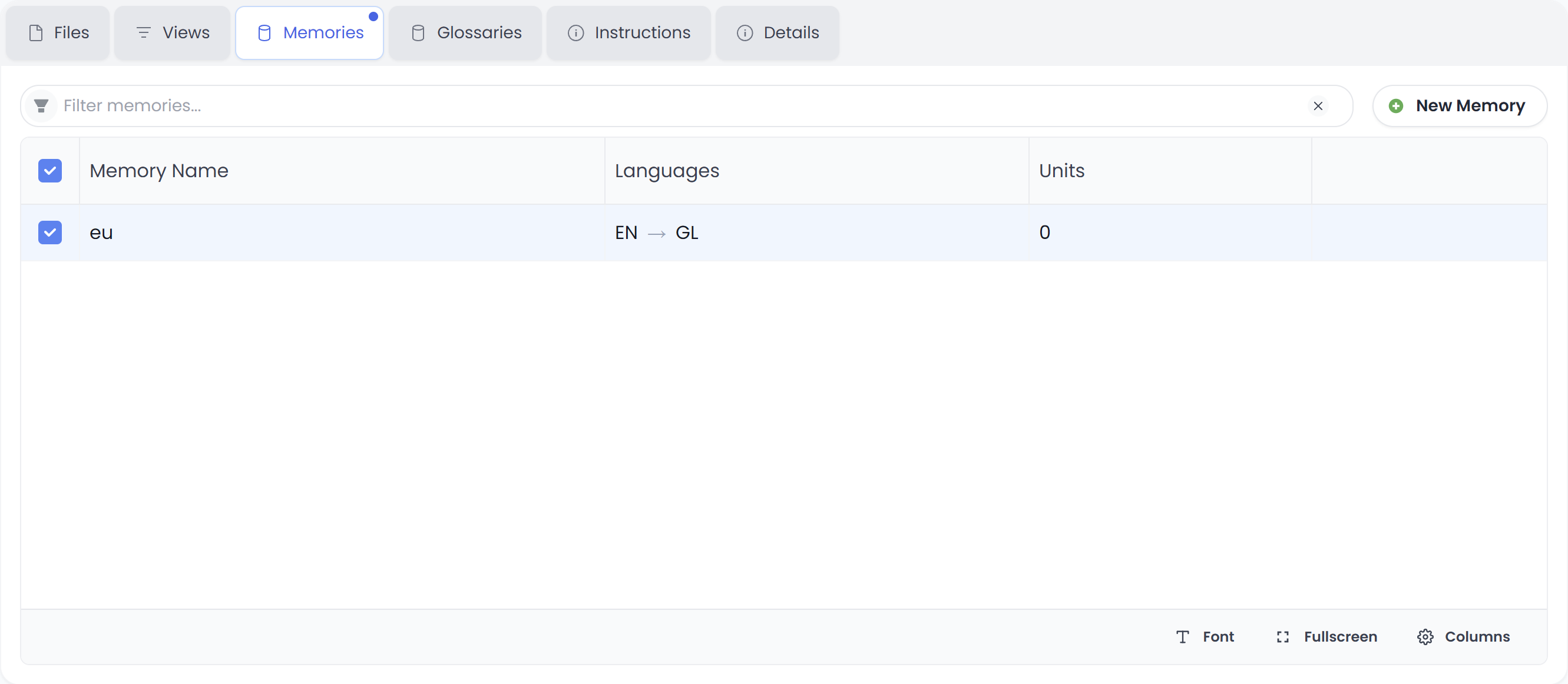
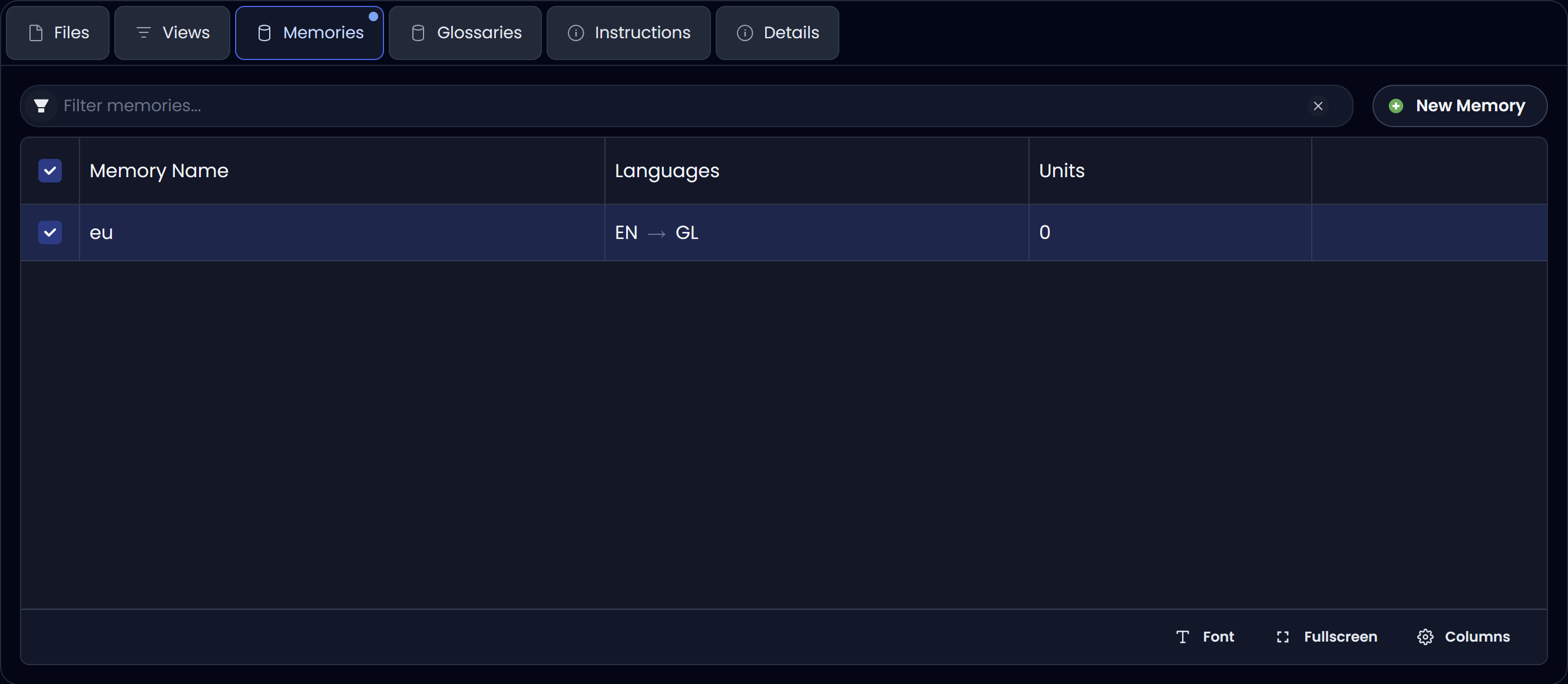
The Memories tab shows the Translation Memories (TM) attached to this project for the selected language pair.
This is where you:
- See which TMs are currently available for suggestions.
- Add a new one via New Memory (if you need a dedicated TM for a client/domain).
- Filter the list using Filter memories….
The table typically includes:
- Memory Name
- Languages (for example PT → ES)
- Units (how many translation units the TM contains)
Glossaries
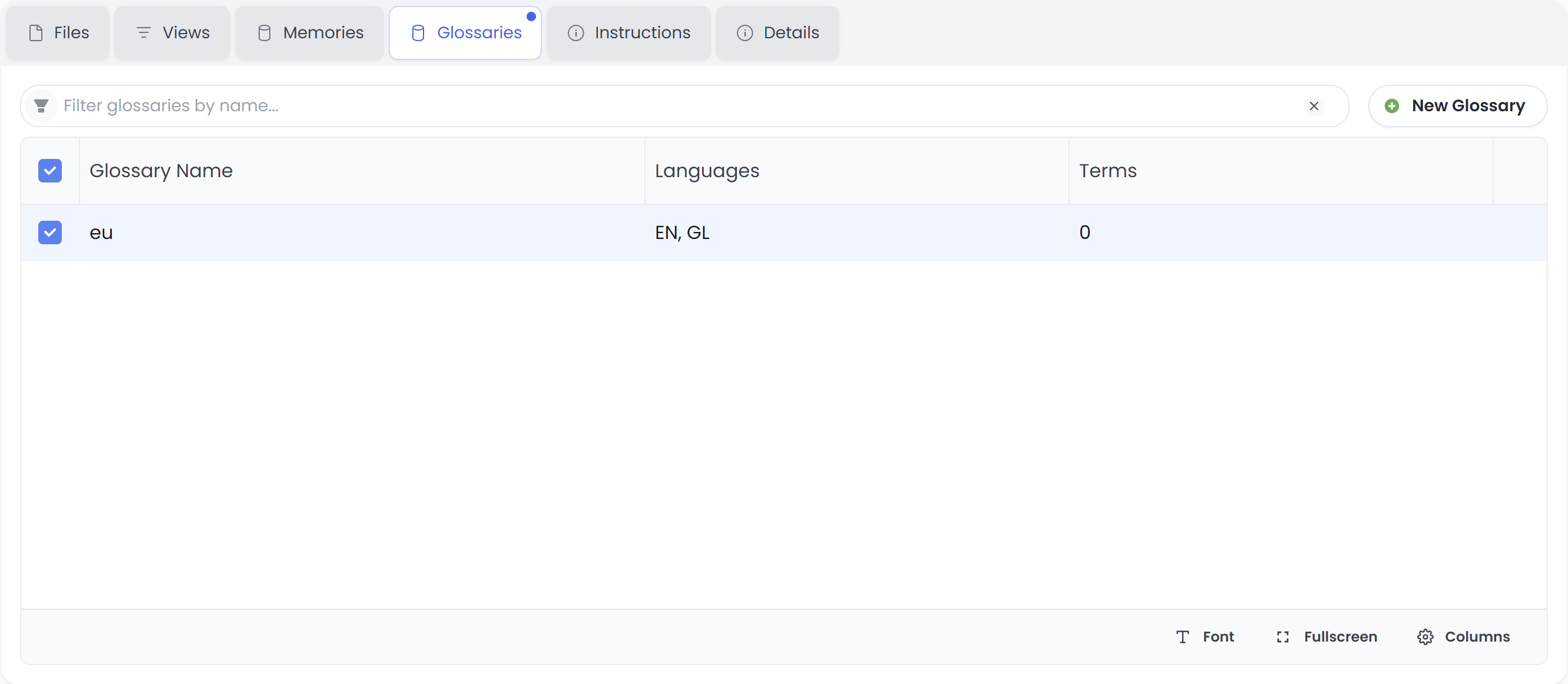
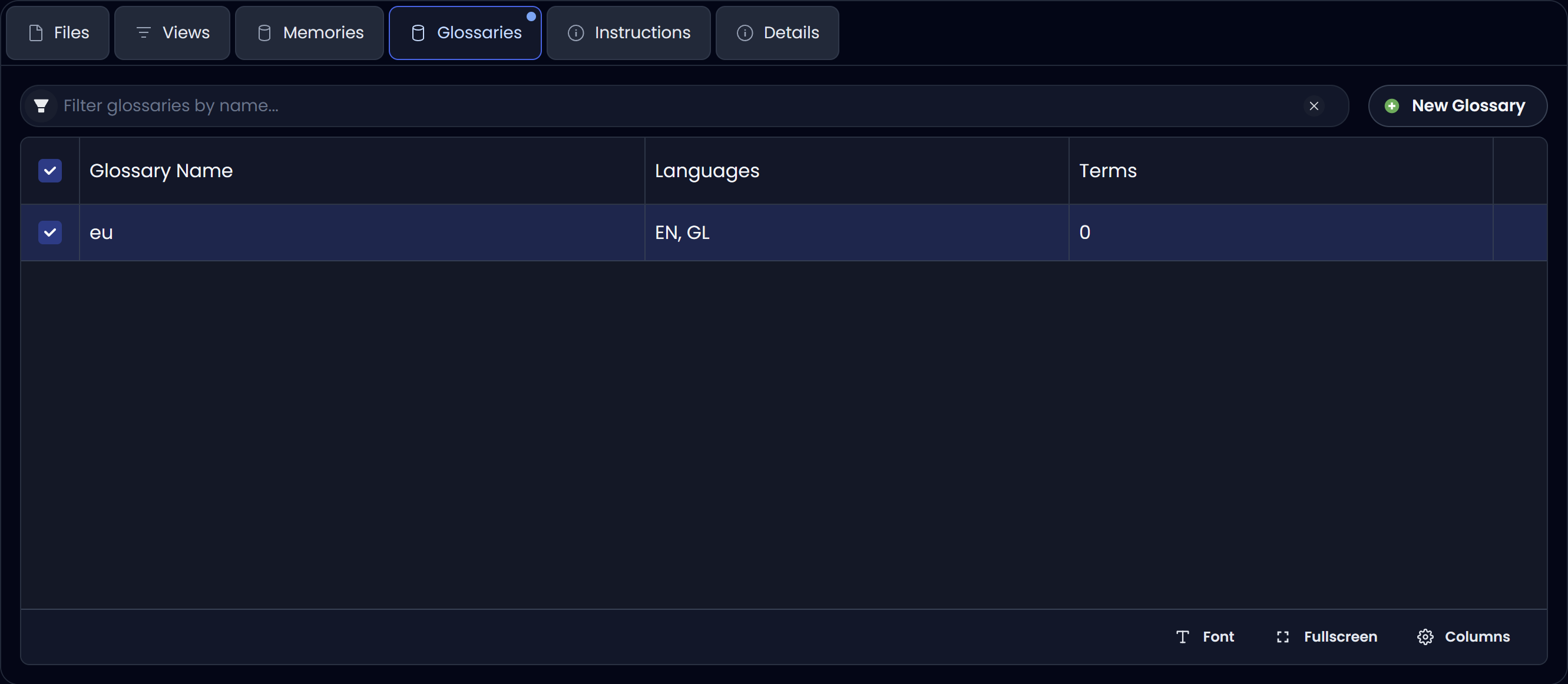
The Glossaries tab shows the glossaries/termbases attached to the project.
Use this tab to:
- See which glossaries are active for term recognition while you translate.
- Create or attach a glossary via New Glossary.
- Filter using Filter glossaries by name….
The table typically includes:
- Glossary Name
- Languages (some glossaries can cover multiple languages)
- Terms (how many terms are in the glossary)
Instructions
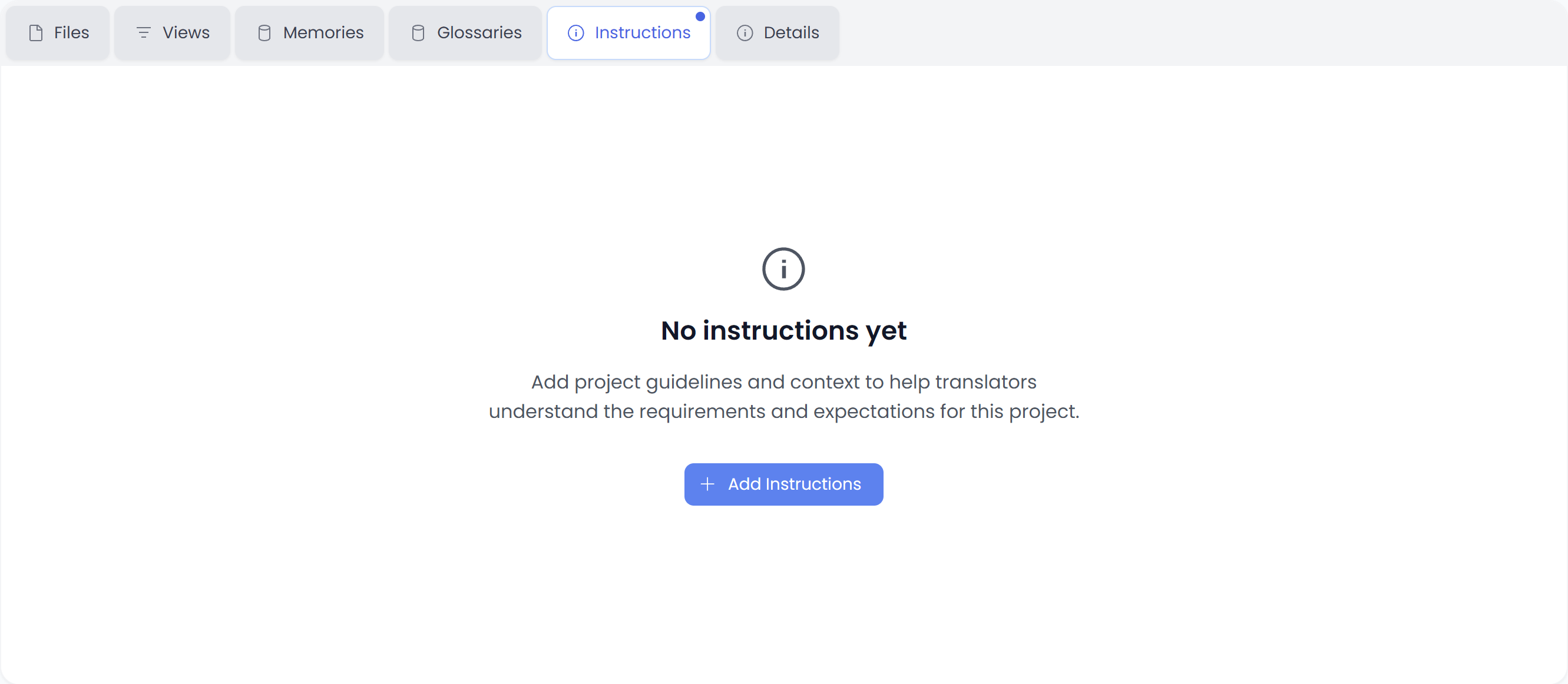
The Instructions tab is for project-specific guidelines.
Think of these as “how to translate this job” notes, such as:
- tone and style requirements,
- preferred terminology not captured by the glossary,
- formatting requirements,
- client expectations (dates, units, punctuation rules),
- do-not-translate lists.
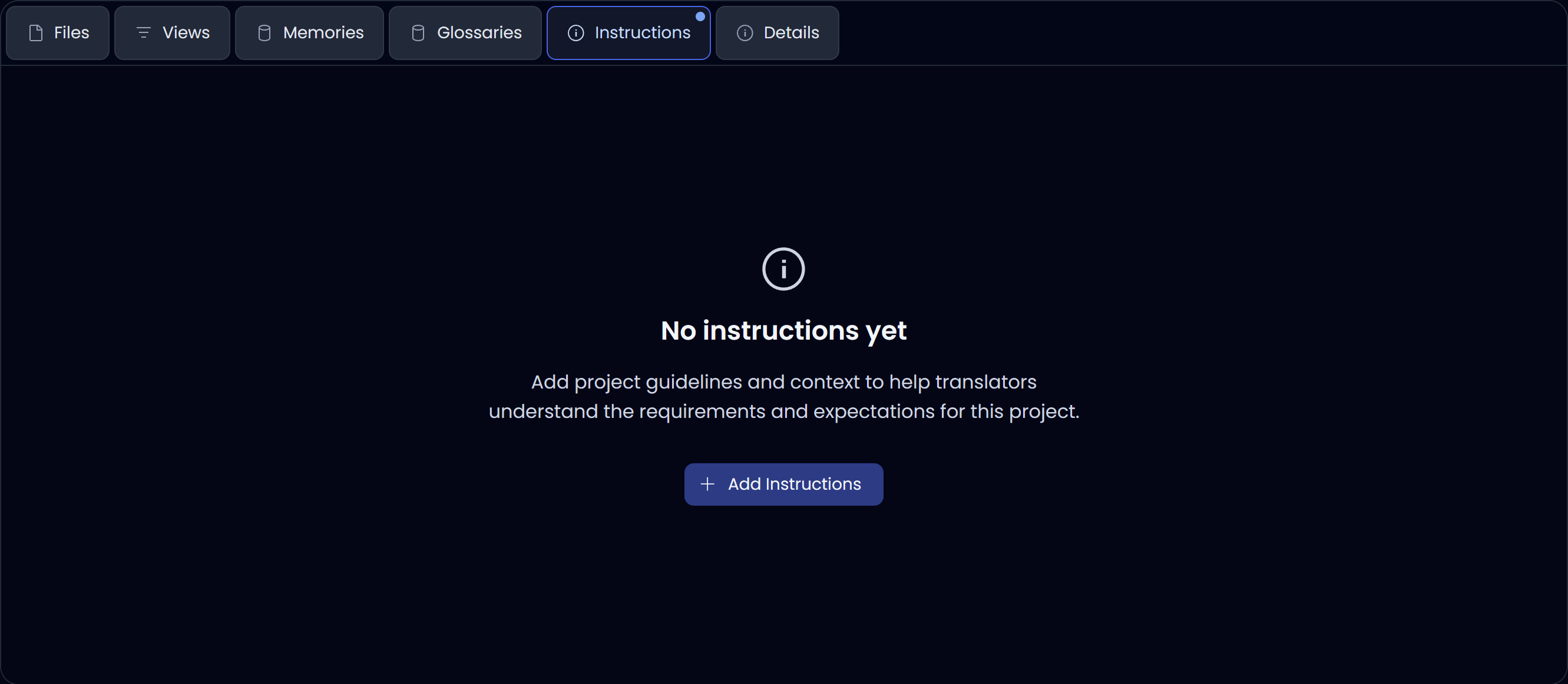
If none have been added yet, you’ll see an empty state (“No instructions yet”) and a button to add them.
Details
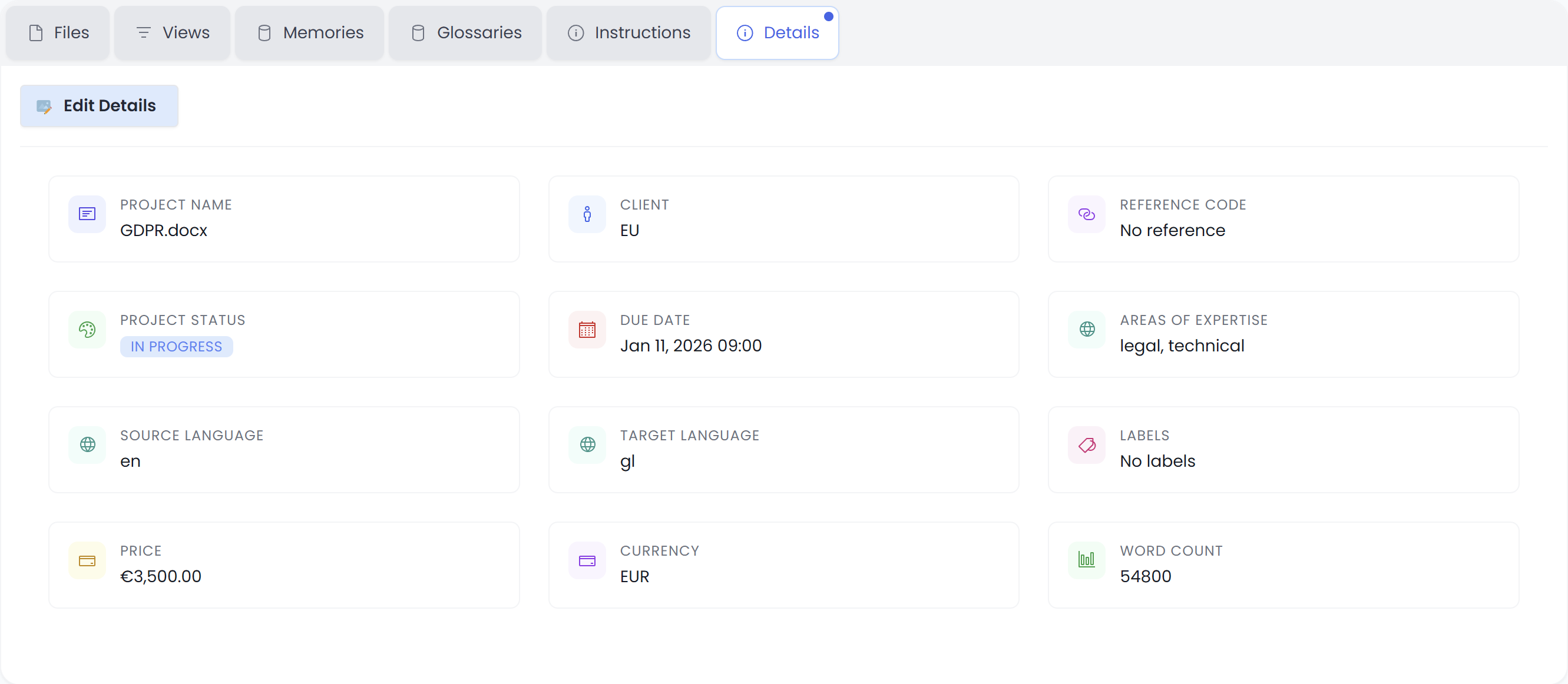
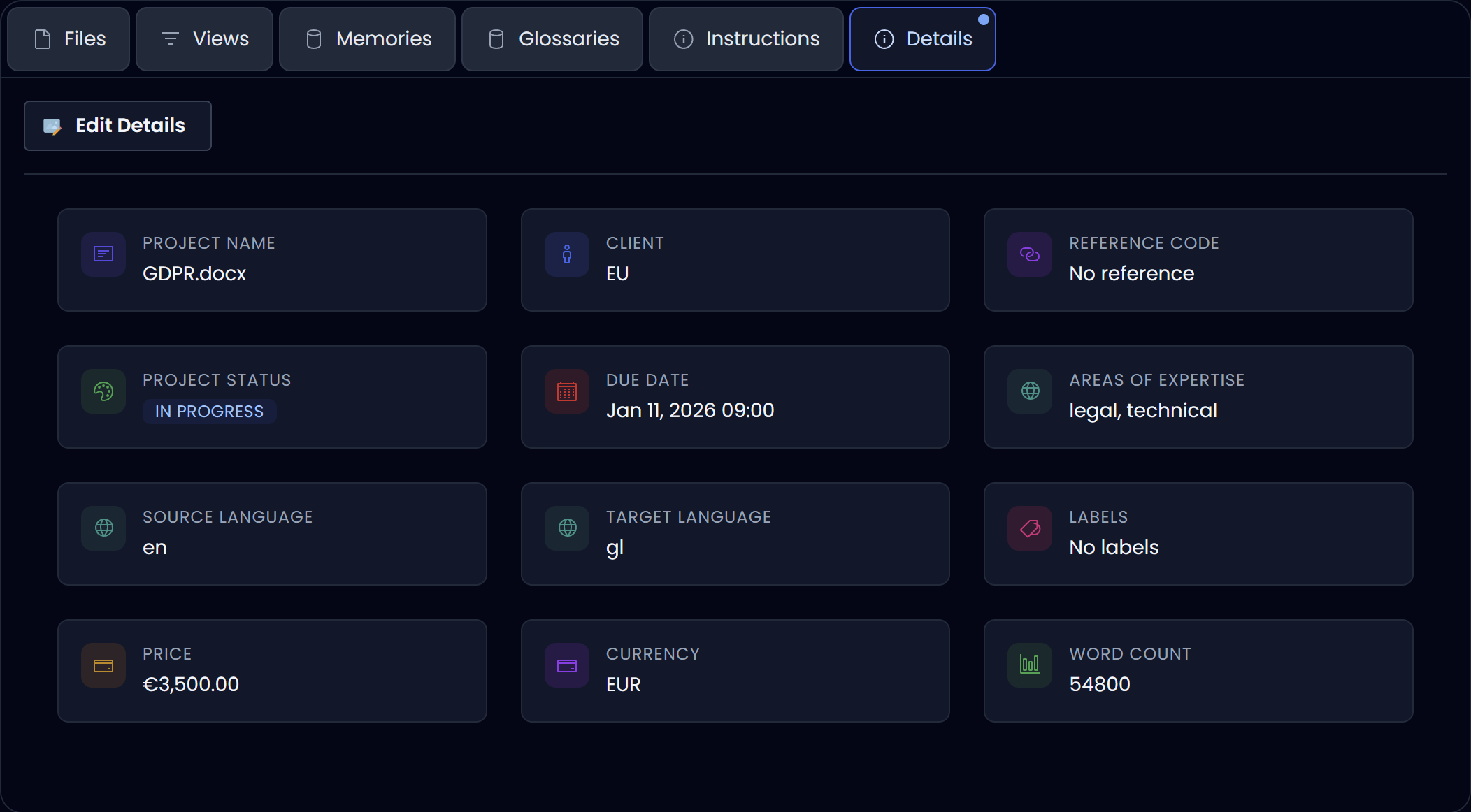
The Details tab contains the project metadata. This is useful when you need context at a glance or when you’re coordinating with a client/team.
Common fields include:
- Project name
- Client
- Reference code
- Project status
- Due date
- Areas of expertise
- Source language and target language
- Labels
- Price and currency
- Word count
Use Edit Details to update these values if your workflow requires it.