
The segments toolbar
Searchspeare’s editor is built for speed: lots of “micro actions” (confirming, formatting, searching, fixing tags, etc.) are available as mini-tools directly in the segment toolbar, so you can keep working without bouncing through menus.
This page is a visual catalog of every tool in the segments toolbar.
How these tools typically work
The segments toolbar is intelligent: it only shows tools that apply to what you’re doing — for example, whether text is selected, whether focus is in the source or target editor, whether multiple segments are selected, or whether a segment is locked.
- Active segment vs selected segments: some actions run on the segment you’re currently editing; others apply to a multi-selection.
- Selected text: some actions require you to highlight text inside the source/target editor first.
Terms
Add the selected terms
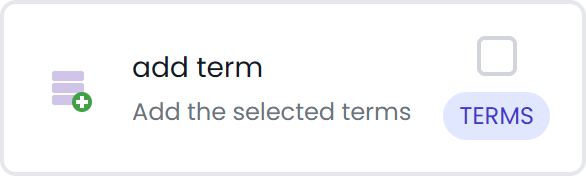
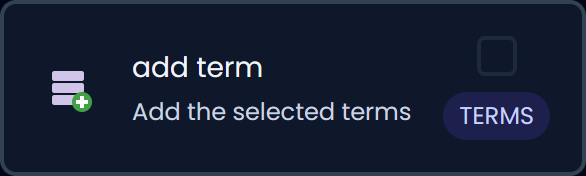
Shown when you select a term in both the source and target editors. It adds the selected source term + target term as a terminology (glossary) entry. Use this when you spot a term you want to enforce consistently (either keeping it as-is, or preferring a specific translation).
Confirm
Confirm segment
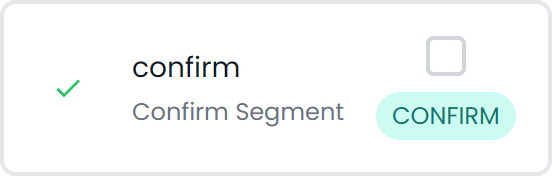
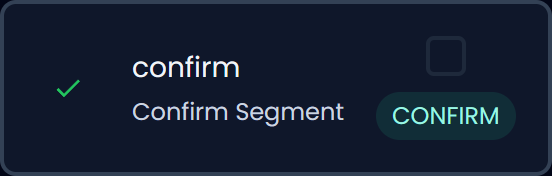
Marks the current segment as confirmed. This is the classic “I’m done with this one” action to help you track progress and focus on what’s left.
Edit
Copy source to target
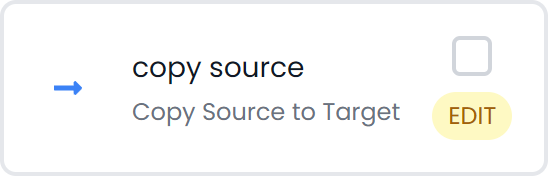
Copies the full source segment into the target. Handy for light editing, or when you want to preserve source punctuation/structure and adapt it.
Copy selected text (source → target)
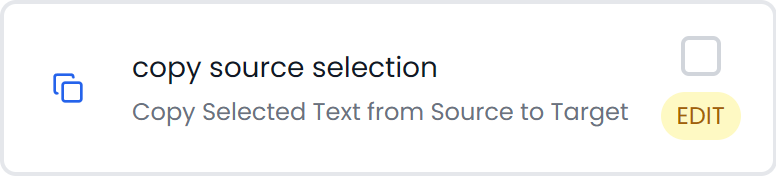
Copies only the highlighted part of the source into the target. Useful for proper nouns, numbers, product names, and other “don’t retype this” fragments.
Clear target content
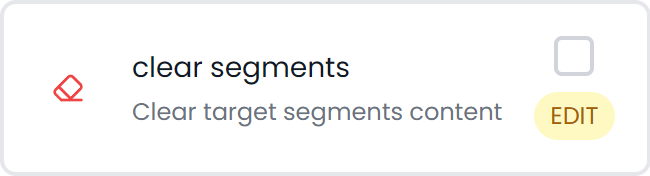
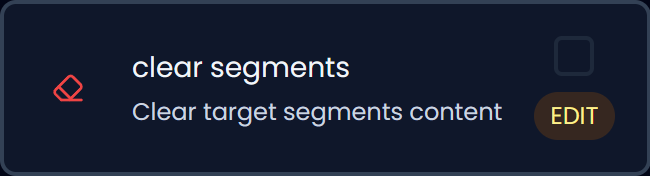
Clears the target text (for the active segment or the selected segments). Useful when you want a clean slate before rewriting.
Undo
Rolls back your most recent change.
Redo
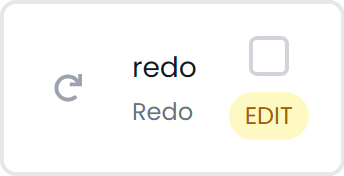
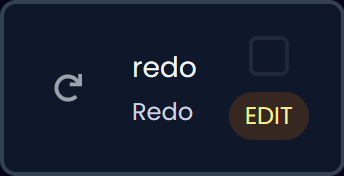
Reapplies the last undone change.
Toggle segment first-word case
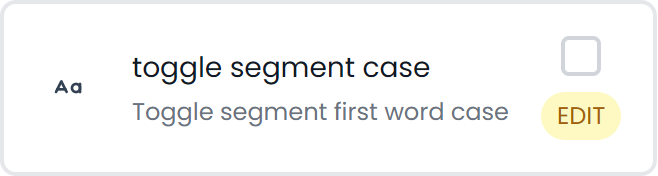
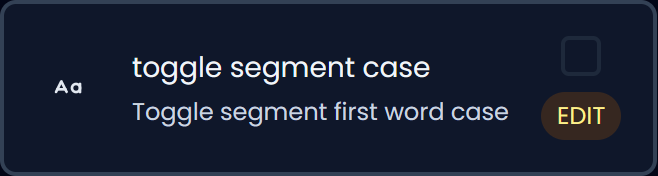
Quickly flips the case of the segment’s first word (e.g., sentence-case vs Title-case starts). It’s especially powerful with multi-select: you can apply it to all selected segments, not just the one you’re currently editing. This tool appears when no text is selected in the active segment.
Change selected text case
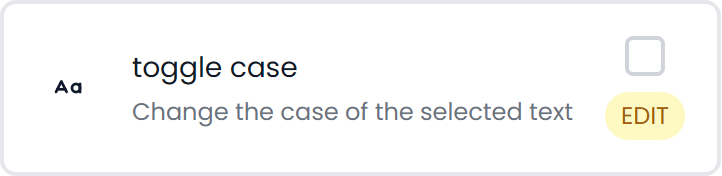
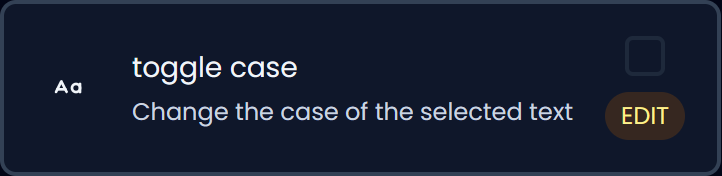
Cycles casing for the highlighted text (for example: lower → UPPER → Title). Useful for headings, UI strings, and consistency fixes.
Bold
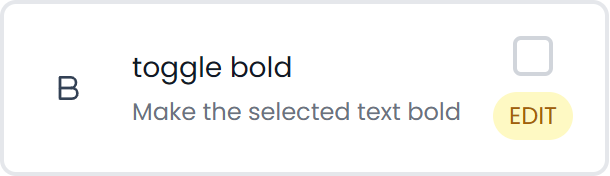
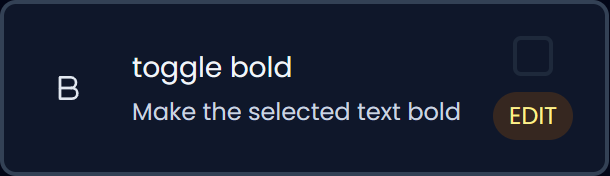
Makes the selected text bold.
Italic
Italicizes the selected text.
Underline
Underlines the selected text.
Superscript
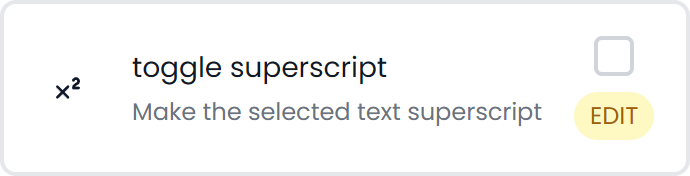
Applies superscript formatting to the selected text.
Subscript
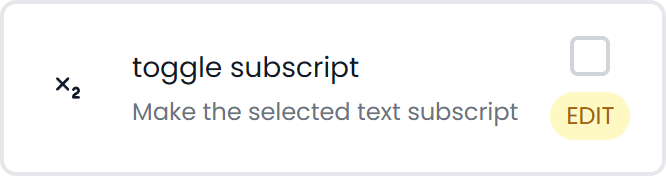
Applies subscript formatting to the selected text.
Symbols
Opens a symbols picker so you can insert common special characters without memorizing key combos.
Select all segments
Selects all segments in the current view so you can apply batch actions (formatting, search operations, AI actions, etc.).
Fix quotation marks
Normalizes quotation marks for the selected segments. Useful when a project mixes straight/curly quotes, or when importing content that doesn’t match your target-language typographic conventions.
You can choose your preferred quote style in the Ribbon: Style → Quotes Type.
Search
Find & replace (selected text)

Starts a find-and-replace using the selected text as the initial query. Great for fast consistency edits across many segments.
Filter segments (by selected text)

Filters the segment list to only show segments matching the selected text. If the selection is in the source editor, it filters by source; if the selection is in the target editor, it filters by target. Handy for reviewing recurring terms, patterns, or problem strings.
Concordance search

Searches the selected text in your database(s) to show real usage examples. Useful for checking how you translated something before, or for spotting consistent phrasing.
See: Concordance.
Status
Lock / unlock
Locks a segment to prevent accidental edits (and unlocks it when you’re ready).
Change segment status
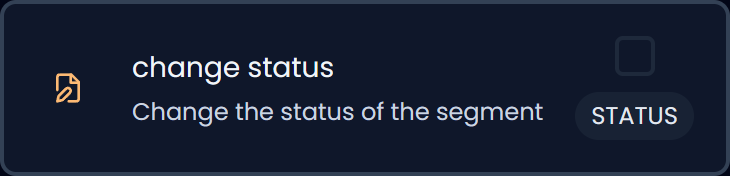
Sets the segment’s workflow status (e.g., draft / translated / reviewed, depending on the project setup). You can apply it to the active segment or all selected segments. Useful for batching review passes.
Tags
Insert tag
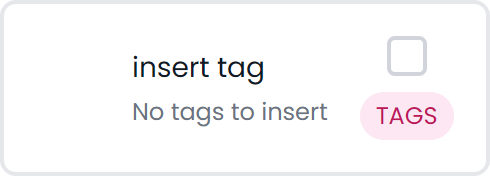
Inserts an available formatting tag at the cursor position (or into the selection). Use it to keep document formatting intact without manual markup guesswork.
Remove tags
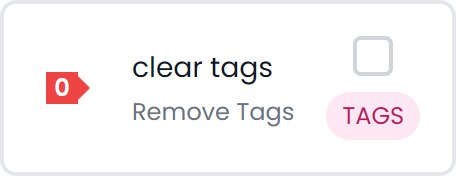
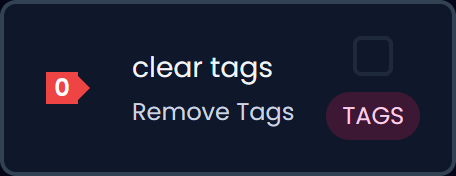
Clears tags from the segment(s). Useful when you intentionally want plain text, or when cleaning up problematic imported formatting.
Remove invalid tags
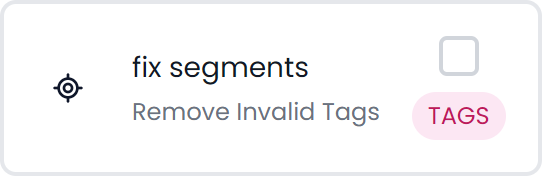
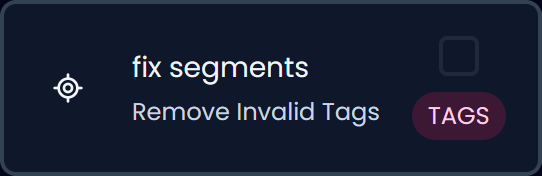
Strips or fixes tags that are invalid/broken so the segment becomes export-safe.
Show tags mismatch
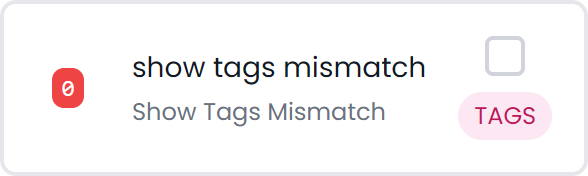
Highlights segments where source/target tags don’t match so you can fix formatting issues before delivery.
AI
These actions use AI inside the editor, but are designed as concrete, repeatable “do X” operations (instead of open-ended prompting).
Fix tags
Repairs and repositions tags in the target while preserving the translation.
Translate in batches
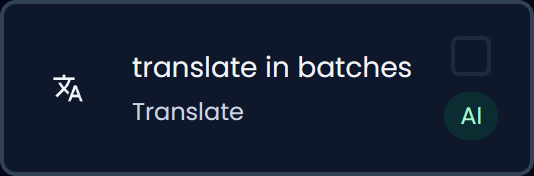
Runs translation on a selection of segments in one go. Useful for first drafts or filling gaps quickly.
Improve text
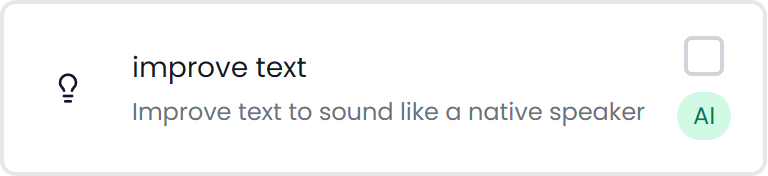
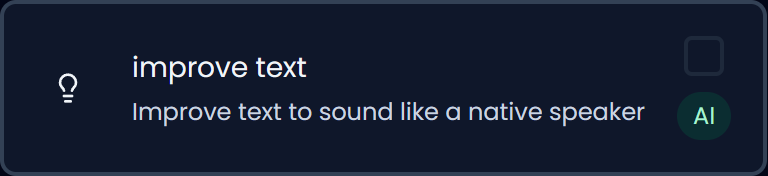
Polishes the target to read more naturally (style/fluency) without changing meaning.
Synonyms (get 5)
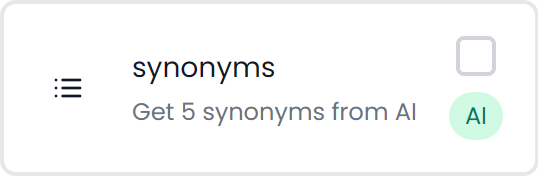
Suggests alternative words/phrases to help you avoid repetition or better match tone.
Fix errors
Fixes grammar, spelling, and punctuation issues in the target.
Toggle number (digits ↔ words)
Converts numbers between digit form and written-out form (useful for style guides).
Magic filter
Helps build a powerful filter from intent (especially handy when you don’t want to handcraft regex).
Start chat with Searchspeare
Opens a chat with Searchspeare about your content. You can ask it to edit only the parts you specify, clarify information, review your text, or add terms to your glossary. This can run on the active segment or on a selection of segments.
Translate
Translate with DeepL
Sends content to DeepL for translation (useful when you want DeepL output as a starting point or comparison).
Dictation
Dictaphone
Dictate text by voice to speed up drafting, then quickly edit for precision.
Links
Visit the link


Opens the link associated with the segment content (helpful when translating strings that reference URLs or documentation).