Quality assurance (QA)
Quality assurance (QA) helps you catch errors automatically.
These checks are based on industry-standard patterns (numbers, tags, spacing, punctuation, terminology consistency, etc.) so you can spot issues that are easy to miss when you’re translating at speed.
Where QA fits in the workflow
A practical default is:
- Translate segments (TM + your edits).
- Review for style, tone, and consistency.
- Run QA for mechanical issues (tags, whitespace, punctuation, forbidden terms).
Start with a QA profile (choose the rules that matter)
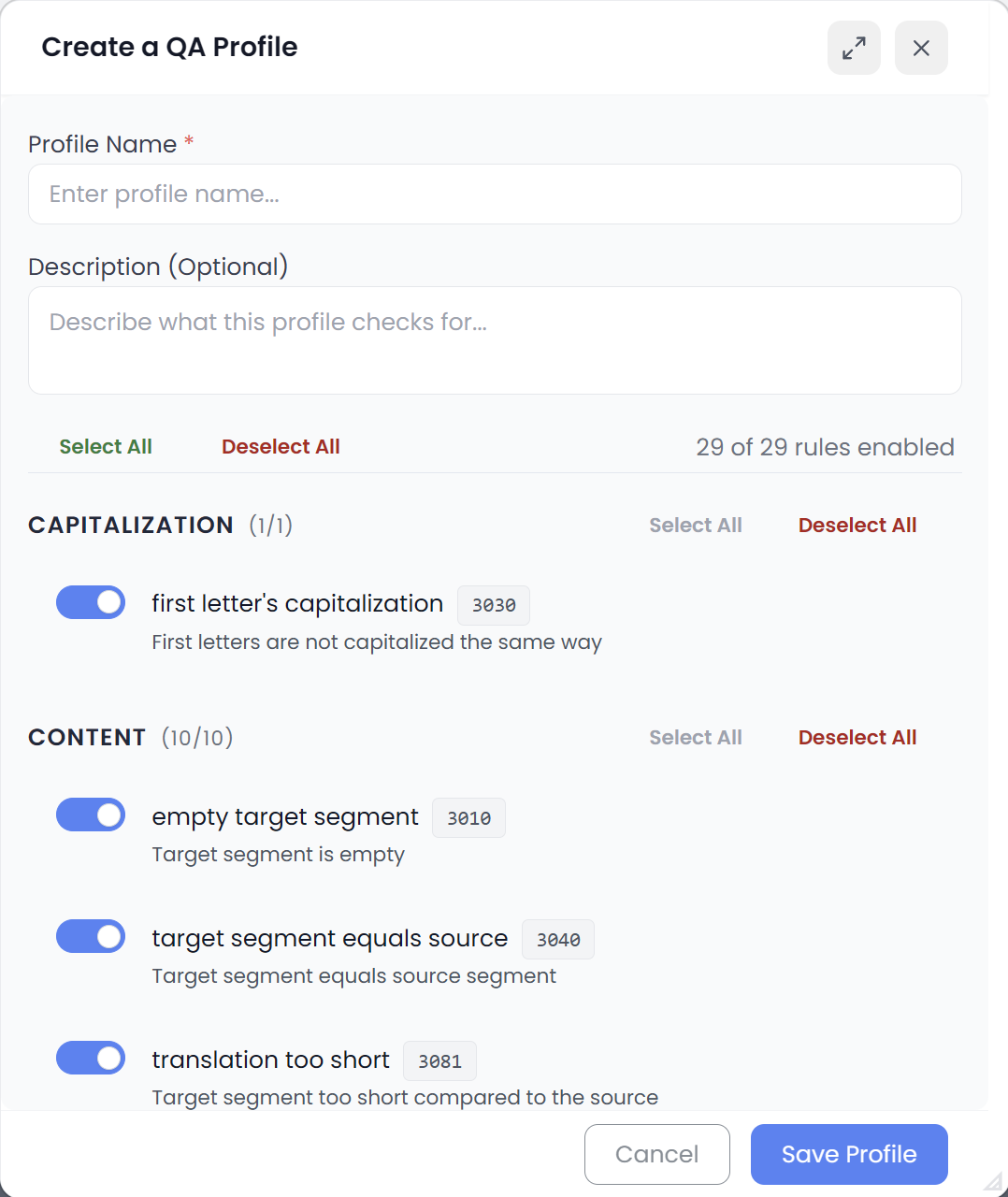
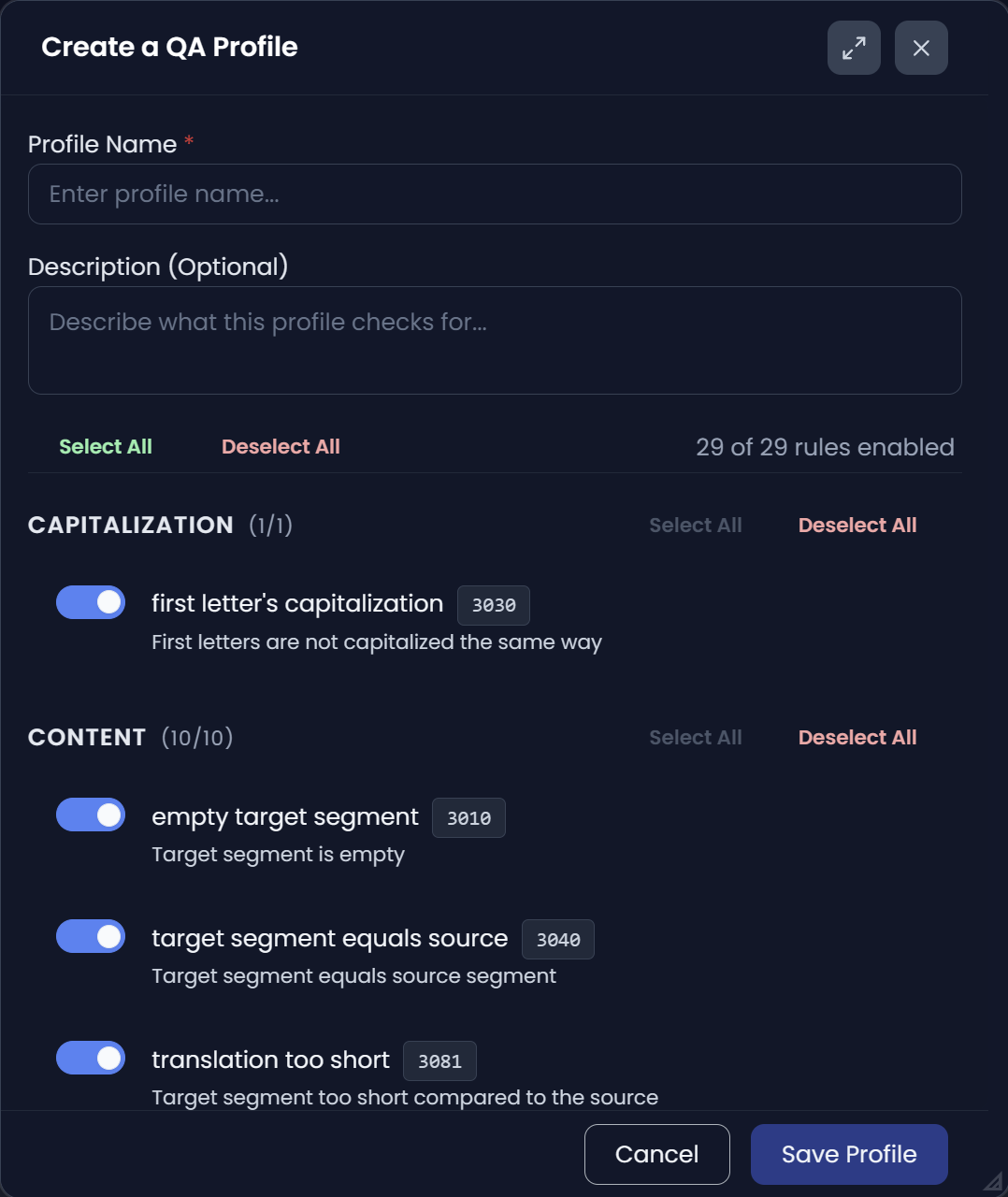
Searchspeare lets you create a QA profile: a set of rules you consider relevant for the project.
This is important because QA should match reality:
- different clients have different rules,
- some projects care a lot about tags and numbers,
- others care more about punctuation or formatting.
Why Searchspeare’s QA viewer is different
Most tools show QA like a list where you jump one error → one segment at a time.
Searchspeare is built to make fixes faster:
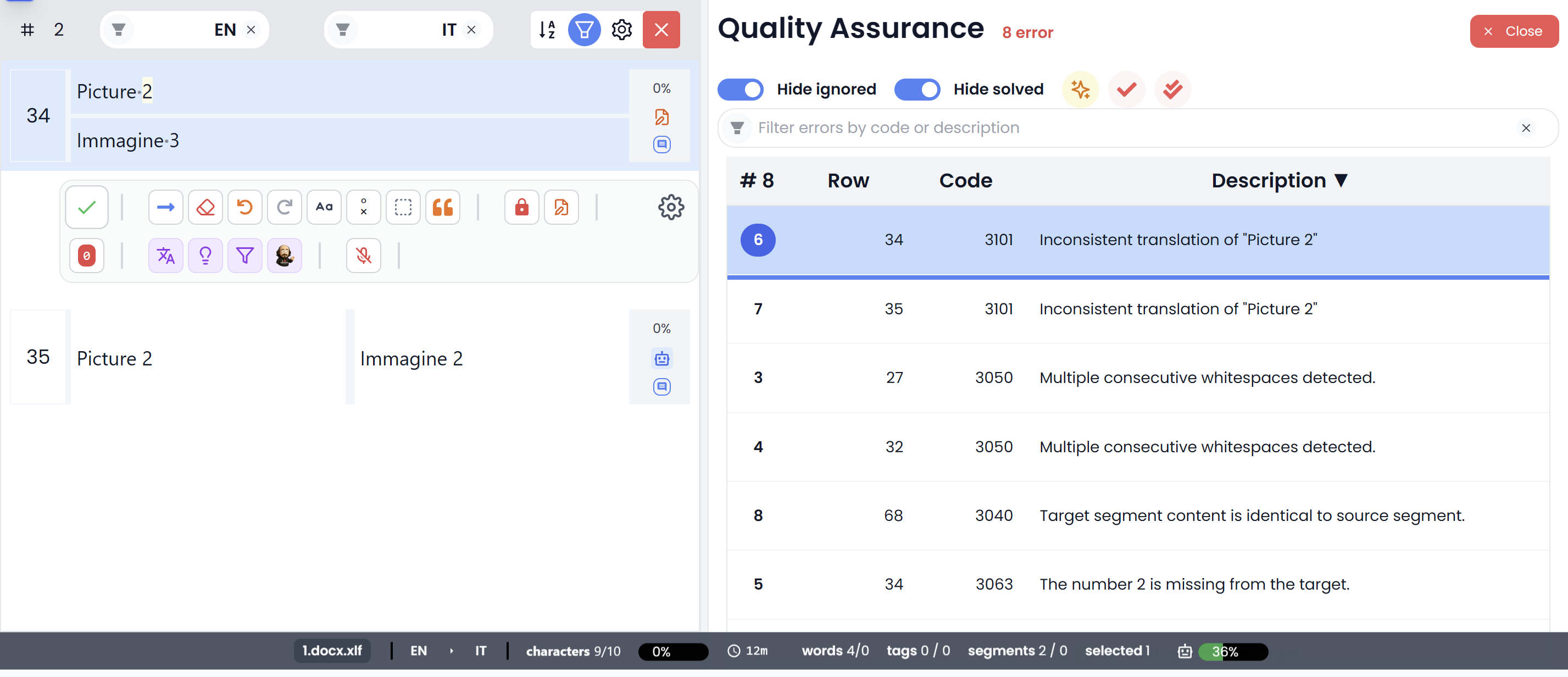
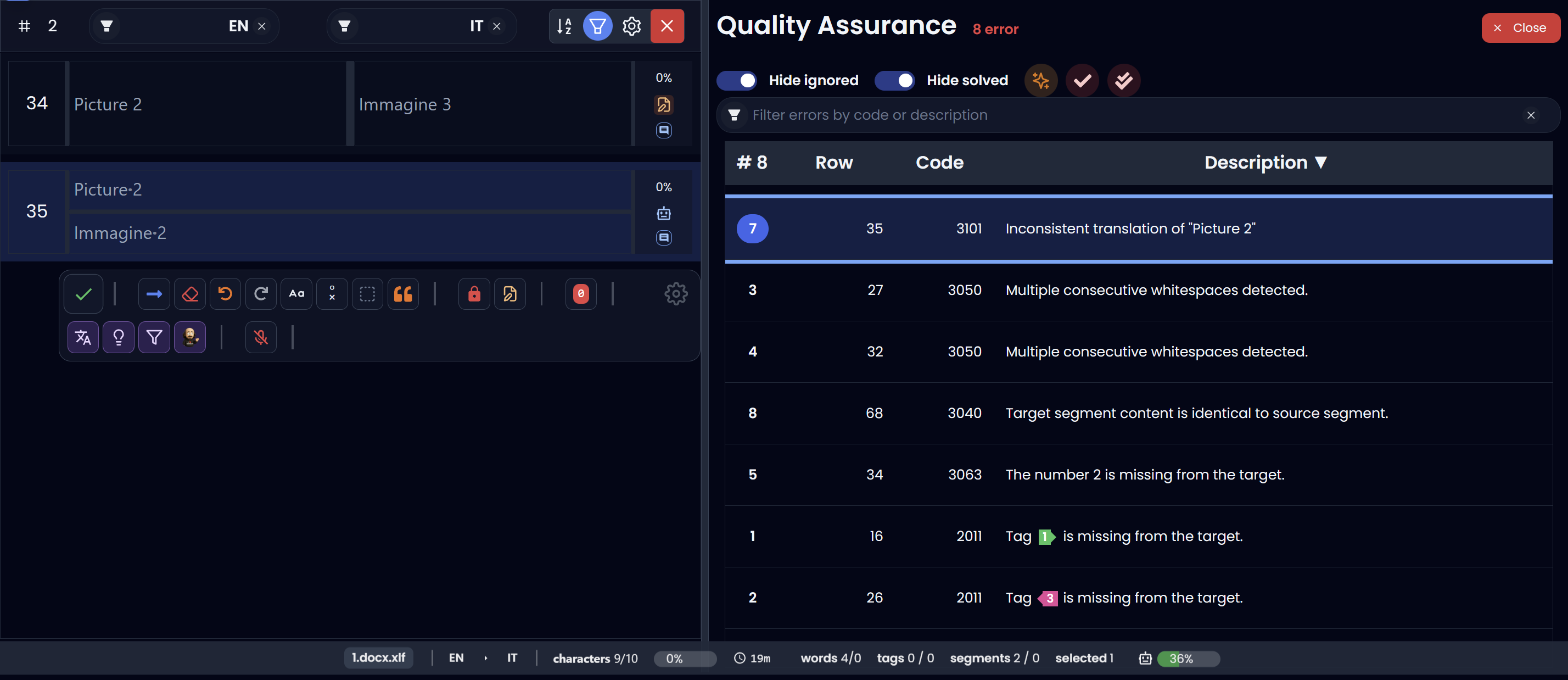
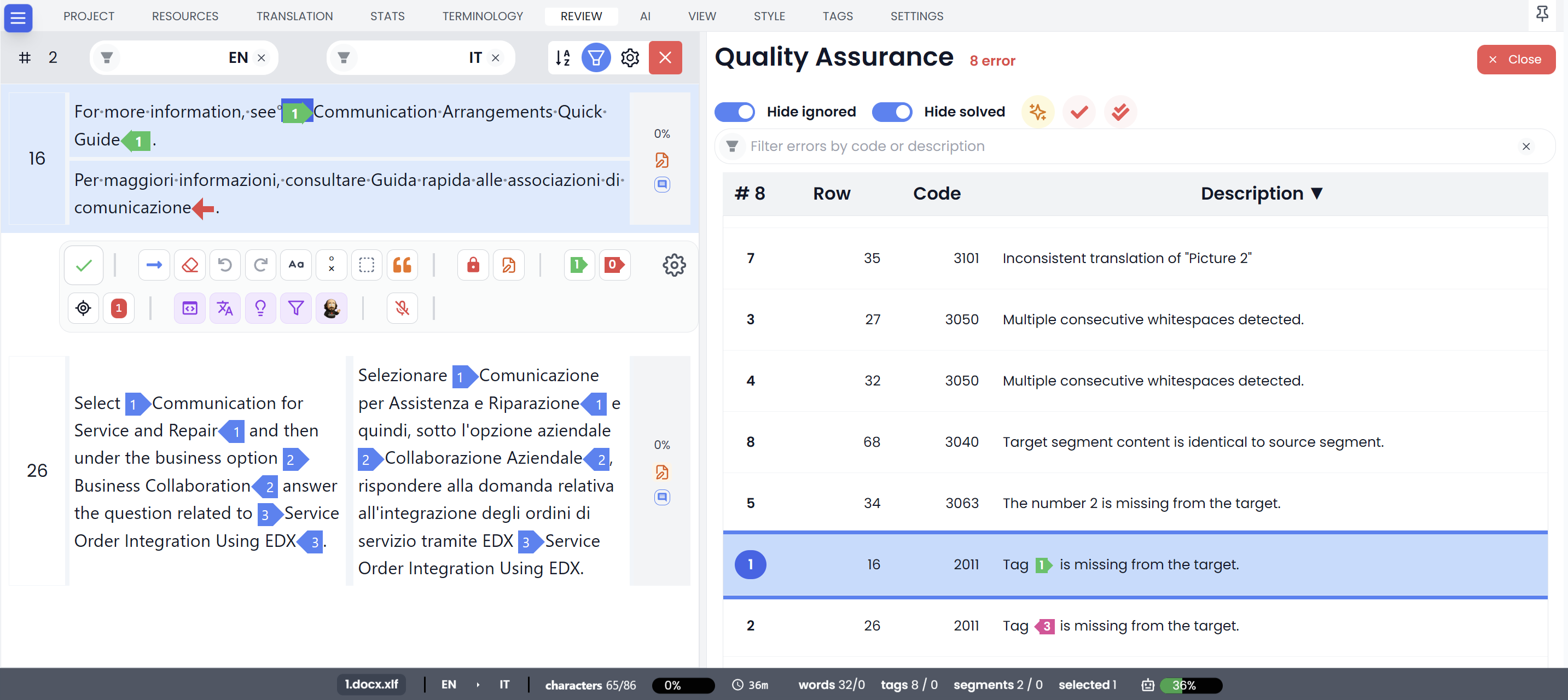
- You can filter segments by a specific QA error.
- You can also filter by code, row number, or description.
- Once you’re looking at “all segments with the same problem”, you can fix them in one focused pass.
That “group-by-error” workflow is powerful: you keep your context, your brain stays on one rule, and the rest of the document stays untouched.
Filter to a single error and fix it everywhere
When you select an error type, Searchspeare can show you only the segments that contain that error.
This lets you:
- review all occurrences quickly,
- apply the same correction consistently,
- avoid impacting segments that don’t need changes.
Bulk fixes (made for speed)
Because you’re working on a filtered set, you can often fix issues in bulk.
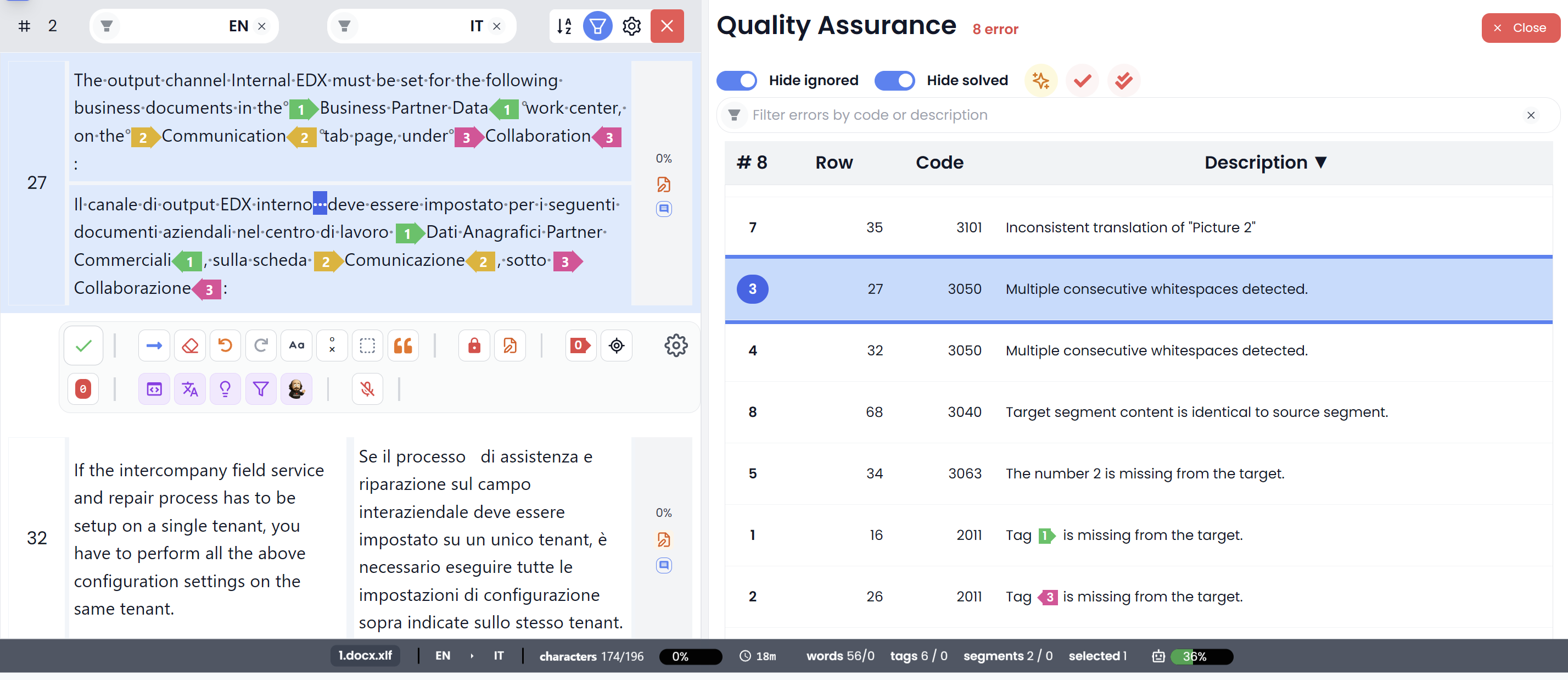
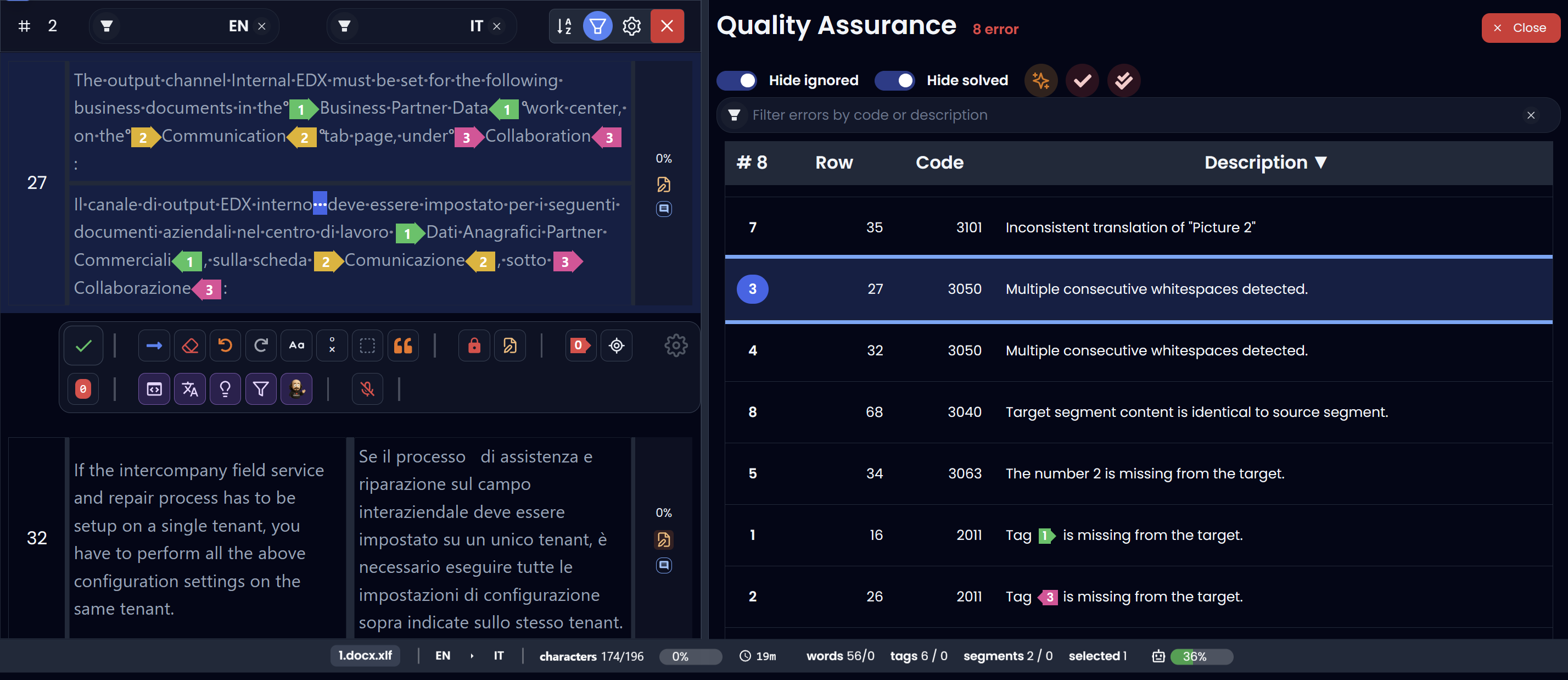
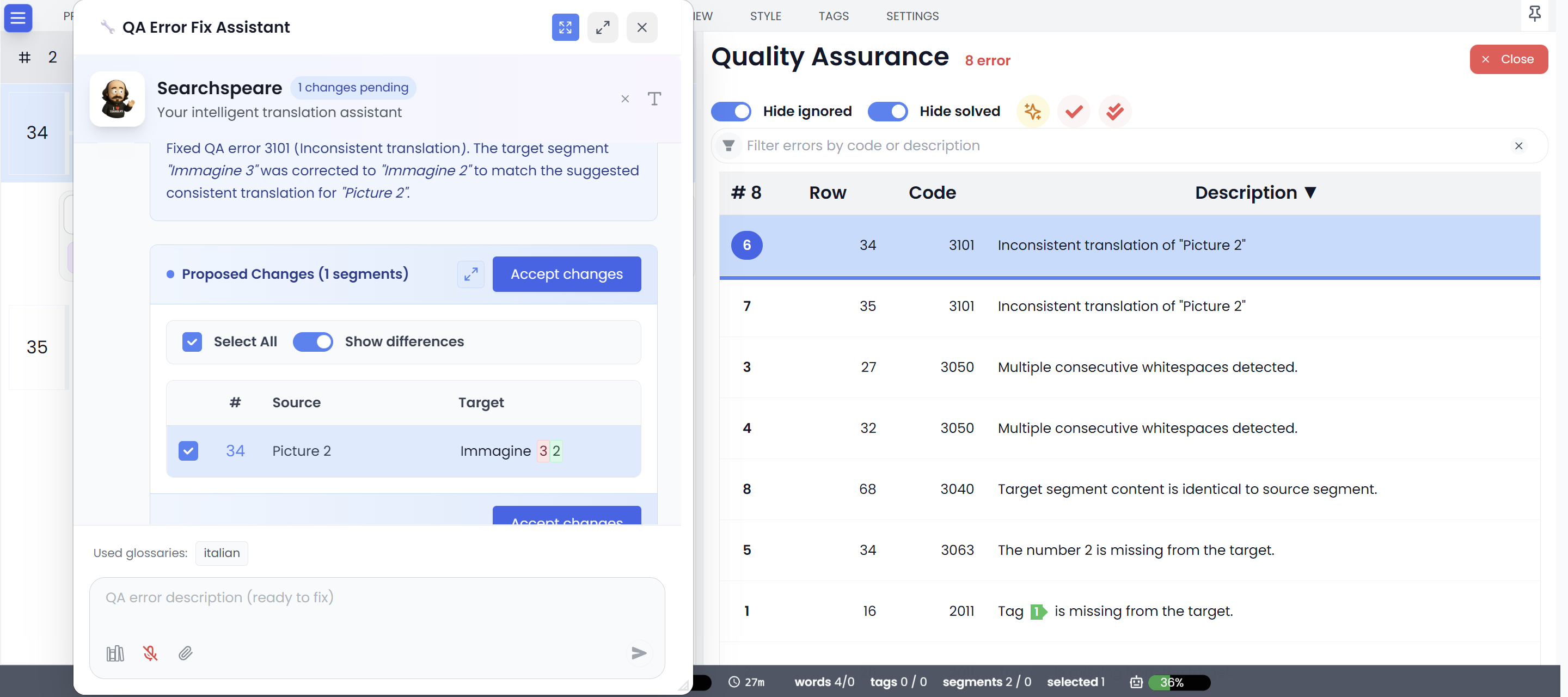
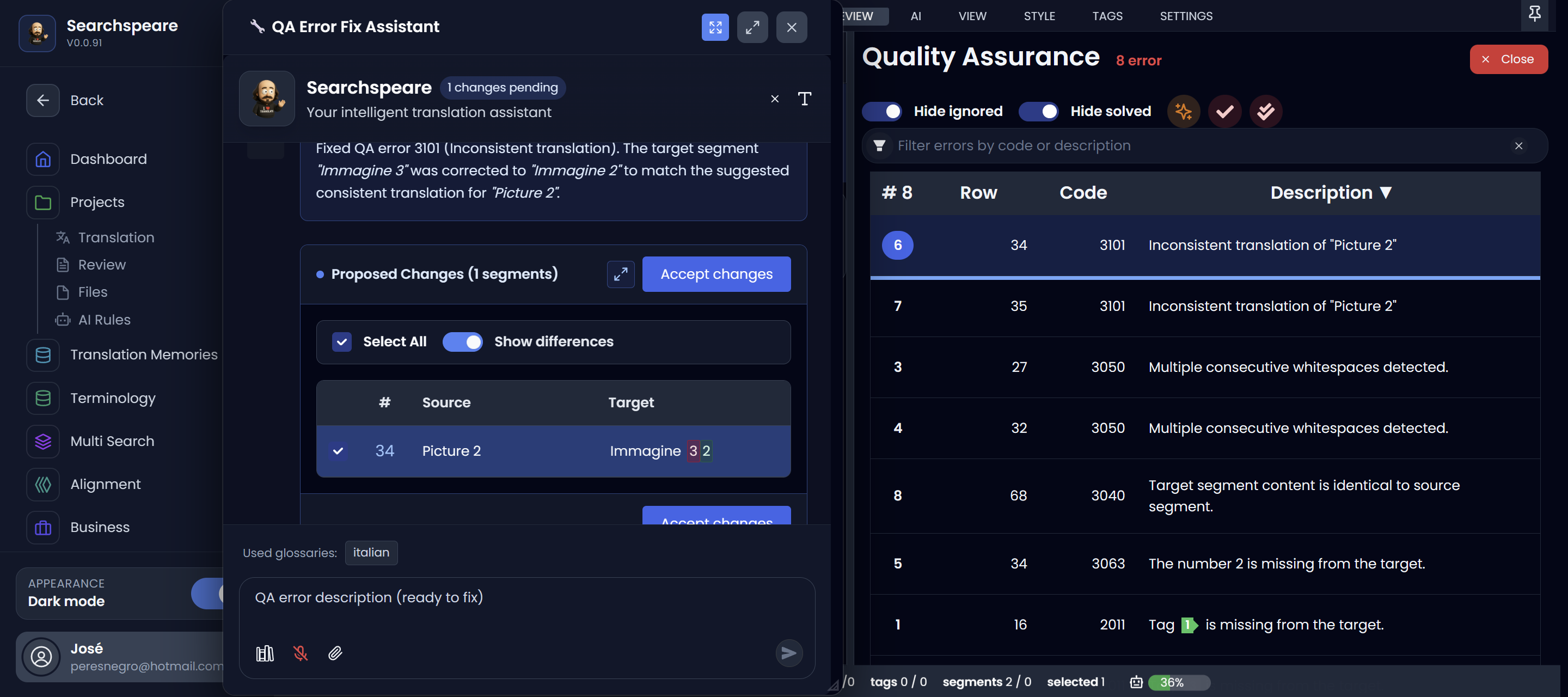
Ask Searchspeare to fix selected QA errors
Searchspeare can also fix QA issues for you.
This works well because QA errors include a description of what is wrong. When you select one or more errors and ask Searchspeare to fix them, it can use that description to understand what to change and apply the correction to the selected items.