Powerful, user-friendly editor
Let’s be honest: translators spend most of their day in the editor.
So Searchspeare is designed around a simple idea: keep your hands and your eyes close to the segment.
That means:
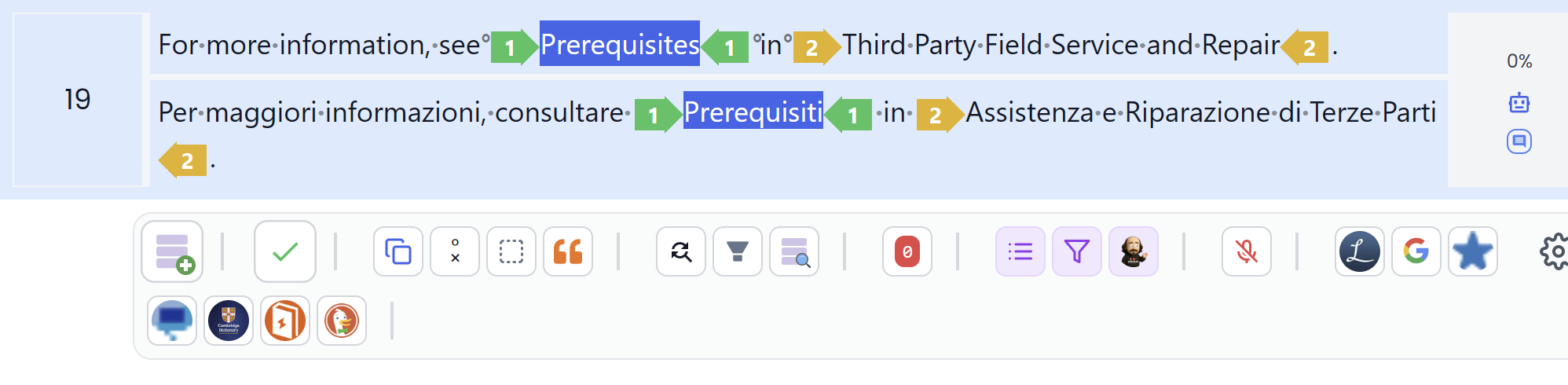
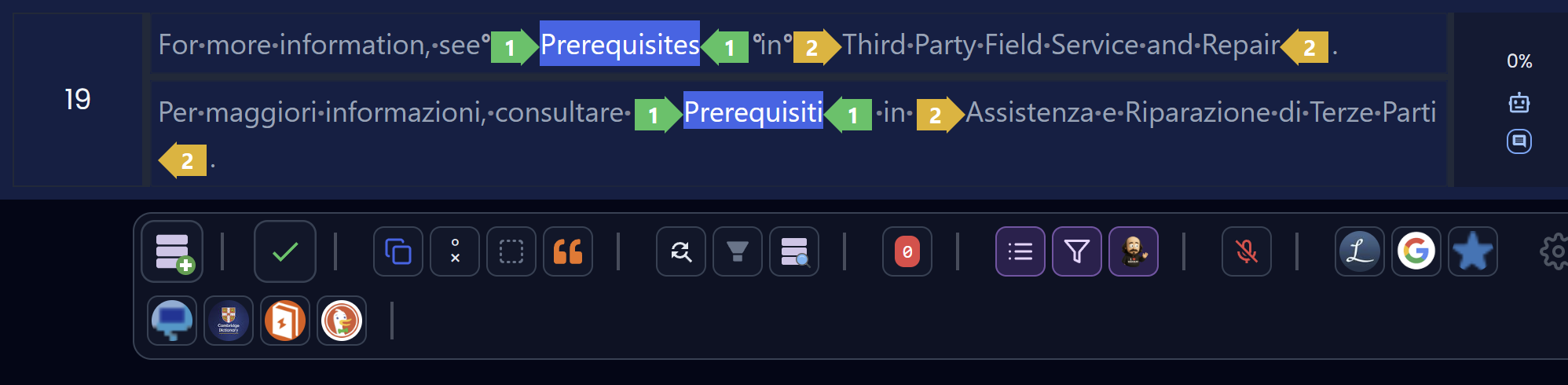
- You get “micro-tools” right under the segment (even if you’re a shortcut ninja, clicking nearby is often faster).
- You can select text and run useful actions immediately (search, terminology, formatting, context-aware suggestions).
- Small details (like auto-wrapping quotes/brackets or moving words cleanly) save time dozens of times per hour.
What this unlocks
- Stay in flow (keyboard-first if you like, click-first if you prefer)
- Faster “micro edits” without dialog overload
- Clear presentation focused on translation work, not clutter
Focus: keep the active segment where you need it
By default, Searchspeare keeps the selected translation unit centered on screen. This makes scanning source/target and surrounding context easier, especially in long sessions.
If you prefer a different behavior, you can configure this.
Jump back instantly (Escape)
If you scroll away from the selected segment and want to return exactly where you were, just press Escape.
Searchspeare will scroll back to the currently selected row.
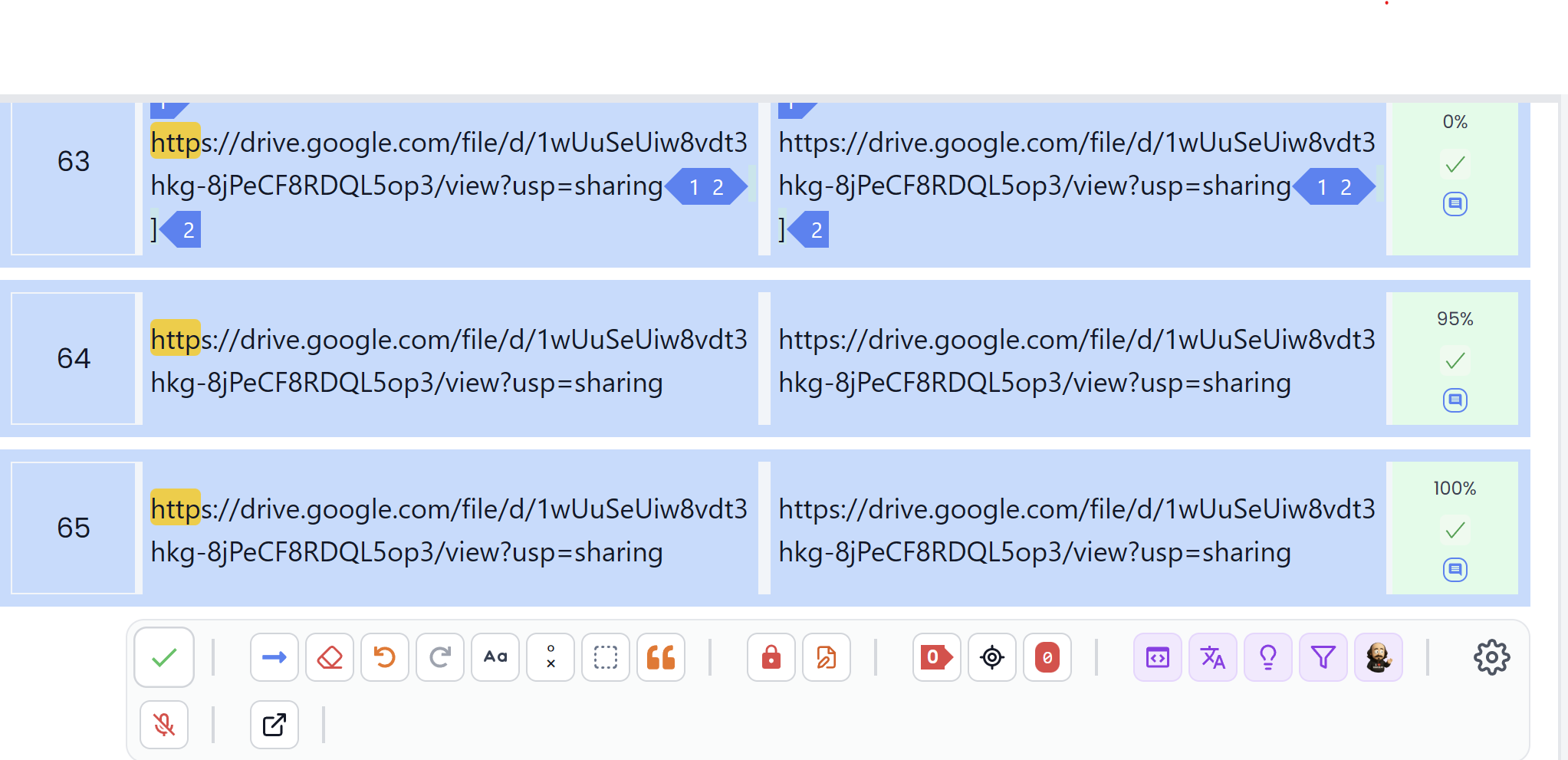
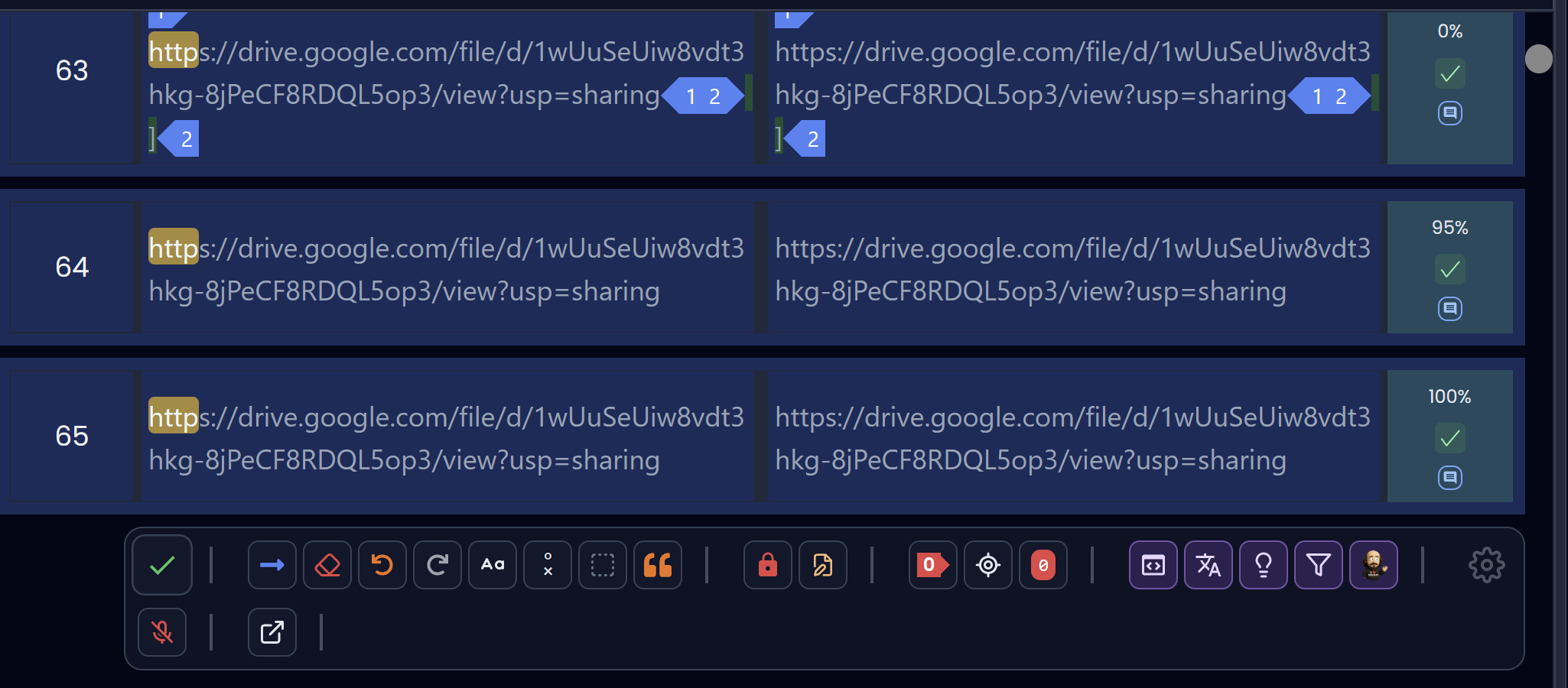
Tools live next to the text (segment toolbar)
Many actions you typically reach through menus are available right inside the segment toolbar.


This matters because the editor is where decisions happen: confirming, formatting, searching, fixing, and refining.
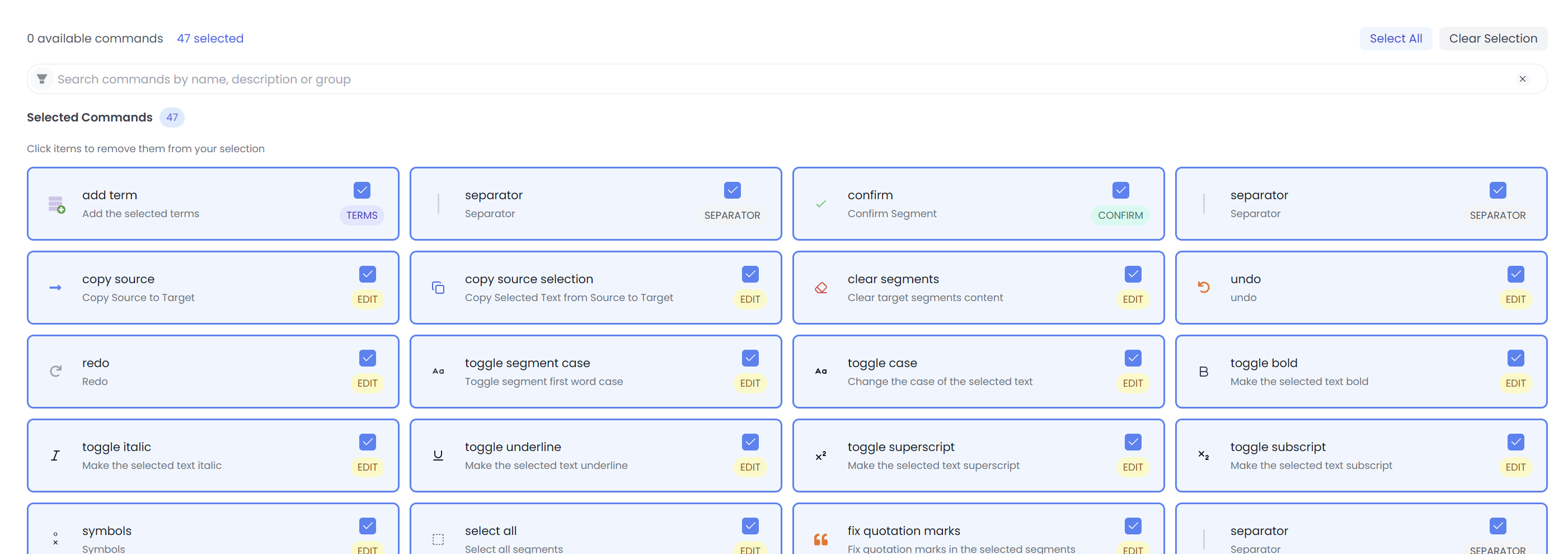
For a full catalog of these tools, see: The segments toolbar.
Select text, then do real work
To select a word (or expand a selection), hold Ctrl+Shift and use ← / →.
Switch between source and target editors (Tab)
Inside the active segment, you can jump between editors without touching the mouse:
- Press
Tabto move focus between the source and target editors.
This makes it easy to quickly select text in source or target and run actions that depend on the active editor/selection.
Once text is selected, you can do a lot without leaving the editor, for example:
- Open external resources (Linguee, IATE, etc.) with the selected term.
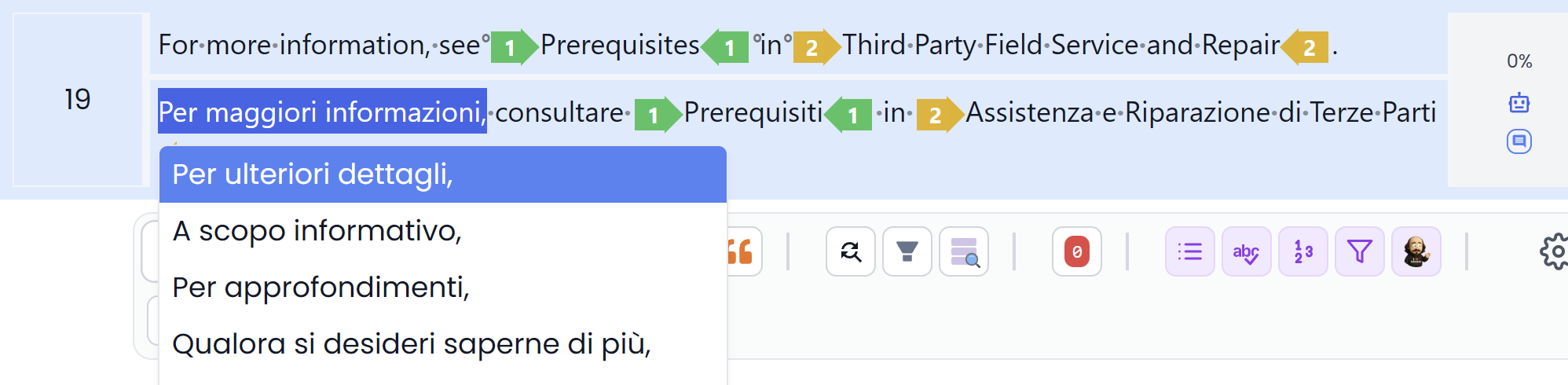
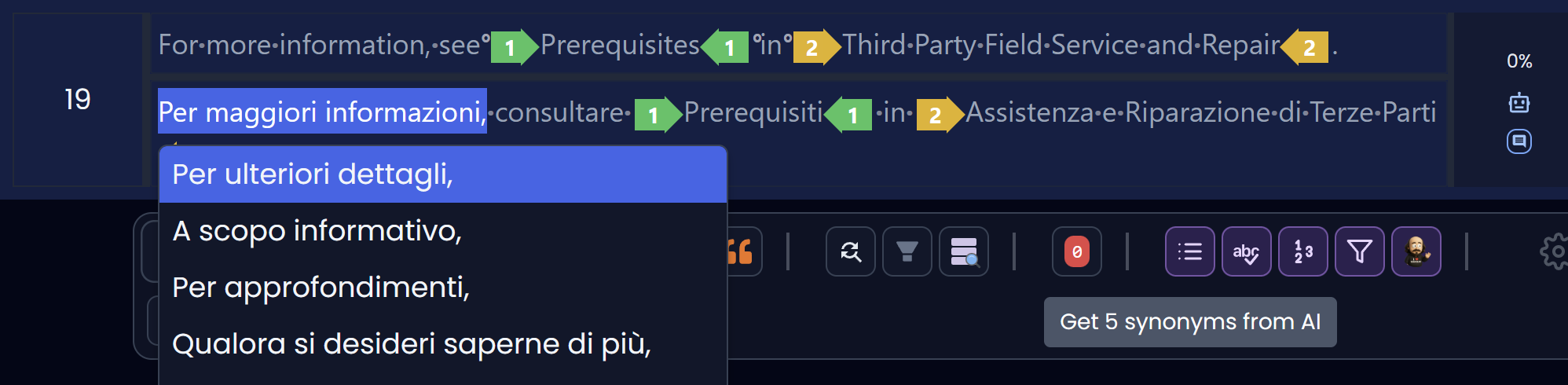
- Pull context-aware “same meaning” fragments from Searchspeare (often more useful than a generic synonyms list).
- Apply formatting and case changes.
- Create terms from a source/target pair.
Open external links from the selection
Searchspeare can open search pages directly from what you highlighted.
Context-aware alternatives (better than “just synonyms”)
Instead of a generic synonyms dictionary, Searchspeare can surface same-meaning fragments that are grounded in real usage and context.
Add terms fast (Ctrl+Q)
Select a source term and a target term, then press Ctrl+Q (or use the toolbar) to save it as terminology.
Little details that make you faster
These aren’t flashy features, but they remove constant friction:
- Auto-wrap selection: select a word and type an opening quote/brace/parenthesis — Searchspeare encloses the selection with the matching pair.
- Works for quotes and different bracket types (rounded, square, etc.).
- Move words cleanly: select a word and press
Ctrl+←orCtrl+→to move it within the segment.- Searchspeare adjusts spacing and capitalization so the result stays tidy.
One editor or many (same power)
You can work with one editor or multiple editors at the same time.
Everything you can do in one editor (selections, actions, tools) works the same way across multiple editors.
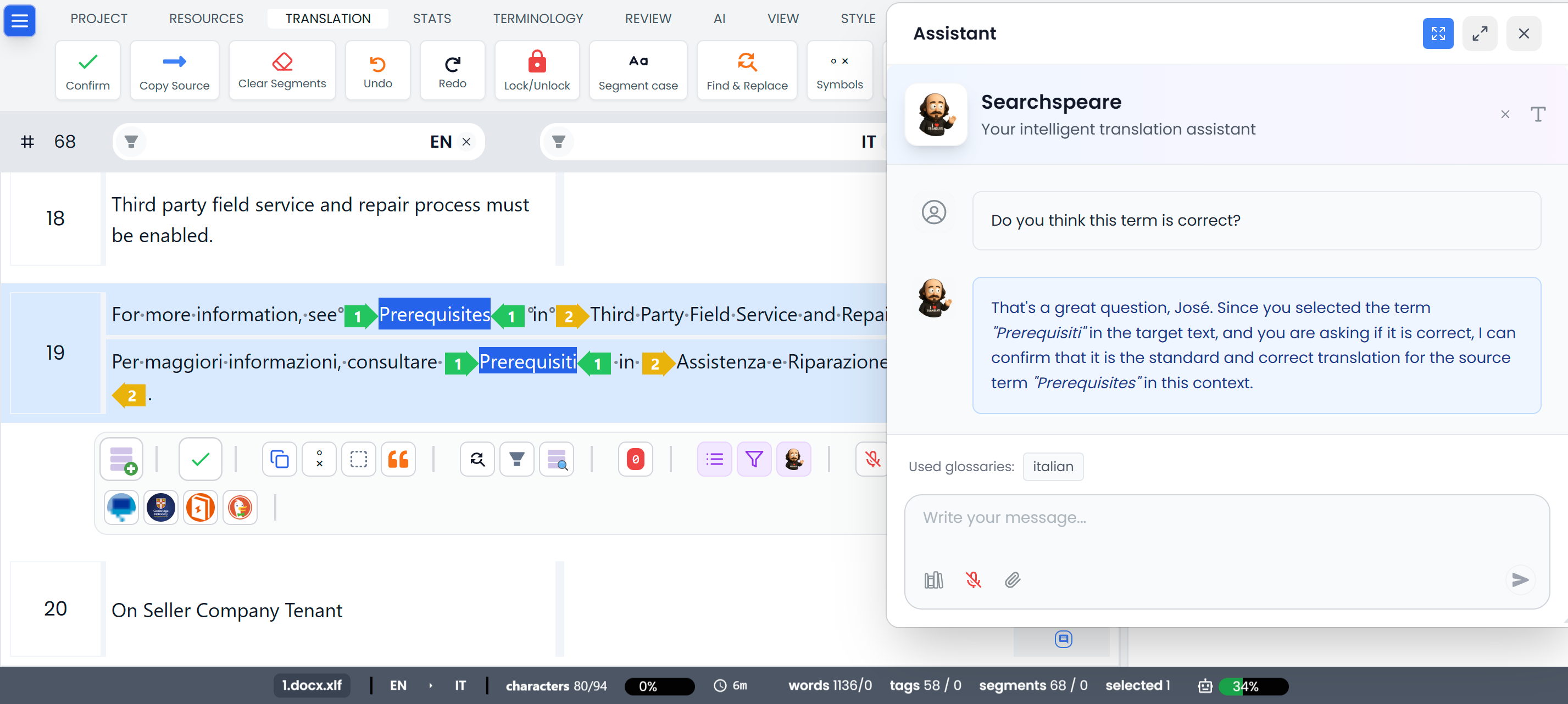
Chat about selected segments (single or bulk)
You can start a conversation with Searchspeare about the currently selected segment(s) — one or many.
Searchspeare already has access to the selected content and surrounding context, so you don’t have to copy/paste anything. Ask questions, request changes, or run bulk adjustments.